Starting with the release of Strategy ONE (March 2024), dossiers are also known as dashboards.
You can import data directly into Strategy Web, for use in creating dossiers, documents, and reports. You can import data from many different data sources, such as Excel files, databases, or Salesforce.com reports, or by using the results of custom database queries. You import the data into Strategy with minimum project design requirements.
Some common uses for this quick import feature include:
• Quickly integrating data into Strategy as part of a proof-of-concept design
• Immediately building dossiers, documents, and reports without having to "model" the data source
• Importing and reporting on personalized data from various data sources
• Combining and analyzing personalized data with your project data
• Modifying the data in your data source, then republishing the data to quickly update your dossiers, documents, and reports
In Strategy Web 10.x, columns being imported through data import can be mapped to existing attributes in the project's schema. This allows users to combine data from data import sources and relational warehouse tables.
Attributes defined on a project schema, generally by an admin, are referred to as project attributes. Project attributes do not include attributes defined in other data import cubes, dashboards etc.
You can map an imported attribute within a dataset to an existing project attribute and its corresponding attribute forms. The dashboard that contains the dataset must be connected to a remote environment and not stored locally.
1. Open the Preview dialog for the dataset you want to modify.
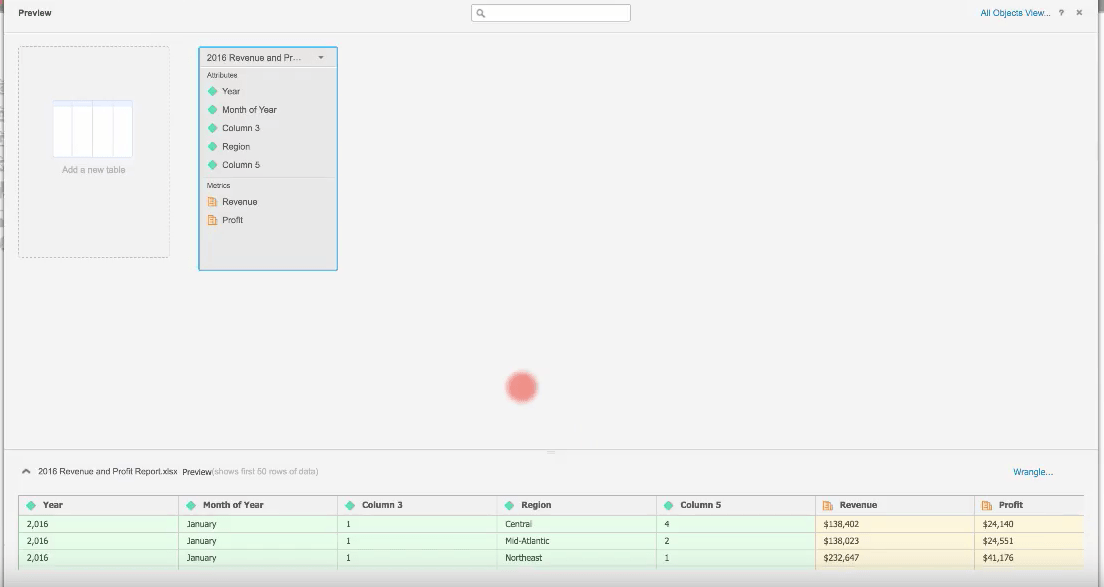
2. In the top pane, right-click the attribute you want to map to an existing project attribute. For eg: Year attribute.
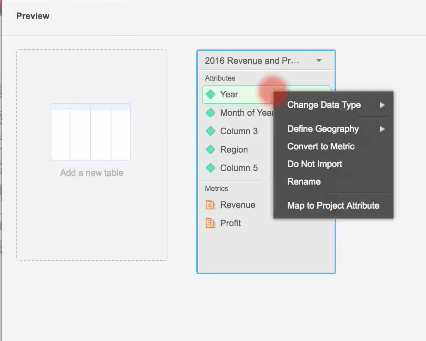
3.Click Map to Project Attribute. The Map to Project Attribute dialog opens.
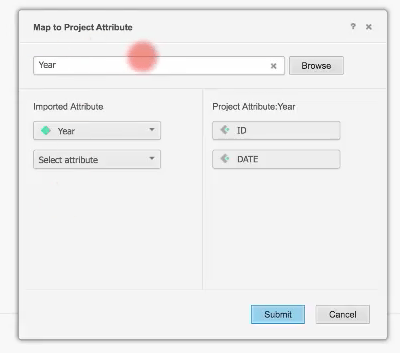
4. Search for a project attribute by entering its name in top field and pressing the Enter key.
5. Select the project attribute from the drop-down.
The attribute you selected on the Preview dialog appears in the left pane. The project attribute name appears at the top of the right pane. The corresponding attribute forms appear beneath it.
6.Select additional attributes in the left pane, if necessary.
7.Click OK.
Article Number : KB39514
KB39514 KB439514
