SYMPTOM
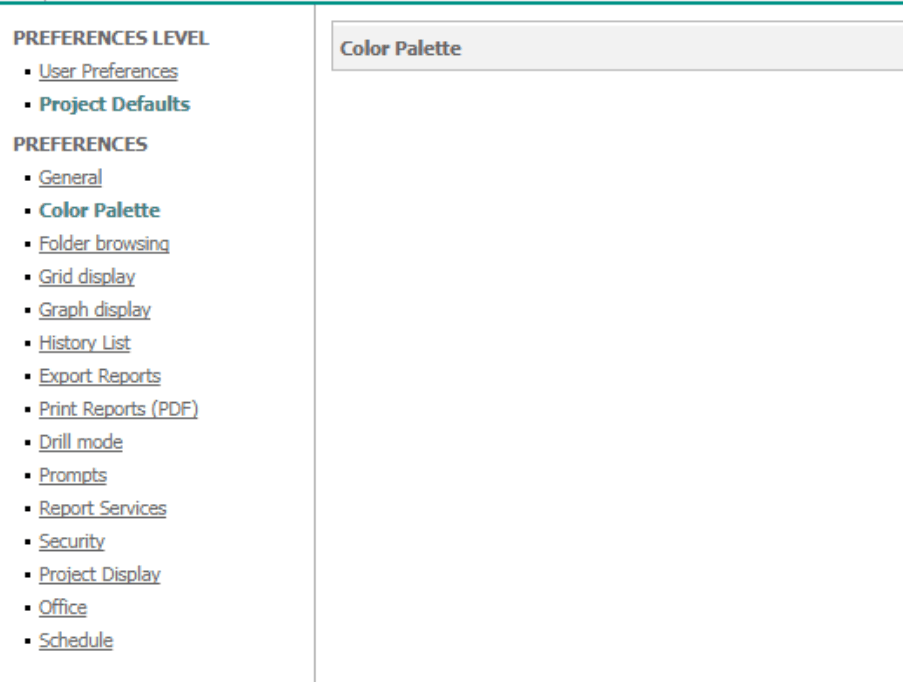
Color Palettes do not show under Strategy Web preferences \ Project Defaults \ Color Palette just for some of the projects:
CAUSE
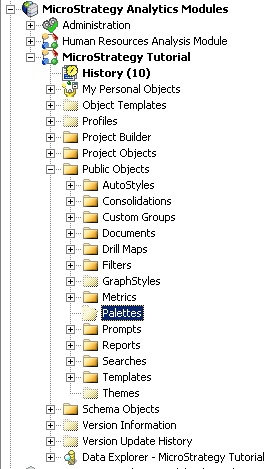
Color palettes are stored in the metadata. They are saved at the project level, under Public Objects\Palettes, although they are not exposed in Developer. You will only be able to see the Palettes folder (which is hidden) but no palette objects will be displayed.
For any Color Palette in the Project Defaults Preferences you have to link it to one or more themes (light and dark themes are the ones by default). Internally this relationship will be stored in the theme object.
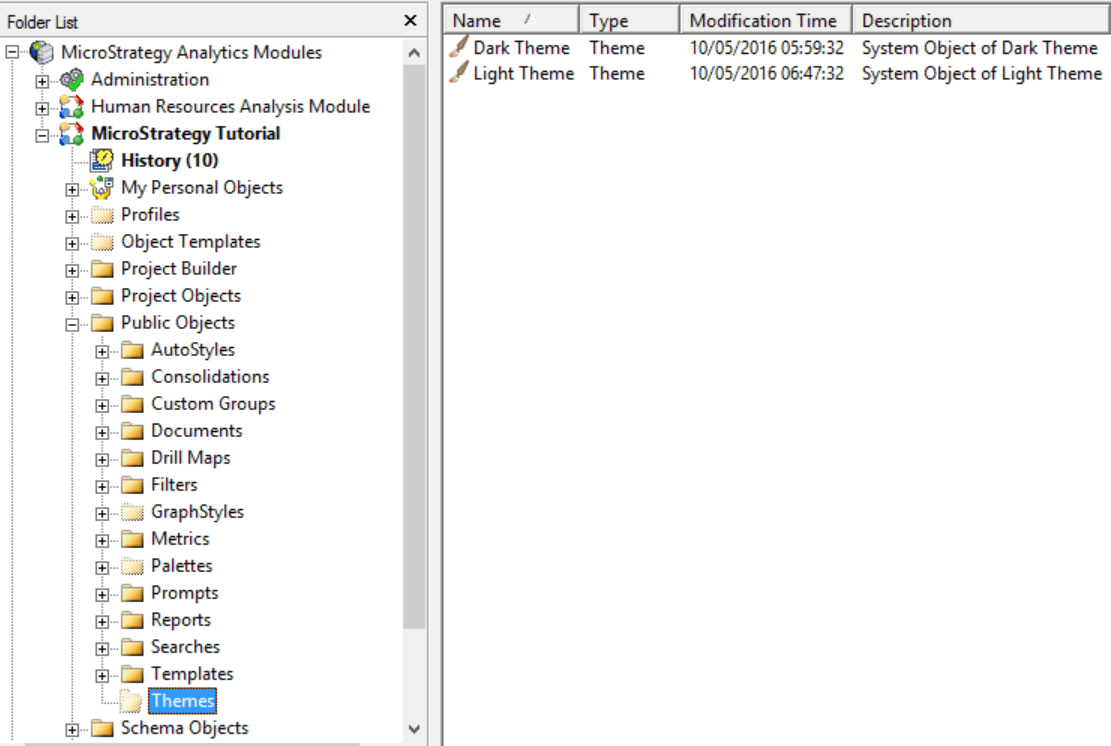
The most likely cause of this issue is that Themes have been deleted for the projects where they are missing in Web Administrator.
ACTION
Palettes can be migrated from a Project where they exist using Object Manager but since they are not exposed through the GUI, you will not be able to migrate them as standalone objects.
If you need to migrate a palette between environments, you will have to migrate the associated themes. These are the steps in Object Manager:
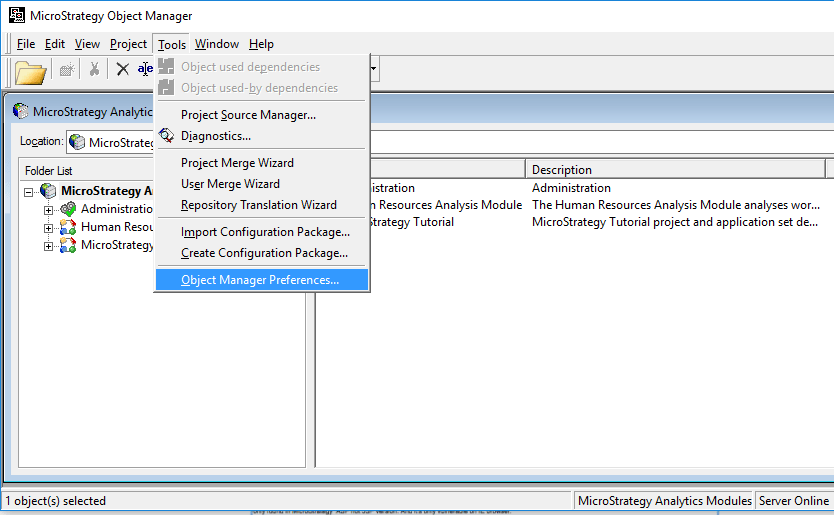
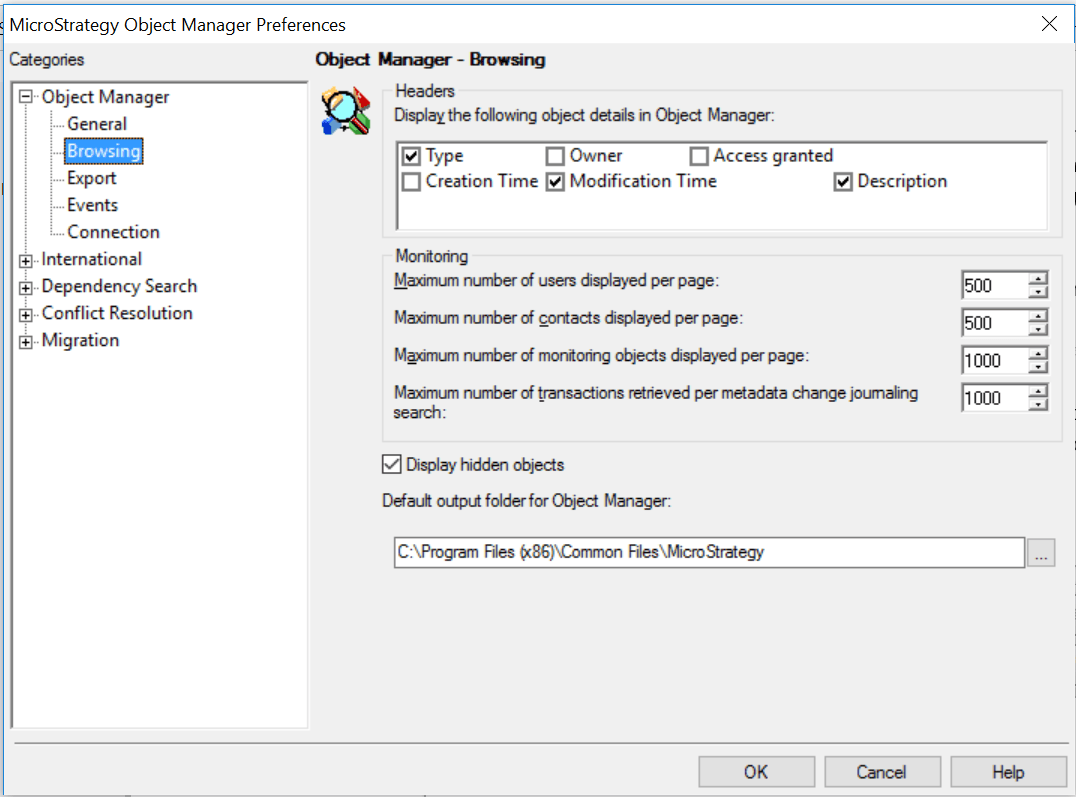
1. Go to Tools menu > Object Manager Preferences and in the Browsing section, check "Display hidden objects".
2. Access the source project and browse to the themes folder: Public Objects\Themes.
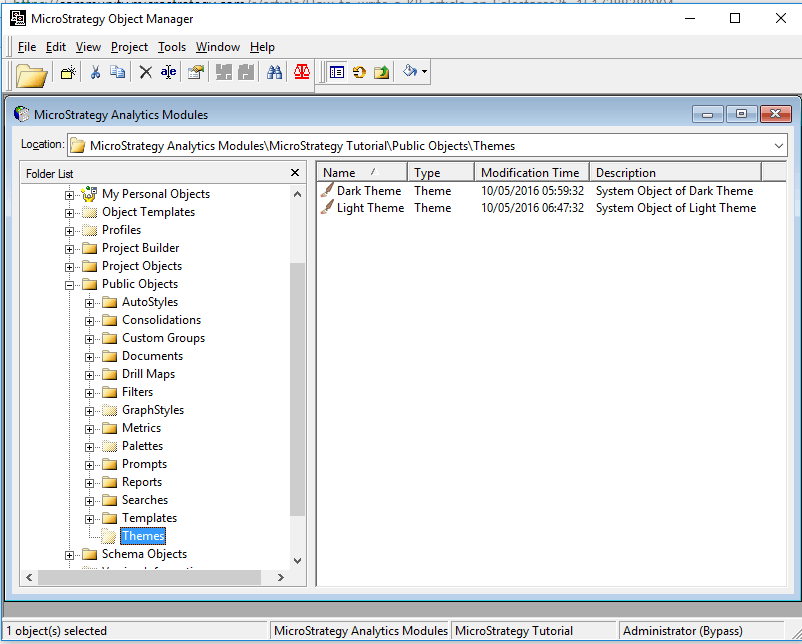
3. Drag and drop the themes that use the color palette to the destination project. So if the palette is linked to two themes, we will migrate the two of them.
Alternatively, an OM package can be created and imported into the destination project. The action should be set to "Replace".
Article Reference Number:
KB439558
