EducationSoftwareStrategy.com
StrategyCommunity

Knowledge Base

Product

Community

Knowledge Base

TopicsBrowse ArticlesDeveloper Zone

Product

Download SoftwareProduct DocumentationSecurity Hub

Education

Tutorial VideosSolution GalleryEducation courses

Community

GuidelinesGrandmastersEvents
x_social-icon_white.svglinkedin_social-icon_white.svg
Strategy logoCommunity

© Strategy Inc. All Rights Reserved.

LegalTerms of UsePrivacy Policy
  1. Home
  2. Topics

KB439607: How to mask data using internationalization


Jaime Perez

Vice President, Product Owner • MicroStrategy


The data internationalization feature is mainly used to translate the data displayed in a report, but it can also be used to mask sensitive data. This article will explain how to achieve this.

A very common request when using sensitive data like SSN or Credit Cards is the ability to mask this data to certain users without completely removing it from a report, as the latter can have calculation implications on metrics. 
One simple way of masking data is to use Strategy's Data Internationalization feature. The method described below will explain how to use a new "language" as a mask for data. This method can be extended to as many columns of data as needed by just repeating the process. 
For this example, LU_ITEM table from Strategy Tutorial is used, and UPC column has been masked. 
1. Preparing the data in the WH.
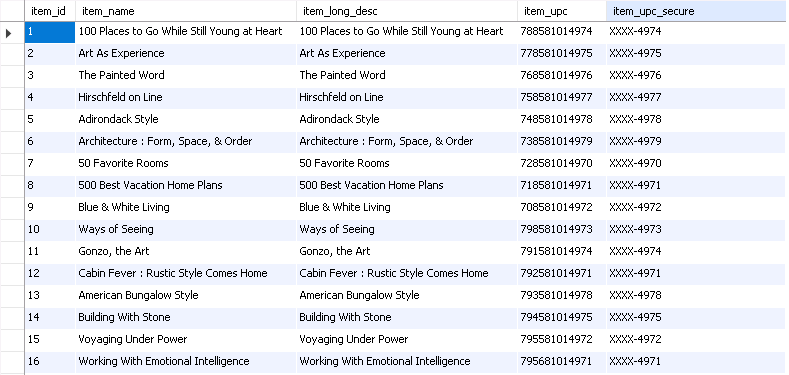
  • The standard LU_ITEM table in Tutorial consists of 4 columns: item_id, item_name, item_long_desc, and item_upc.
  • Since the data needs to be masked at the source,  A view of LU_ITEM called LU_ITEM_SECURE is created and in the view definition, created a 5th column called item_upc_secure that is a concatenation of "XXXX-" and a substring of the item_upc column where extracted the last four digits.
  • IMPORTANT: Data internationalization uses a column suffix to determine which column to use when executing. It is important that the masked column has the same name as the original column, but with a suffix. In this case, we have item_upc un-masked and item_upc_secure as masked. If multiple column needs to be masked, SAME SUFFIX MUST USED for all masked columns. 
  • The resulting view/table can be seen below:
ka0PW0000000hRZYAY_0EM44000000YQvl.png

2. Enable language support for the attribute. 

  • Within Strategy, open the attribute editor for the attribute that is to be masked, and then edit the form which will be masked.
  • Enable "Support multiple languages" by checking the box in the lower left corner. 
  • Click OK, Save and Close the attribute and Update Schema. 
ka0PW0000000hRZYAY_0EM44000000YQwA.png

For Workstation:
"Support multiple languages" option is present as "Multiple Languages" toggle in the additional properties.
3. Enable Internationalization for the project. 
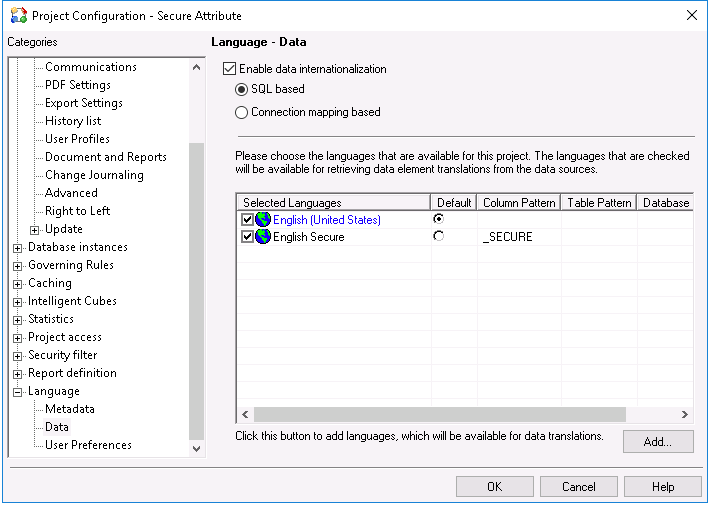
  • Go to Project Configuration -> Language -> Data.
  • Check the "Enable data internationalization" box at the top and select "SQL based."
  • Add a new Language based on the current project language. In the example below,  "English Secure" is added as a language, based off of "English (United States)." 
  • Under the Column Pattern cell, use the suffix you chose in step #1. In this case, we used "_secure." 
ka0PW0000000hRZYAY_0EM44000000YQwK.png
ka0PW0000000hRZYAY_0EM44000000YQwA.png

For Workstation:
Similar setting can be found in the All settings and by searching language in the search bar on top of the window.
NOTE: Setting the language to default will be an Admin decision. Whatever language is set to default is what all users will use, and the other language will need to be set manually at the user or group level.
4. Set the language preference at the user or group level. 

  • For each user or user group that you want to see masked data, the default data language preference in the user or group editor window needs to be changed. 
  • Open the User Editor and go to International -> Language and select the new language created in step #3 in the "data" (bottom) drop down. 
ka0PW0000000hRZYAY_0EM44000000YQwt.png

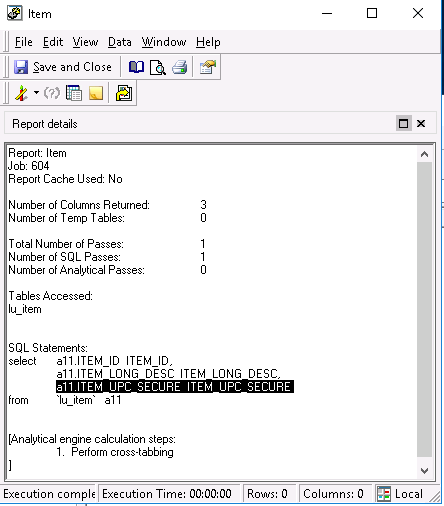
After these steps are completed, users assigned the "masked" language will now see the masked column data when executing a report. 
Unsecured User:

ka0PW0000000hRZYAY_0EM44000000YQx3.png


ka0PW0000000hRZYAY_0EM44000000YQxI.png

Secured User:

ka0PW0000000hRZYAY_0EM44000000YQxN.png


ka0PW0000000hRZYAY_0EM44000000YQxX.png

  KB439607


Comment

0 comments

Details

Knowledge Article

Published:

February 7, 2018

Last Updated:

February 13, 2024