Starting with the release of Strategy ONE (March 2024), dossiers are also known as dashboards.
After creating a Dossier with an image and sharing it to Library, some of the images are not been properly displayed.
Even images that have been copied to "C:\Program Files (x86)\Common Files\MicroStrategy\Tomcat\apache-tomcat-XX.XX.XX\webapps\MicroStrategyLibrary\images" appear broken.
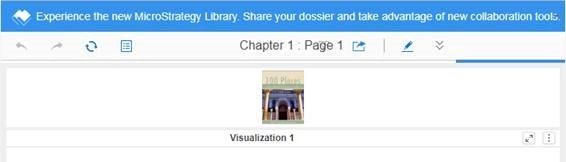
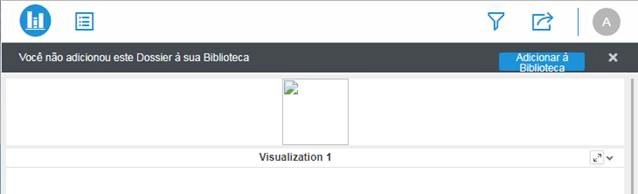
View the following images for reference:
Note: In Dossier view, the image appears properly displayed.
Note: In Library view, the image appears broken.
1. Create a new Dossier.
2. Insert an Image Container. You can choose the add image icon.
3. Insert the following URL to refer to an image: ./Images/XXX.jpg
4. Run that Dossier in presentation view mode and see the image as expected.
5. Save the newly created Dossier.
6. Share Dossier as a Library Link.
7. Launch the Dossier on Strategy Library and see that the image is no longer shown (broken image).
7. Copy to "C:\Program Files (x86)\Common Files\MicroStrategy\Tomcat\apache-tomcat-XX.XX.XX\webapps\MicroStrategyLibrary\images".
8. Images in Library are still broken.
The problem of the image not showing is caused by the url ./Images/XXX.jpg used as the image source when creating the Dossier. The images folder on the Library web server is /images ("i", not "I"). On the ASP web server, the image folder is \MicroStrategy\Web ASPx\Images, so users can use ./Images/XXX.jpg to show the inserted image of Dossier in platform web. However, on the Tomcat web server of Library, the image folder is /images. The user needs to copy and paste the images to the /images folder of Library web server and then use ./images/XXX.jpg to enable the proper display of the Dossier images in Library.
Interested in learning more about Library? Visit the Learning Center on Community!
