EducationSoftwareStrategy.com
StrategyCommunity

Knowledge Base

Product

Community

Knowledge Base

TopicsBrowse ArticlesDeveloper Zone

Product

Download SoftwareProduct DocumentationSecurity Hub

Education

Tutorial VideosSolution GalleryEducation courses

Community

GuidelinesGrandmastersEvents
x_social-icon_white.svglinkedin_social-icon_white.svg
Strategy logoCommunity

© Strategy Inc. All Rights Reserved.

LegalTerms of UsePrivacy Policy
  1. Home
  2. Topics

KB439962: How to Activate MicroStrategy Geospatial Services


Community Admin

• Strategy


This article explains how to activate MicroStrategy Geospatial Services.

Starting with the release of Strategy ONE (March 2024), dossiers are also known as dashboards.

Activating Strategy Geospatial Services


Strategy 10.11 introduced Strategy Geospatial Services, a mapping capability powered by Mapbox. This enhanced map visualization is available for dossiers on all interfaces including Strategy Desktop, Workstation, Web, and Library (Mobile included). With Strategy Geospatial Services, Strategy offers advanced geospatial analytics features that allow users to get more out of their location data.
This feature is available in addition to the out-of-the-box ESRI maps. To get started, follow along with this article. 
 

Strategy Geospatial Services allows users to:

  • Plot polygon shapes for most countries, down to the zip code level
  • Perform powerful interaction between layers (progressively hide or show data layers as zoom levels change)
  • Identify and resolve location name conflicts
  • Add thresholds to data points, size markers for metrics, and color by for both attributes and metrics
  • Fine tune clustering behavior when aggregating data on a map
  • Use mapping across all devices
  • Rotate or tilt the map, and zoom in or out more fluidly than ever before. 
  • Reset map to original zoom level with just one click
  • Use 10 different basemap styles to best visualize information


Strategy Geospatial Services will be available as an add-on service, however you can use the trial version for testing.
Follow the steps below to get started. Note that the steps below are not necessary for Strategy Workstation and Strategy Desktop. Strategy Geospatial Services is automatically enabled in these.
 

Prerequisites

Before configuring cloud-based Strategy Geospatial maps, obtain a key by following the steps below:
 

  • Navigate to the MicroStrategy Download site.
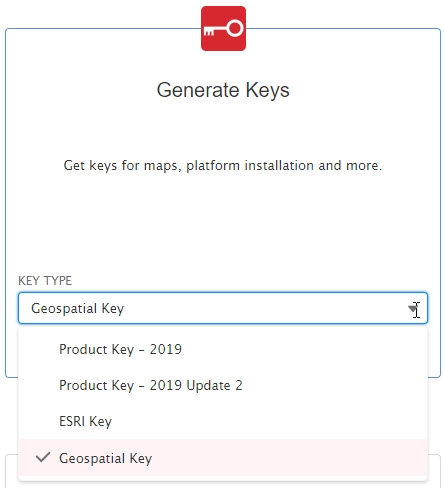
  • Under Generate Keys, use the drop-down to select Geospatial Key.
ka0PW0000001Jj5YAE_0EM2R000000lR2T.jpeg
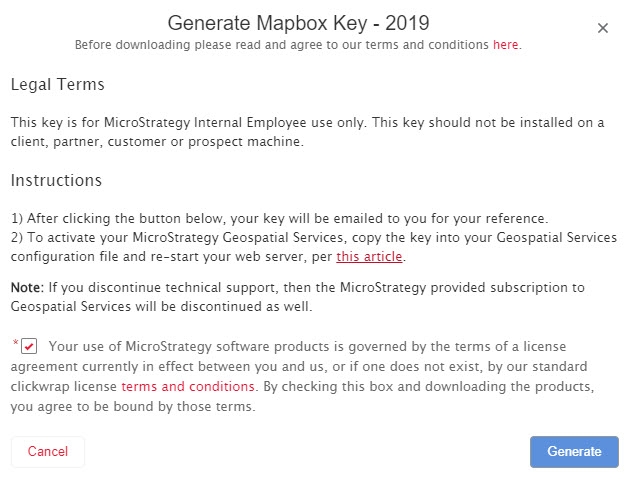
  • Click Request. The Generate Mapbox Key dialog opens.
ka0PW0000001Jj5YAE_0EM2R000000lR2d.jpeg


  1. Click Generate.

Configuration Steps

  1. Create ConnectorForMap following the tutorial.
  2. Browse to the mapConfig.xml file for Strategy Web, located by default in:
    Windows: \Strategy\WEB ASPx\plugins\ConnectorForMap\WEB-INF\xml\config
    Linux: /opt/apache/tomcat/apache-tomcat-x.x.xx/webapps/Strategy/plugins/ConnectorForMap/WEB-INF/xml/config/mapConfig.xml
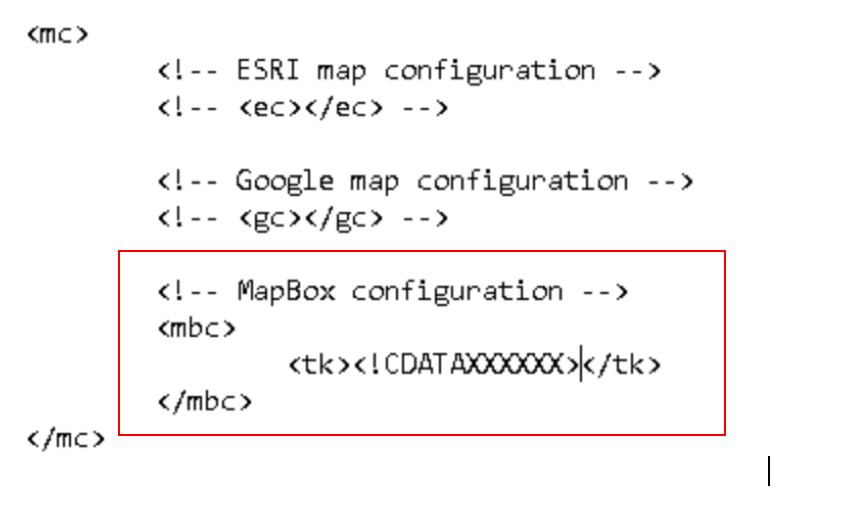
  3. Edit the mapConfig.xml file in any text editor and enter the key obtained from the section above into the configuration file between the <tk> nodes under Mapbox configuration section, like shown in the image below:


ka0PW0000001Jj5YAE_0EM44000000A5Dx.png


  1. Browse to the mapConfig.xml file, or Strategy Library, located by default in:

    \StrategyLibrary\WEB-INF\xml\config 
     
  2. Edit the mapConfig.xml file in any text editor and enter the key obtained from the section above into the configuration file between the <tk> nodes, like Step 2.
  3. Restart the Web server for the changes to take effect.

Comment

0 comments

Details

Knowledge Article

Published:

March 15, 2018

Last Updated:

March 21, 2024