BACKGROUND:
Strategy strives to improve performance and scalability of its platform in every release, while ensuring maximum data integrity, stability, and security. To achieve this, our in-memory and SQL engines work very closely together to perform every calculation as efficiently as possible, pushing calculations down to the source whenever possible. To ensure the of result of every calculation is consistent regardless of whether it's performed in-memory or in the database, when publishing cubes or running live reports, and with maximum performance, it is critical that attribute elements are represented consistently in Strategy and the underlying database. To that end, Strategy 2019, starting with Data Engine version 11 (sometimes referred to as Data Engine version 2019), no longer trims trailing spaces and recommends that columns used for joins, filtering and aggregation, usually corresponding to ID forms of attributes, are stored without trailing spaces in the warehouse database.
SYMPTOM:
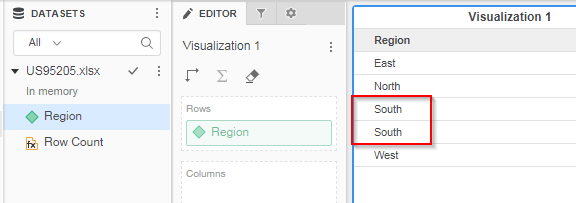
Attribute elements that include trailing spaces in the database or other data sources are not returned as separate attribute elements in the in-memory cube. For example, an attribute has two attribute elements, one with the description information “South” and the other with the description information “South ” which has an extra trailing space at the end. By selecting the "Do not trim trailing space" option, these attribute elements should be returned as separate attribute elements. Instead, any trailing spaces are ignored and only a single South attribute element is stored in the cube or displayed in the grid.
STEPS TO REPRODUCE:
1)Create a new dashboard and add external dataset.
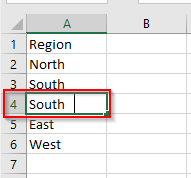
2) Choose "File from Disk" and add a simple Excel file with attribute elements that includes trailing spaces as shown below.
3) For relational databases, choose "Database" > "Pick tables" (or any of the three options available) > select the table > and then "In-memory".
4) Select finish.
5) Add an attribute to the row.
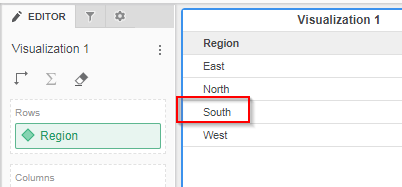
6) Notice that the trailing spaces are ignored and only a single South attribute element is returned.
CAUSE:
This is a known issue in Strategy 10.x .
WORKAROUND:
One possible workaround is to use a "Live Connect" data import cube to bring the attribute into Strategy.
ACTION:
This issue has been fixed in Strategy 10.11 or newer version. To pick up the fix,
The Filtering on String Values VLDB property is retired when either of the above settings is picked up:
This issue has been logged as Rally ID US95205 and KB40048.
