EducationSoftwareStrategy.com
StrategyCommunity

Knowledge Base

Product

Community

Knowledge Base

TopicsBrowse ArticlesDeveloper Zone

Product

Download SoftwareProduct DocumentationSecurity Hub

Education

Tutorial VideosSolution GalleryEducation courses

Community

GuidelinesGrandmastersEvents
x_social-icon_white.svglinkedin_social-icon_white.svg
Strategy logoCommunity

© Strategy Inc. All Rights Reserved.

LegalTerms of UsePrivacy Policy
  1. Home
  2. Topics

KB440407: How to do a complete unInstall of MicroStrategy Workstation on a Mac


Community Admin

• Strategy


This knowledge-based article explains how to do a complete uninstall of MicroStrategy Workstation from a Mac machine. Ready? Let's get started.

Starting with the release of Strategy ONE (March 2024), dossiers are also known as dashboards.

Description


To completely uninstall Strategy Workstation from a Mac machine after moving Workstation to Trash and clearing the trashcan, there are additional files that need to be removed from the machine. This article will help you to troubleshoot how to conduct the complete uninstall of Strategy Workstation on a Mac. Follow the below steps to remove these files from the Mac machine.
 

Uninstall Strategy Workstation

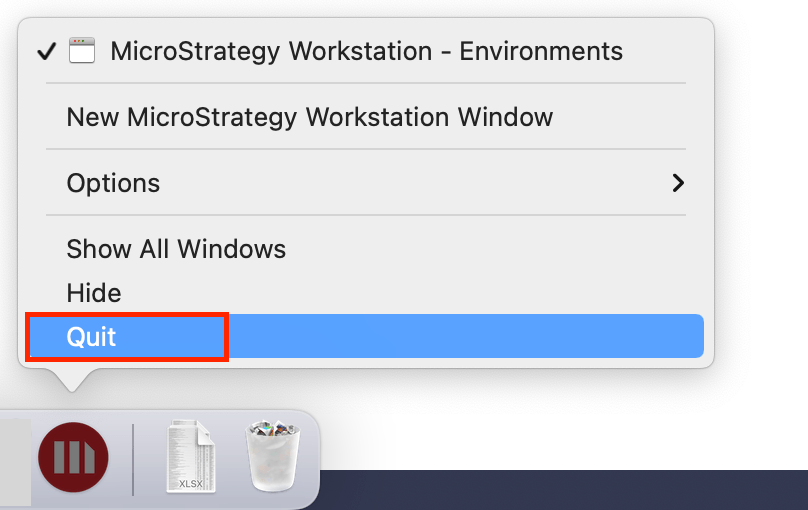
  • From the taskbar, right-click on the Workstation icon > Quit. The application cannot be removed if it is running. 
ka0PW0000001JhDYAU_0EM4W000004Y8aW.jpeg
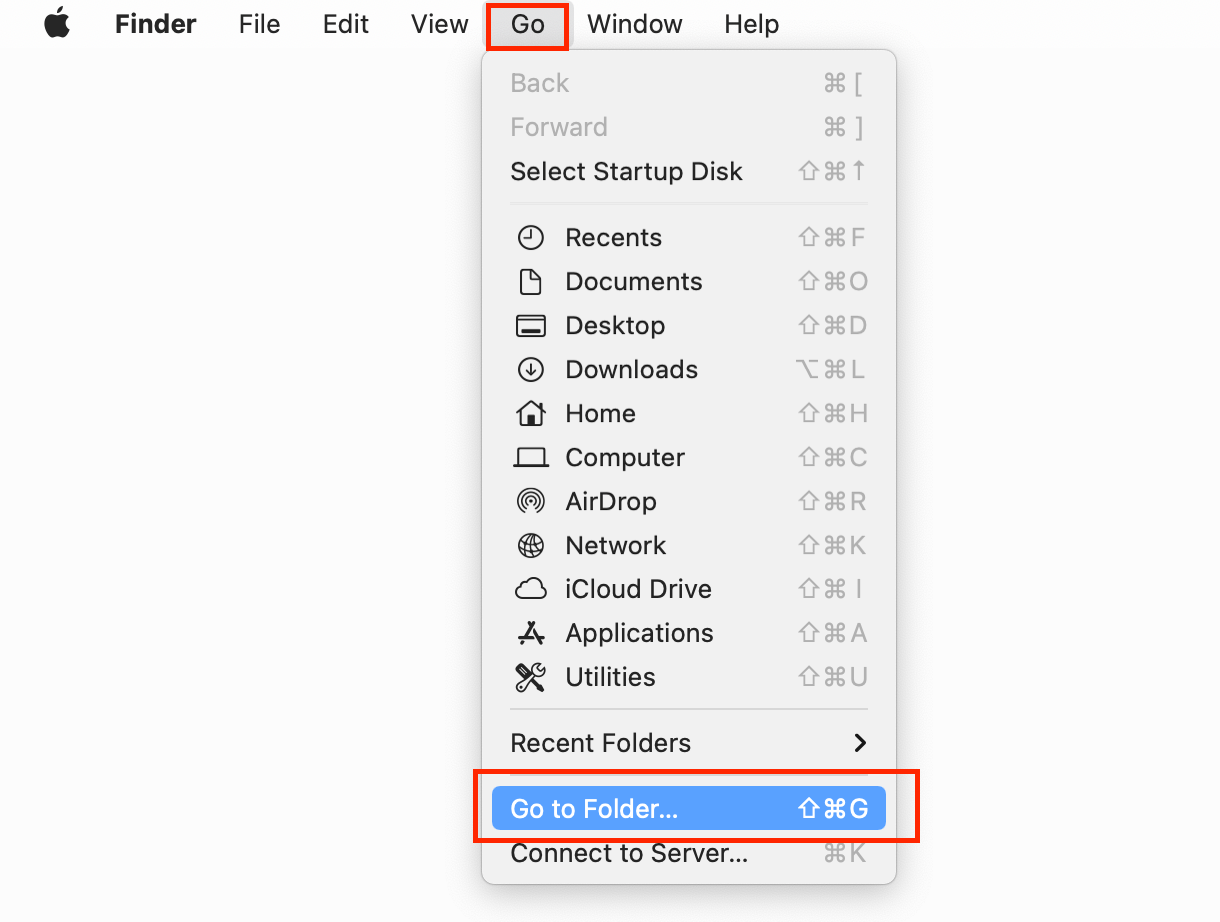
  • From the toolbar, go to Go > Go to Folder. 
ka0PW0000001JhDYAU_0EM4W000004Y8ZO.jpeg
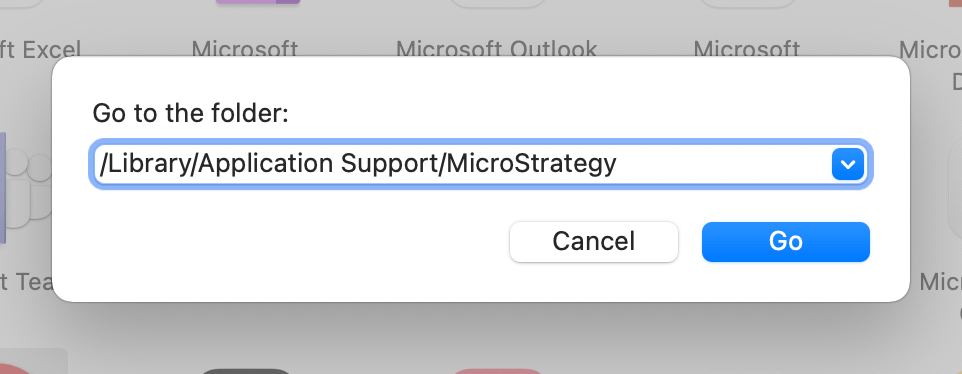
  • Go to the /Library/Application Support/Strategy folder. 
ka0PW0000001JhDYAU_0EM4W000004Y8ab.jpeg
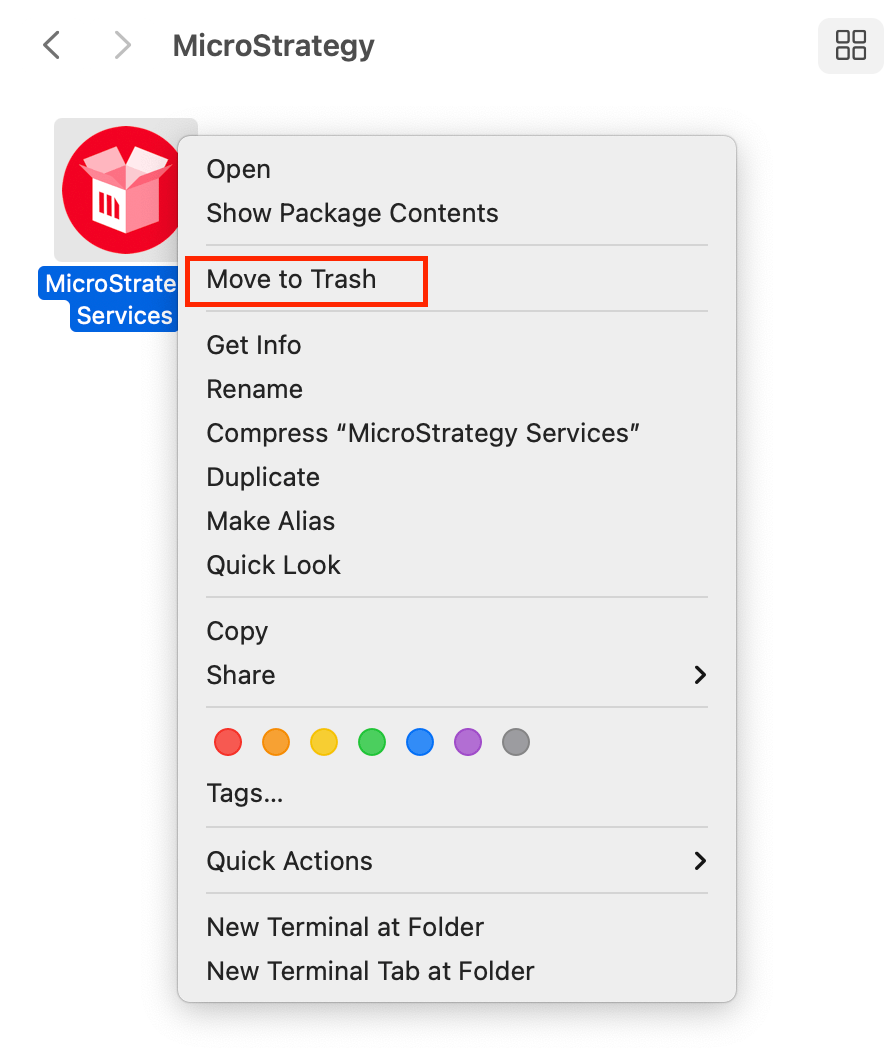
  • Right-click Strategy Services > Move to Trash. 
ka0PW0000001JhDYAU_0EM4W000004Y8al.jpeg
  • Empty the trash.
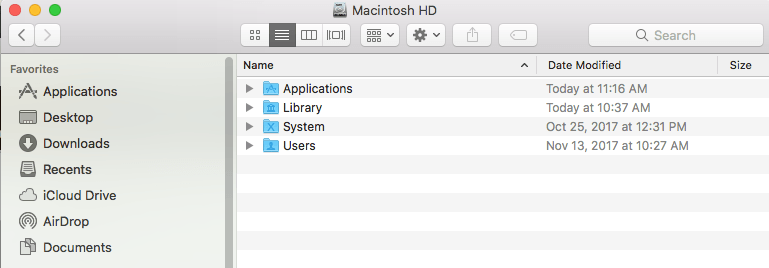
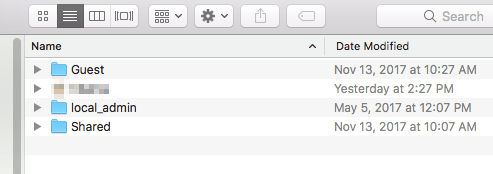
  • Navigate to the Macintosh HD (Mac Hard Drive).
  • Go to the Users folder.
  • Select the User Account being used.
ka0PW0000001JhDYAU_0EM44000000A6H2.png
ka0PW0000001JhDYAU_0EM44000000A6H7.png
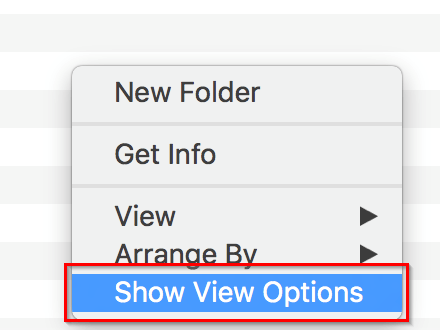
  • Right-click and select Show View Options.
ka0PW0000001JhDYAU_0EM44000000A6HM.png
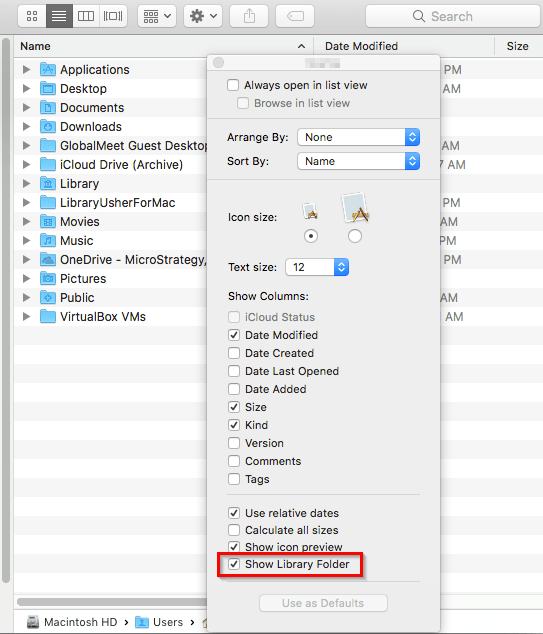
  • Select option to Show Library Folder.
ka0PW0000001JhDYAU_0EM44000000A6HC.png
  • Navigate to /Users/xxx/Library/Containers/Strategy.Workstation.DossierEditor.
  • Move the folder Strategy.Workstation.DossierEditor to Trash.


After following the steps, you should be able to do a complete uninstall of Strategy Workstation on a Mac. 
If you have any other questions, feel free to start a discussion or reach out to your Support liaison to create a case.


Comment

0 comments

Details

Knowledge Article

Published:

March 28, 2018

Last Updated:

March 21, 2024