EducationSoftwareStrategy.com
StrategyCommunity

Knowledge Base

Product

Community

Knowledge Base

TopicsBrowse ArticlesDeveloper Zone

Product

Download SoftwareProduct DocumentationSecurity Hub

Education

Tutorial VideosSolution GalleryEducation courses

Community

GuidelinesGrandmastersEvents
x_social-icon_white.svglinkedin_social-icon_white.svg
Strategy logoCommunity

© Strategy Inc. All Rights Reserved.

LegalTerms of UsePrivacy Policy
  1. Home
  2. Topics

KB440461:Marketo Certified as a Data Source for MicroStrategy Secure Enterprise 10.11


Justin Parks

Principal Product Specialist • MicroStrategy


The following knowledge base article documents certification for Marketo with MicroStrategy Secure Enterprise 10.11

Starting with the release of Strategy ONE (March 2024), dossiers are also known as dashboards.

Introduction

Marketo is a marketing automation platform that enables marketers to manage personalized multi-channel programs and campaigns to demonstrate prospects and customer trends.
Starting with Strategy Secure Enterprise 10.11, the Marketo JDBC connector is provided out of the box to connect to Marketo as a data source when doing data import on Web and Workstation.

Features Supported:

  • Data Retrieve Mode: JDBC Calls Only
  • Supported options for Data Import: Select Tables, Free Form SQL, Query Builder (In-memory)


JDBC Schema Tables:


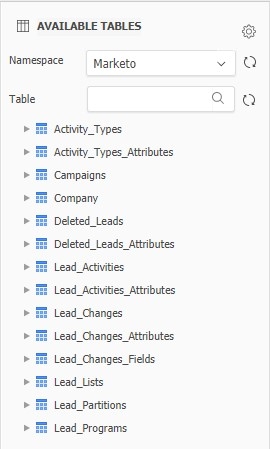
Marketo stores data in structures which do not follow the rules of traditional tables and columns. The JDBC maps Marketo data into its designed relational schema ‘Marketo’ with 17 fixed schema tables. This mapping method is complicated so lower performance is expected when querying tables with large amount of data.
Select Table List Example:
ka0PW0000001JT0YAM_0EM44000000A6i3.jpeg


Configure Marketo using JDBC on Web and Workstation:

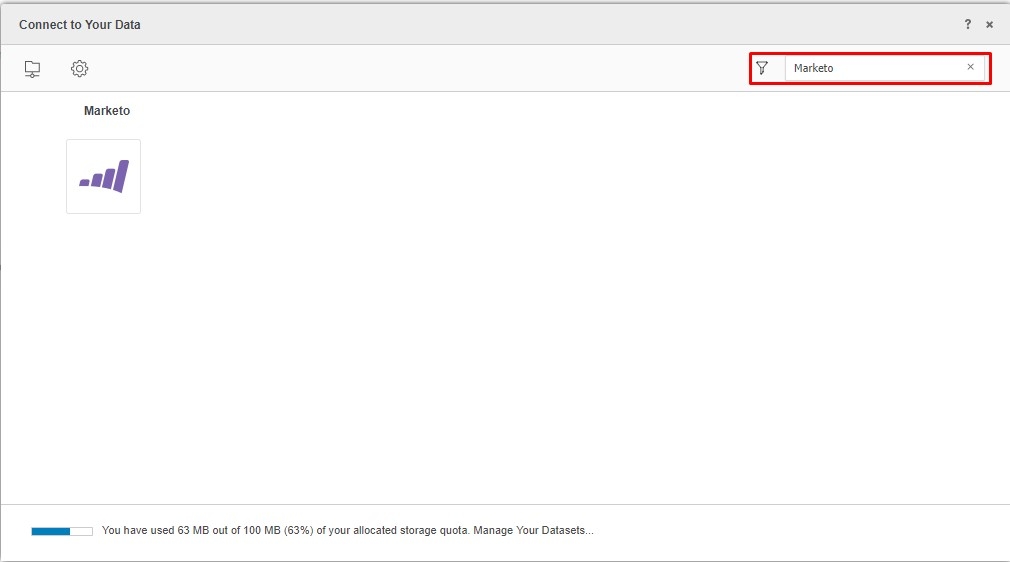
  • Click Add External Data.
  • Search ‘Marketo’ data source.
ka0PW0000001JT0YAM_0EM44000000A6iN.jpeg
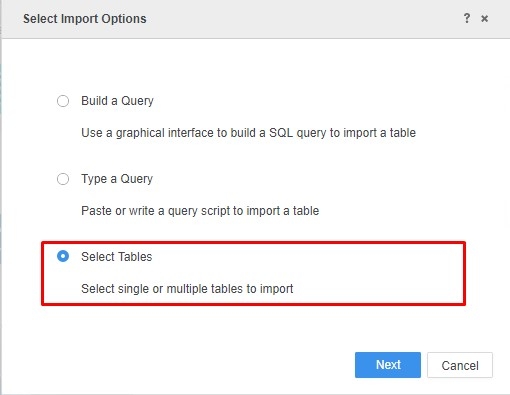
  • Choose Select Tables, Type a Query or Build a Query to import data.
ka0PW0000001JT0YAM_0EM44000000A6iS.jpeg
  • Note: It is recommend to use Select Tables to reduce joins on the driver side for performance reason.
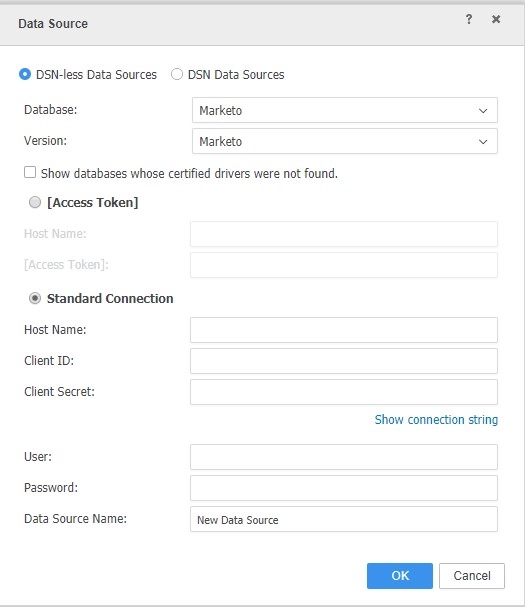
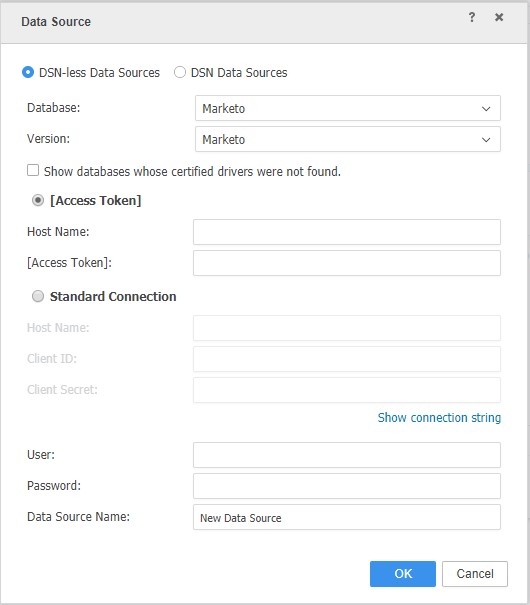
  • In the Data Source interface, select DSN-less Data Source and choose ‘Marketo’ for both Database and Version.
ka0PW0000001JT0YAM_0EM44000000A6iX.jpeg
    • Standard Access: Fill in the required Host Name, Client ID, Client Secret.
    • Access Token: Fill in the required field Host Name and Access Token.
ka0PW0000001JT0YAM_0EM44000000A6ih.jpeg
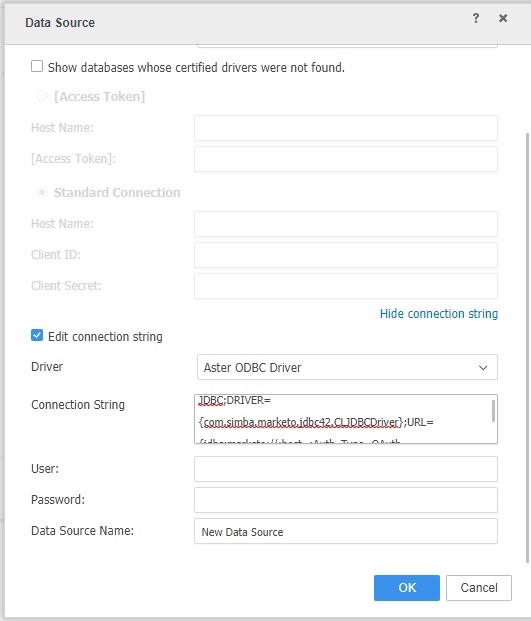
    • Edit the Connection String: Or users can click the Show connection string and select Edit connection string. To check the full JDBC connection strings or simply edit them if necessary.
ka0PW0000001JT0YAM_0EM44000000A6im.jpeg
    • Type any character on the username and password fields as they will not be used in the connection but the fields are required.
    • Give a name to the data source connection you create on Data Source Name field.
  • Click OK to see the DB role created  with the name of Data Source Name.
  • Clicking on this will allow users to connect to the Marketo data source.
  • After creating and connecting to the Marketo data source, users can start retrieving data through JDBC and then publish a Data Import Cube for dossiers, reports and documents.

    Take Select Tables as an example:
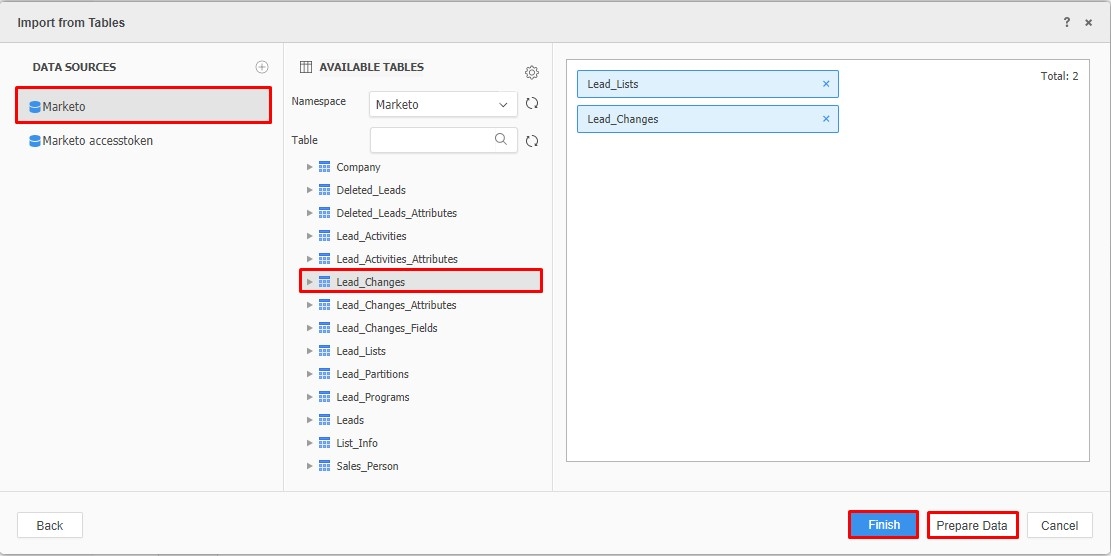
    • Click the Marketo data source that was just created and pick up tables to the right side for reports later.
ka0PW0000001JT0YAM_0EM44000000A6jL.jpeg
    • Click Prepare Data to do data wrangle or column rename action.
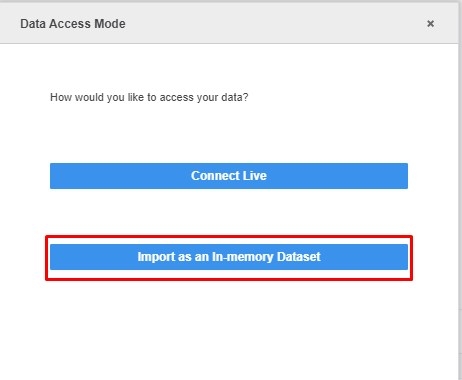
    • Click Finish and select Import as an In-memory Dataset Mode to publish the cube.
ka0PW0000001JT0YAM_0EM44000000A6jQ.jpeg


KB440461


Comment

0 comments

Details

Knowledge Article

Published:

March 31, 2018

Last Updated:

March 21, 2024