EducationSoftwareStrategy.com
StrategyCommunity

Knowledge Base

Product

Community

Knowledge Base

TopicsBrowse ArticlesDeveloper Zone

Product

Download SoftwareProduct DocumentationSecurity Hub

Education

Tutorial VideosSolution GalleryEducation courses

Community

GuidelinesGrandmastersEvents
x_social-icon_white.svglinkedin_social-icon_white.svg
Strategy logoCommunity

© Strategy Inc. All Rights Reserved.

LegalTerms of UsePrivacy Policy
  1. Home
  2. Topics

KB440506: Changing the Database login of a user in Connection Mapping is not saved in MicroStrategy 10.x


Community Admin

• Strategy


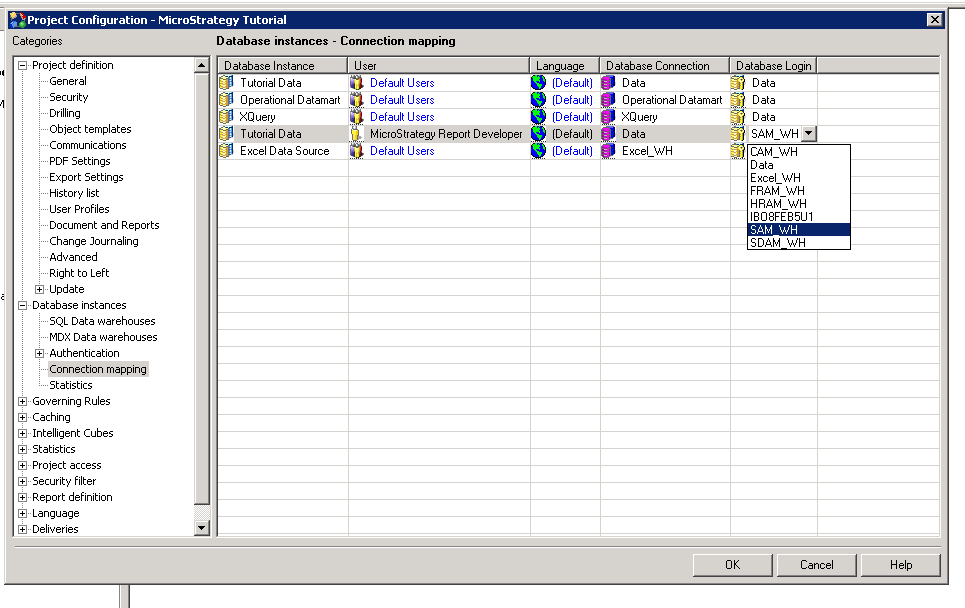
When navigating to a users Database login in the Connection Mapping window by typing the first letter instead of scrolling to the desired login, then changing the Database login for the user, the changes are not preserved after hitting "OK", closing and reopening of Connection Mapping.

SUMMARY:
This technical note describes a known issue in Strategy Developer 10.x when changing the Database login of a user by typing the letter of the login for the desired  user in the Connection Mapping window. The changes are not saved after selecting the login, hitting “OK”, then closing and reopening of Connection Mapping, the Database login for the user is reverted back to the previous login.
SYMPTOM:
When user’s attempt to change the Database login for a user in Connection Mapping by typing the letter to navigate to the login instead of scrolling, and selecting the desired login for the user, the changes are not saved after hitting “OK”. After closing out of Connection Mapping and Project Configuration then reopening Project Configuration and checking the Database login of the user, the login for the altered user remains what it was set to prior to making the changes.  
 

ka04W000000Obk0QAC_0EM44000000A6yp.png


STEPS TO REPRODUCE:

  1. Open project configuration
  2. Go to Connection mapping
  3. Sort by Login
  4. Select any login. A drop down with logins will appear
  5. Type the letter "A" and the drop down will go to the "A"s
  6. Using the mouse select any login which begins with A (note the user)
  7. Hit “OK” to close Project Configuration
  8. Go back into Project Configuration -> Connection Mapping
  9. Find the user and notice the login change did not save.

CAUSE:
This is an identified defect in Strategy Developer 10.x with changing the Database login for a user in Connection Mapping is not saved after typing a letter to navigate to the user.   
ACTION:                
Currently this issue is being reviewed by Strategy for a potential code fix in an upcoming Strategy release. Contact Strategy Technical Support for the latest update on this issue. 
WORKAROUND: 
Scroll to the specified user in Connection Mapping to change the Database Login instead of typing the letter of their name. 
  40506 KB440506


Comment

0 comments

Details

Knowledge Article

Published:

March 30, 2018

Last Updated:

December 24, 2018