Strategy Command Manager provides a set of Sample Procedures, which take advantage of java code flexibility, out of the box. Knowing this, a user can create their own User Procedures starting from scratch or based in any Sample Procedure provided and making their own modifications.
Follow these steps to create a User Procedure based on a Sample Procedure:
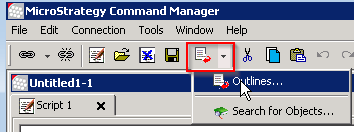
1) Click the outlines icon from the top menu or the down arrow next to it > outlines to open the choose outline window
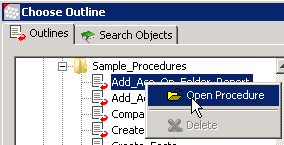
2) Expand the procedure_outline > sample_procedure > select the sampling procedure to be used > right click, and select the "Open Procedure" option to view the code.
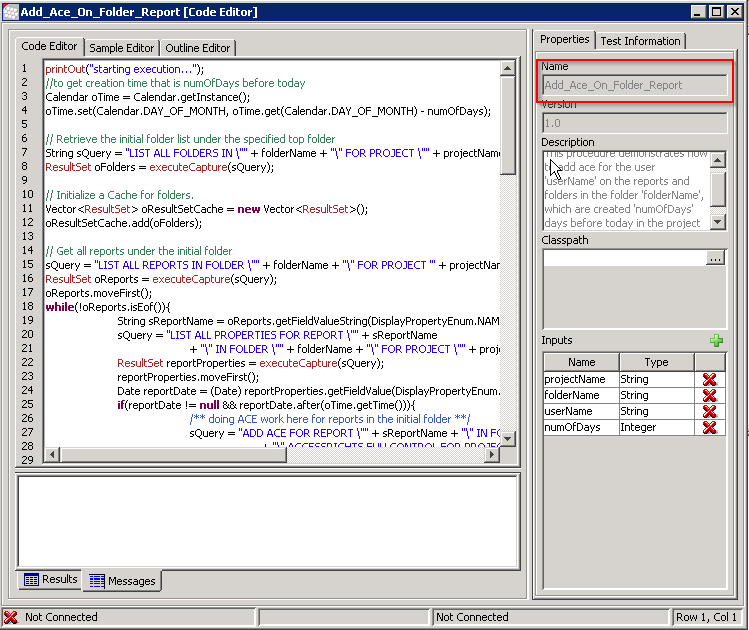
3) Notice the sampling procedure is not editable and cannot be modified, and the name of the procedure is grayed out.
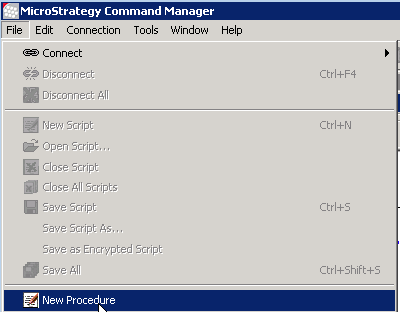
4) The user must copy the pieces of the code they want to reuse into a new Procedure window by clicking the File menu > New Procedure.
5) Copy and paste the code that will be reused from step 4 > name the procedure > save (File menu > Save Procedure).
Note: The procedures use their names as their identifier. It must be unique.
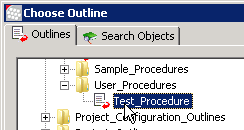
6)Once the Procedure has been saved, it will appear in the Outlines window under the "User Procedures" folder when the user next logs into Strategy Command Manager.
Article Reference Number: KB440526
