EducationSoftwareStrategy.com
StrategyCommunity

Knowledge Base

Product

Community

Knowledge Base

TopicsBrowse ArticlesDeveloper Zone

Product

Download SoftwareProduct DocumentationSecurity Hub

Education

Tutorial VideosSolution GalleryEducation courses

Community

GuidelinesGrandmastersEvents
x_social-icon_white.svglinkedin_social-icon_white.svg
Strategy logoCommunity

© Strategy Inc. All Rights Reserved.

LegalTerms of UsePrivacy Policy
  1. Home
  2. Topics

KB440578: New Feature in MicroStrategy 10.11: Automated Server Activation


Andrew Geyster

Principal Product Specialist • MicroStrategy


Starting in MicroStrategy Secure Enterprise 10.11 a new feature was added into License Manager to allow for a silent activation mode. This reads from a pre-configured Response File to automatically retrieve and apply the Activation Code from MicroStrategy's Licensing Website.

SUMMARY
Starting in Strategy Secure Enterprise 10.11 a new feature was added into License Manager to allow for a silent activation mode. This reads from a pre-configured Response File to automatically retrieve and apply the Activation Code from Strategy's Licensing Website. The new capability to automatically activate a Server Installation is available in both Windows and Linux environments through the console with the same Response File across Operating Systems.
A blank copy of the Response File has been included at the bottom of this Knowledge Base Article. The fields included within the Response File match those that are found within the License Manager Graphical Interface and included an option for installing as both the Licensed User and on behalf of the Licensed User. 
Windows:


MALicMgr.exe -activate -f Response_File [-l Log_File] [-showoutput]
When executing the Windows License Manager Automated Activation through Console or via script the session for the execution does require an elevated privilege set to complete successfully. When searching for the Response File if just the name is given this will look in the current working directory that License Manager is being called from.
Linux:

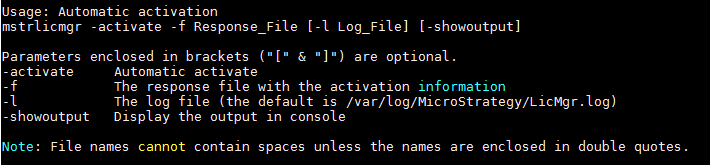
mstrlicmgr -activate -f Response_File [-l Log_File] [-showoutput]

When executing the Linux License Manager Automated Activation through the terminal or via script the session requires access to the License Manager executable, but should not have to be root though this is dependent on system configuration. When searching for the Response File if just the name is given this will look in the home directory (default /var/opt/Strategy).

ka02R000000bsLgQAI_0EM44000000WI4s.png

In both Windows and Linux if no specific log file is given then the default License Manager log will be utilized located in the Strategy logging directory. After a successful activation, an e-mail is sent similar to the traditional activation e-mail with details of the activation for record keeping. Within the Activation Information section of the automated e-mail, the Activation Method will be listed as Automatic.
After the activation is completed it may also be verified inside of the License Manager Graphical Interface and will be recorded in the same manner as a manual Activation to allow for tracking of changes within the environment.
Deactivation
Automated deactivation can be done in the same way, using the flag '-deactivate'


MALicMgr.exe -deactivate


mstrlicmgr -deactivate


Comment

0 comments

Details

Knowledge Article

Published:

April 6, 2018

Last Updated:

May 20, 2020