This article demonstrates the process of making a new locale available in the Web Preferences, as well as configuring the date format, such as the one used in a date prompt. The process of adding a new locale is a 3 part process:
This specific example will demonstrate the process of making Czech a selectable locale in the Strategy Web internationlization settings.
This is a prerequisite to making the locale usable in Strategy Web and requires Strategy Developer:
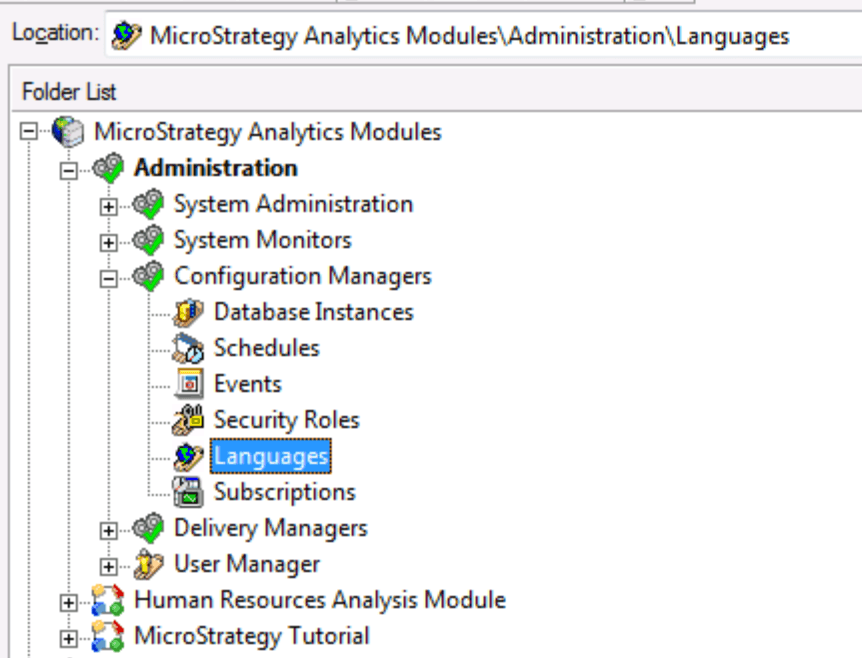
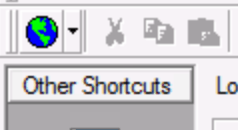
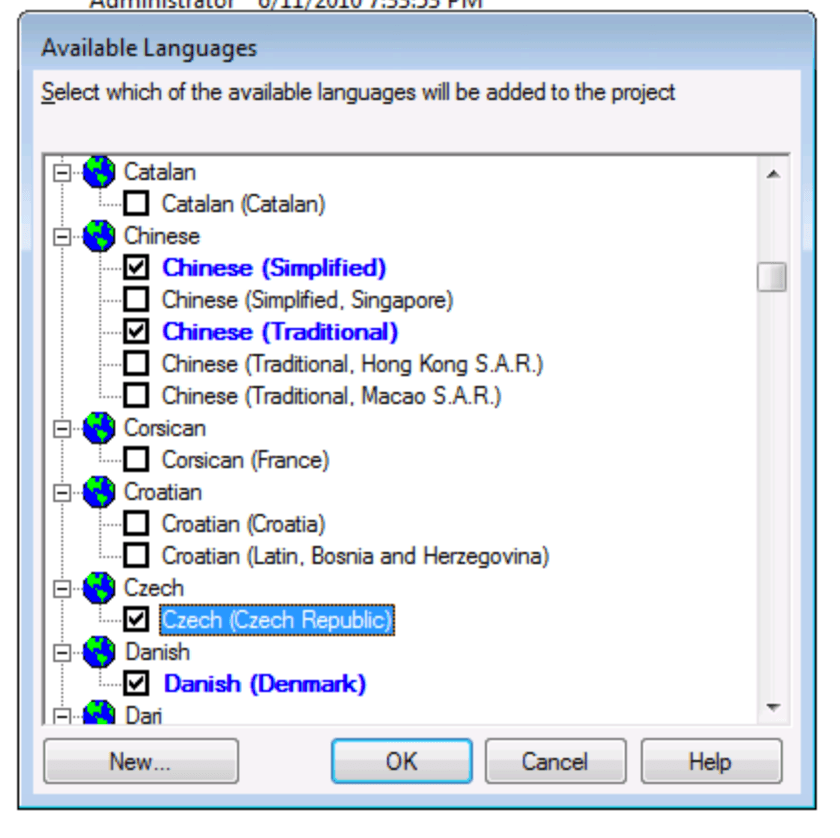
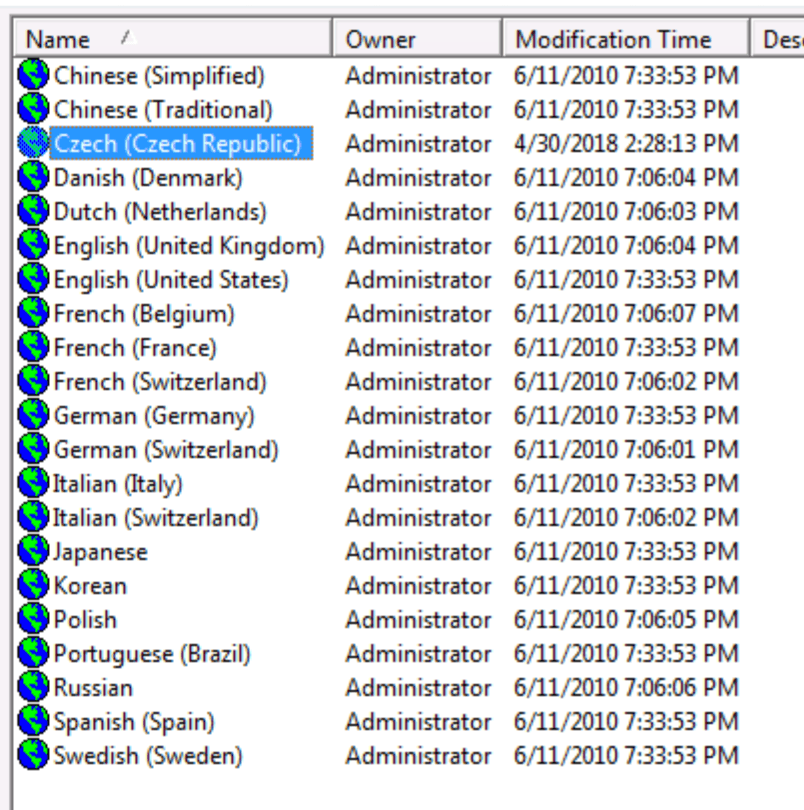
Note: To apply these changes the Intelligence Server will need to be restarted. The language has now been registered in the metadata.
Once the locale has been registered in the metadata, a customization has to be created, adding the locale to the locales.xml. This change needs to be made within a plugin.
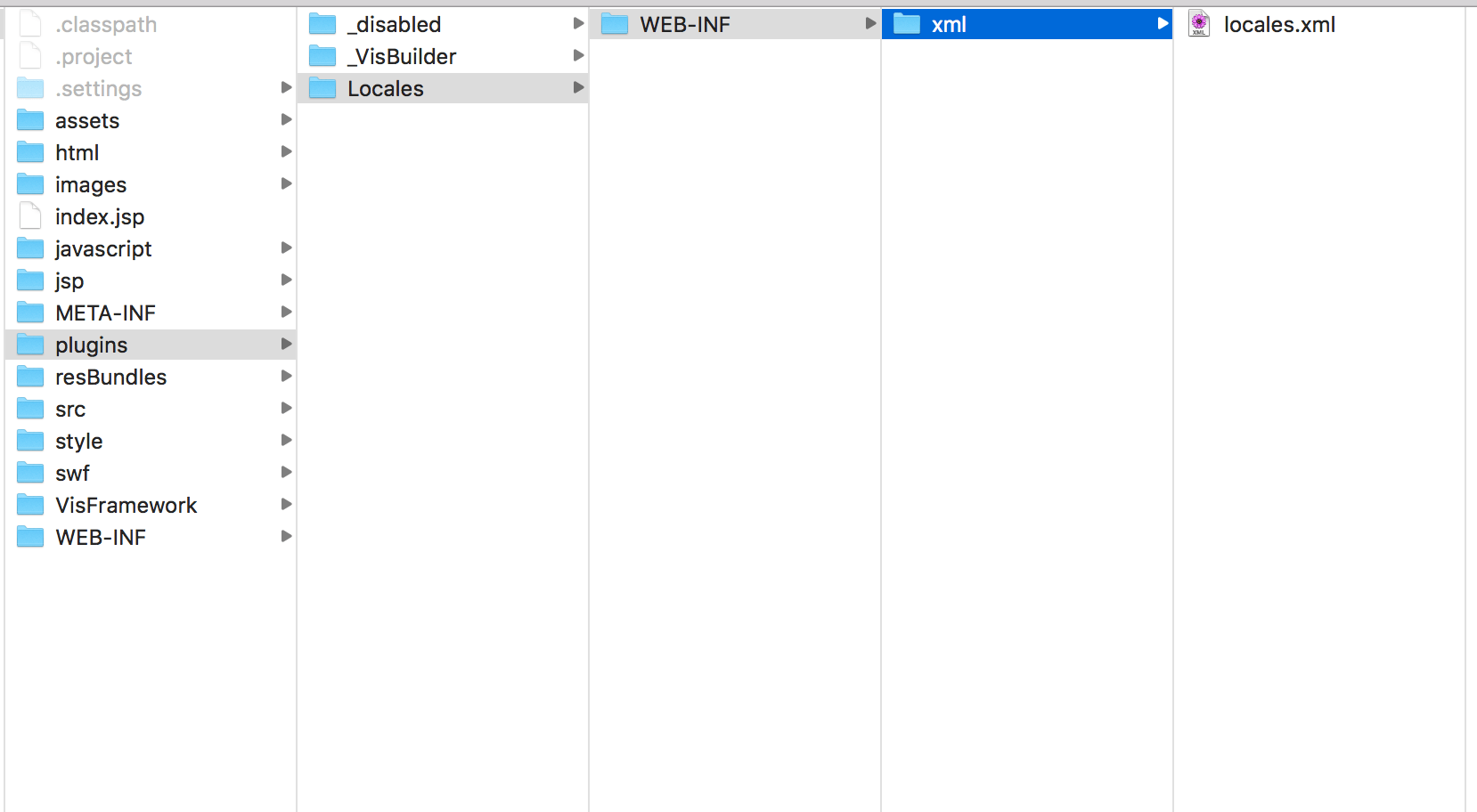
Each <locale /> tag represents an individual locale available in Strategy Web. Existing locales in this file can be used as a template/example for a newly added locale.
In this example, duplicate the locale tag for "Deutsch" - this duplicated existing locale will be edited to create the locale for "Czech":
<locale locale-id="1031" language="de" country="DE" desc="Deutsch" desc-id="mstrWeb.949" char-set="UTF-8" char-set-excel="UnicodeLittle" codepage="65001" codepage-excel="1252" />

From the values we see here, we see matches to the existing locale's locale-id, language, country, and codepage-excel value. Searching on this page for Czech will show the corresponding values for the new locale:

Following the same pattern, the resulting locale tag looks as such:
<locale locale-id="1029" language="cs" country="CS" desc="Czech" desc-id="mstrWeb.949" char-set="UTF-8" char-set-excel="UnicodeLittle" codepage="65001" codepage-excel="1250" />
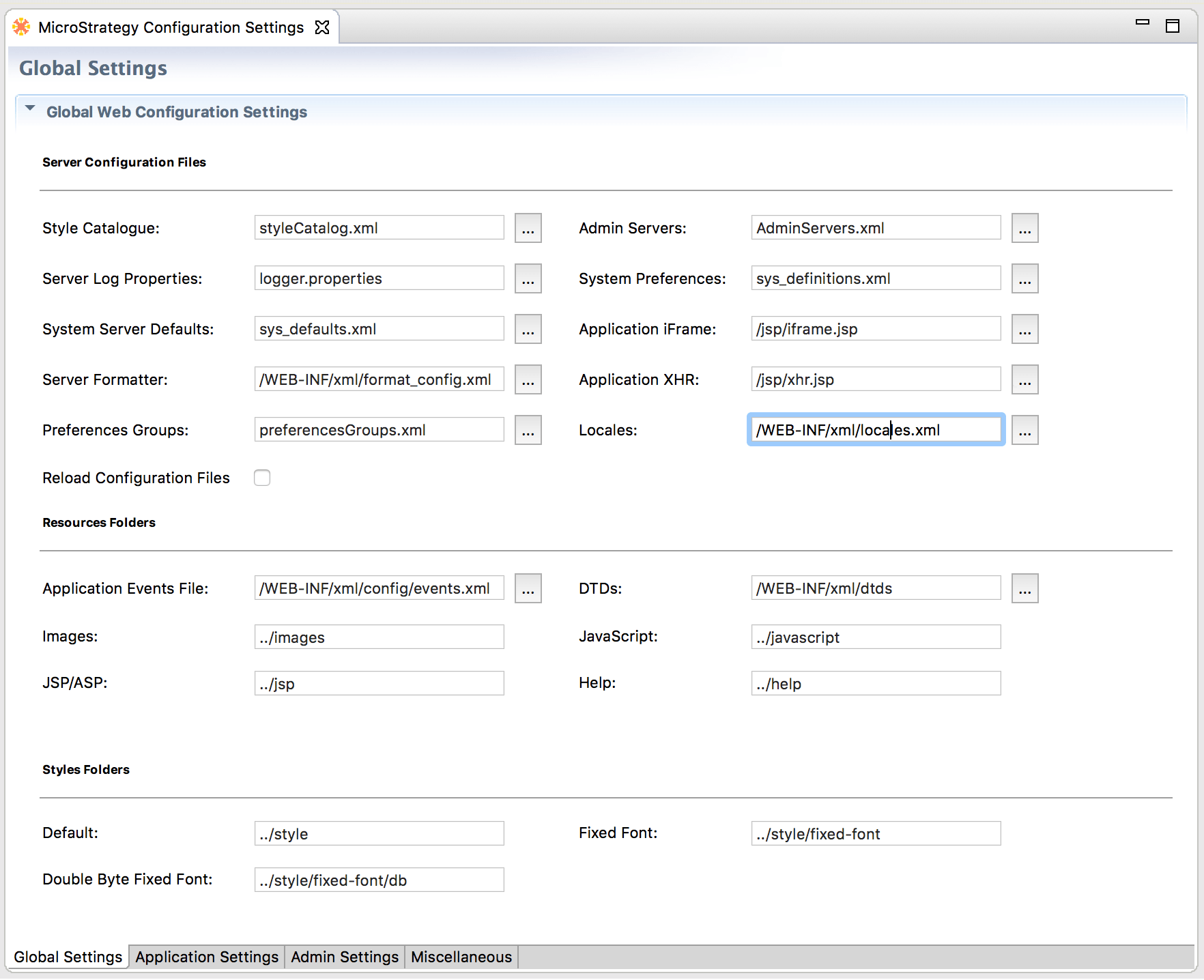

Note: this step only makes the locale selectable - further action is required to provide the correct date & number formatting.
To define the date & number formattings for a specific locale, another file needs to be copied to the customization.
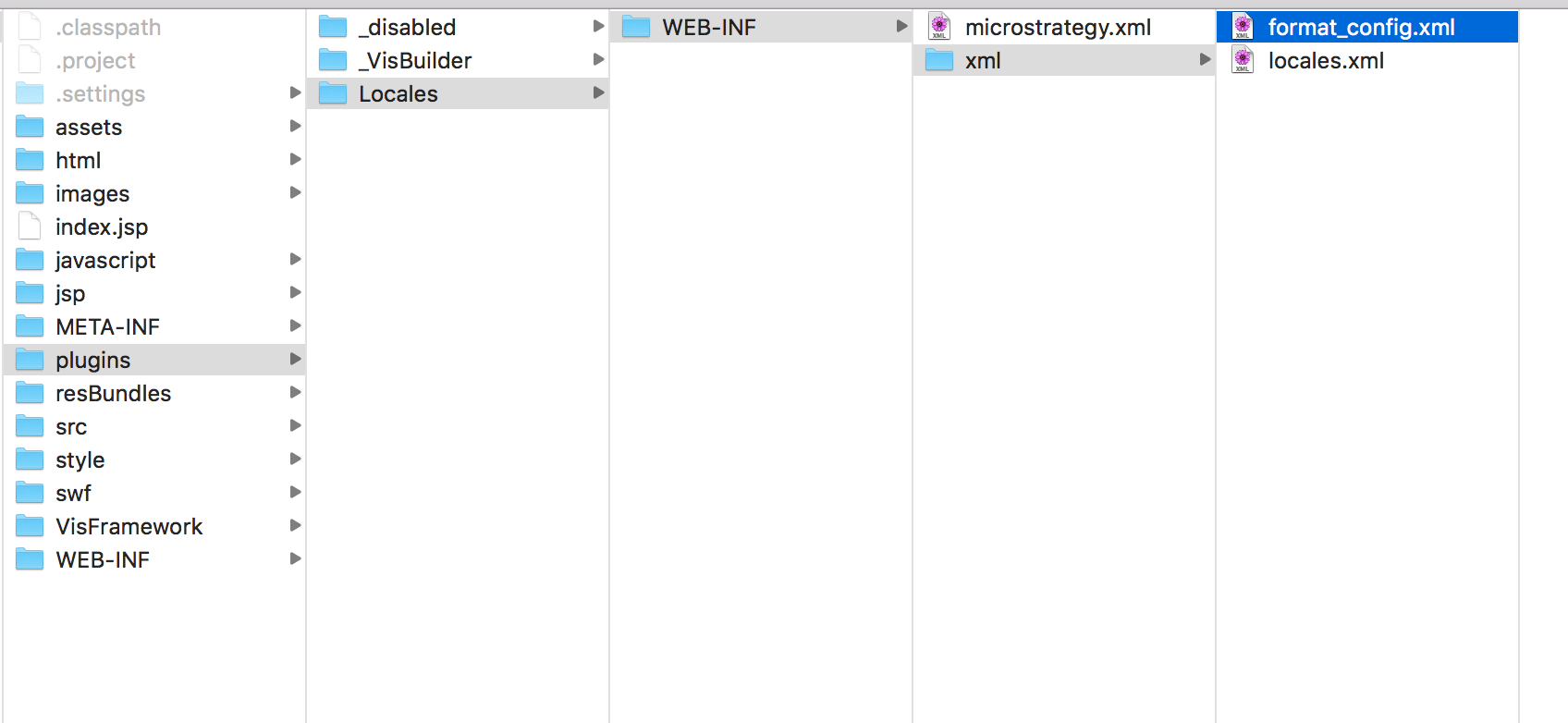
This file can now be edited within the isolated safety of the plugin to add specific settings for the newly added locale.
<locale language="de" country="DE">
		<list-separator>;</list-separator>
		<data-type name="integer">
			<out>###0</out>
			<in>#.##0</in>
                        <!-- display node for this data type currently not in use -->
			<display>###0</display>
		</data-type>
		<data-type name="number">
			<out>###0,##########</out>
			<in>#.##0,###</in>
            <in>0,###E0</in>
                        <!-- display node for this data type currently not in use -->
			<display>###0,##########</display>
		</data-type>
		<data-type name="date">
			<out>dd.MM.yyyy</out>
			<in>d.M.yy</in>
			<in>d.M.yyyy</in>
			<in>yyyy-M-d</in>
			<display>dd.MM.yy</display>
		</data-type>
		<data-type name="time">
			<out>HH:mm:ss</out>
			<in>HH:mm</in>
			<in>HH:mm:ss</in>
			<in>HH:mm 'Uhr'</in>
			<in>HH:mm:ss z</in>
                        <display>HH:mm:ss</display>
		</data-type>
</locale><locale locale-id="1029" language="cs" country="CS" desc="Czech" desc-id="mstrWeb.949" char-set="UTF-8" char-set-excel="UnicodeLittle" codepage="65001" codepage-excel="1250" />
<locale language="cs" country="CS">
		<list-separator>;</list-separator>
		<data-type name="integer">
			<out>###0</out>
			<in>#.##0</in>
                        <!-- display node for this data type currently not in use -->
			<display>###0</display>
		</data-type>
		<data-type name="number">
			<out>###0,##########</out>
			<in>#.##0,###</in>
            <in>0,###E0</in>
                        <!-- display node for this data type currently not in use -->
			<display>###0,##########</display>
		</data-type>
		<data-type name="date">
			<out>dd.MM.yyyy</out>
			<in>d.M.yy</in>
			<in>d.M.yyyy</in>
			<in>yyyy-M-d</in>
			<display>dd.MM.yy</display>
		</data-type>
		<data-type name="time">
			<out>HH:mm:ss</out>
			<in>HH:mm</in>
			<in>HH:mm:ss</in>
			<in>HH:mm 'Uhr'</in>
			<in>HH:mm:ss z</in>
                        <display>HH:mm:ss</display>
		</data-type>
	</locale>
<locale language="cs" country="CS">
		<list-separator>;</list-separator>
		<data-type name="integer">
			<out>###0</out>
			<in>#.##0</in>
                        <!-- display node for this data type currently not in use -->
			<display>###0</display>
		</data-type>
		<data-type name="number">
			<out>###0,##########</out>
			<in>#.##0,###</in>
            <in>0,###E0</in>
                        <!-- display node for this data type currently not in use -->
			<display>###0,##########</display>
		</data-type>
		<data-type name="date">
			<out>dd-MM-yyyy</out>
			<in>dd-MM-yyyy</in>
			<in>d.M.yy</in>
			<in>d.M.yyyy</in>
			<in>yyyy-M-d</in>
			<display>dd-MM-yyyy</display>
		</data-type>
		<data-type name="time">
			<out>HH:mm:ss</out>
			<in>HH:mm</in>
			<in>HH:mm:ss</in>
			<in>HH:mm 'Uhr'</in>
			<in>HH:mm:ss z</in>
                        <display>HH:mm:ss</display>
		</data-type>
	</locale>
The locale is now selectable within the language preferences within Strategy Web:
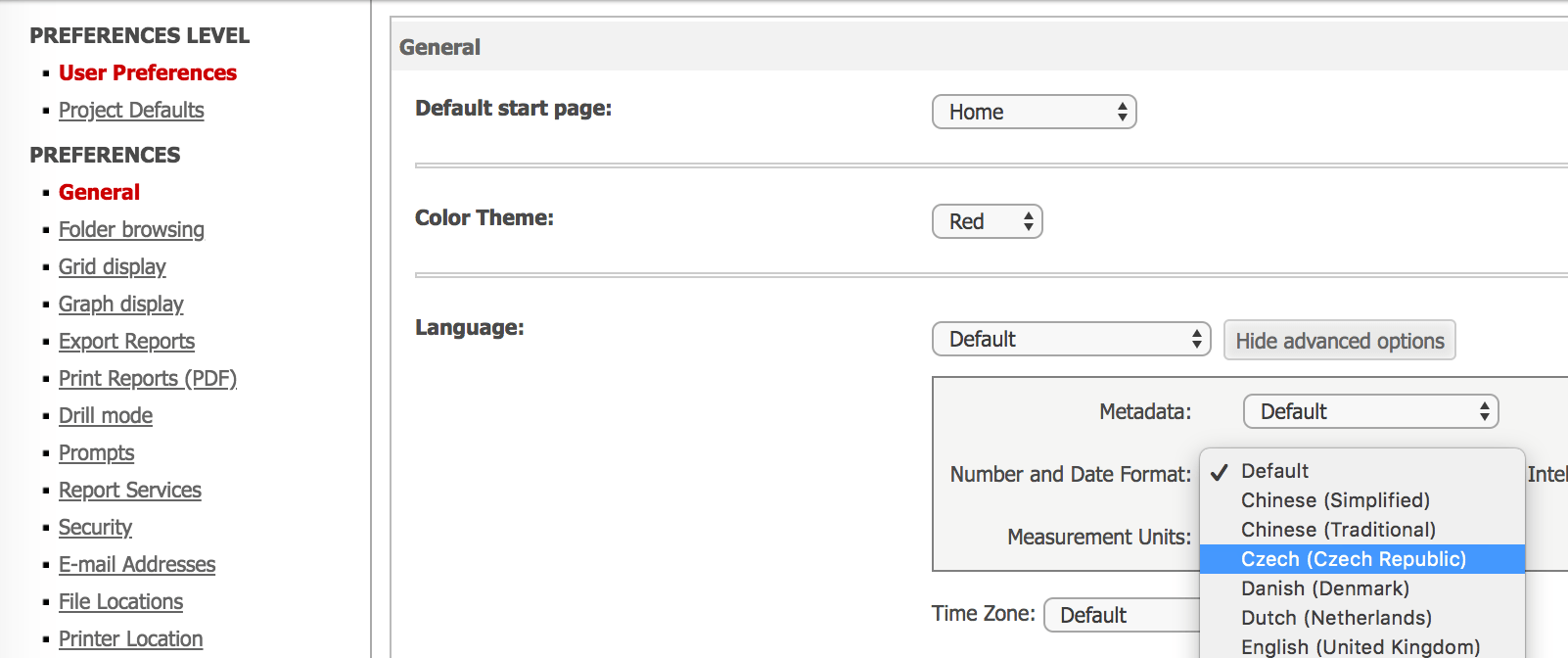
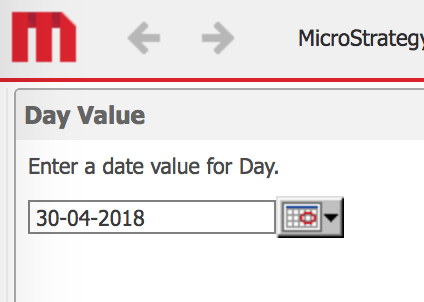
After saving any preference changes, logging out and back into Strategy Web, executing a report with a date prompt now shows the date in the desired format:
The example provided in this document is provided “as-is” and assumes the user has read the following customization warning:
ADDITIONAL INFORMATION:
The Strategy SDK allows you to customize several Strategy products and extend and integrate the Strategy business intelligence functionality into other applications. However, before changing the way Strategy products look or behave, it is helpful to understand how the application is built. For more information regarding the Strategy products or the process of customizing Strategy products, please refer to Strategy Developer Zone (https://developer.microstrategy.com).
To access the Strategy Developer Zone, you must have access to the Strategy Knowledge Base, you must have purchased the Strategy SDK, and you must be current on your Strategy maintenance agreement. If you are a US-based business and believe that you satisfy all three of these conditions but you do not have access to the Strategy Developer Zone, please contact Strategy Technical Support at support@microstrategy.com or at (703) 848-8700. If you are an international business, please contact Strategy Technical Support at the appropriate email address or phone number found at https://www.microstrategy.com/us/services/support/contact.
CUSTOMIZATION WARNING:This customization is provided as a convenience to Strategy users and is only directly applicable to the version stated. While this code may apply to other releases directly, Strategy Technical Support makes no guarantees that the code provided will apply to any future or previous builds. In the event of a code change in future builds, Strategy Technical Support makes no guarantee that an updated version of this particular customization will be provided. In the event of a code change in future builds, Strategy may not be able to provide additional code on this matter even though this customization is provided at this time for this specific build. For enhancements to this customization or to incorporate similar functionality into other versions, contact your Account Executive to inquire about Strategy Consulting assistance.
