EducationSoftwareStrategy.com
StrategyCommunity

Knowledge Base

Product

Community

Knowledge Base

TopicsBrowse ArticlesDeveloper Zone

Product

Download SoftwareProduct DocumentationSecurity Hub

Education

Tutorial VideosSolution GalleryEducation courses

Community

GuidelinesGrandmastersEvents
x_social-icon_white.svglinkedin_social-icon_white.svg
Strategy logoCommunity

© Strategy Inc. All Rights Reserved.

LegalTerms of UsePrivacy Policy
  1. Home
  2. Topics

KB440719: In Microstrategy Web, using SSL, when clicking to the Library Icon, it switches to a non SSL protocol


Community Admin

• Strategy


This Knowledge Base article describes an issue that may be faced on MicroStrategy Web or Library when using SSL. The cause is that some additional settings are missing on the JSP-based web server. Instructions on how to add them are provided.

After configuring SSL on Strategy Web & Library, when the end user clicks on the Library icon in Strategy Web, the HTTP call switches to a non secured protocol (http instead of https) and a network error message can appear, depending on the network configuration.
STEPS TO REPRODUCE :
1. Login to Strategy Web.
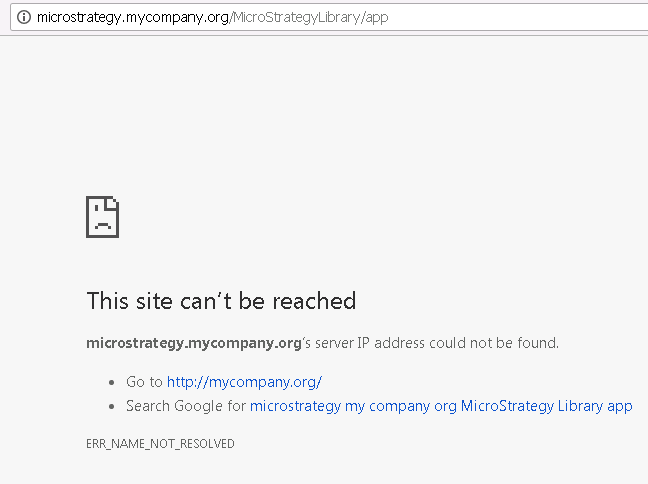
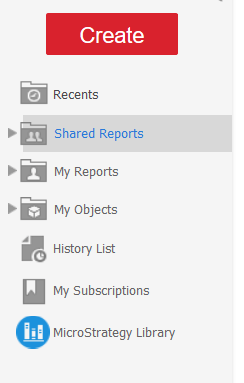
2. Click on the Library icon in the main menu: the login page should be launched. Note that, at this step, the SSL protocol is not active any more. As a consequence, the URL will change into a non http URL and can cause the following error message:


The site can't be reached
ka0PW0000000wTpYAI_0EM44000000WKoO.png
ka0PW0000000wTpYAI_0EM44000000WKnk.png

CAUSE
This configuration requires additional settings in the Tomcat (or any JSP-based) web server by design, as explained here.
When the end user accesses https://mycompany.Strategy.com/MicroStrategyLibrary/app
the redirection can be done to an authentication page that is not secured. Since the load balancer forwards requests to the Web server (Tomcat with the default installation) on port 8080 using HTTP and not HTTPS, Tomcat is not aware of the scheme by that needs to be used in this case.
ACTION
We need to make the Tomcat connector aware that end users actually access Tomcat through HTTPS. To do so, the HTTP connector needs to be updated in Tomcat's server.xml file using the Proxy Support documentation, below is a sample on how to accomplish this:


<Connector port="8080" protocol="HTTP/1.1"
connectionTimeout="20000"
redirectPort="8443" secure="true" proxyPort="443" scheme="https" />

Please note that after this change, accessing Tomcat directly on non-SSL port 8080 will also redirect to HTTPS therefore it might be worth considering opening a second connector on a different port for troubleshooting (e.g. requirement to test non-SSL or to bypass the load balancer).
You will need to do this on all Web Servers.
 
Third Party Software Installation Warning:

The third-party product(s) discussed in this technical note are manufactured by vendors independent of Strategy. Strategy makes no warranty, express, implied or otherwise, regarding these products, including their performance or reliability.
KB440719


Comment

0 comments

Details

Knowledge Article

Published:

May 2, 2018

Last Updated:

February 26, 2024