EducationSoftwareStrategy.com
StrategyCommunity

Knowledge Base

Product

Community

Knowledge Base

TopicsBrowse ArticlesDeveloper Zone

Product

Download SoftwareProduct DocumentationSecurity Hub

Education

Tutorial VideosSolution GalleryEducation courses

Community

GuidelinesGrandmastersEvents
x_social-icon_white.svglinkedin_social-icon_white.svg
Strategy logoCommunity

© Strategy Inc. All Rights Reserved.

LegalTerms of UsePrivacy Policy
  1. Home
  2. Topics

KB440736: Cloudera Impala Information Catalog SQL Workaround for the error - "The warehouse catalog SQL contains a template string '#?DATABASE_NAME?#' that must be completed before catalog updates can be run" User icon


Community Admin

• Strategy


MicroStrategy Developer and Web 10.x only allows ODBC calls to query the Impala Catalog and bring in schema/table/datatype information into MicroStrategy for reporting. In the case of a significant number of tables/schemas, this leads to poor performance. This has been identified as a workflow limitation in Developer and Web.

How to reproduce the issue

  1. Log into Strategy Web.
  2. Add External Data.
  3. Choose Impala
  4. Select any one of Import Options.
  5. Create a new Data source connection.
  6. Click the new connection you created. 
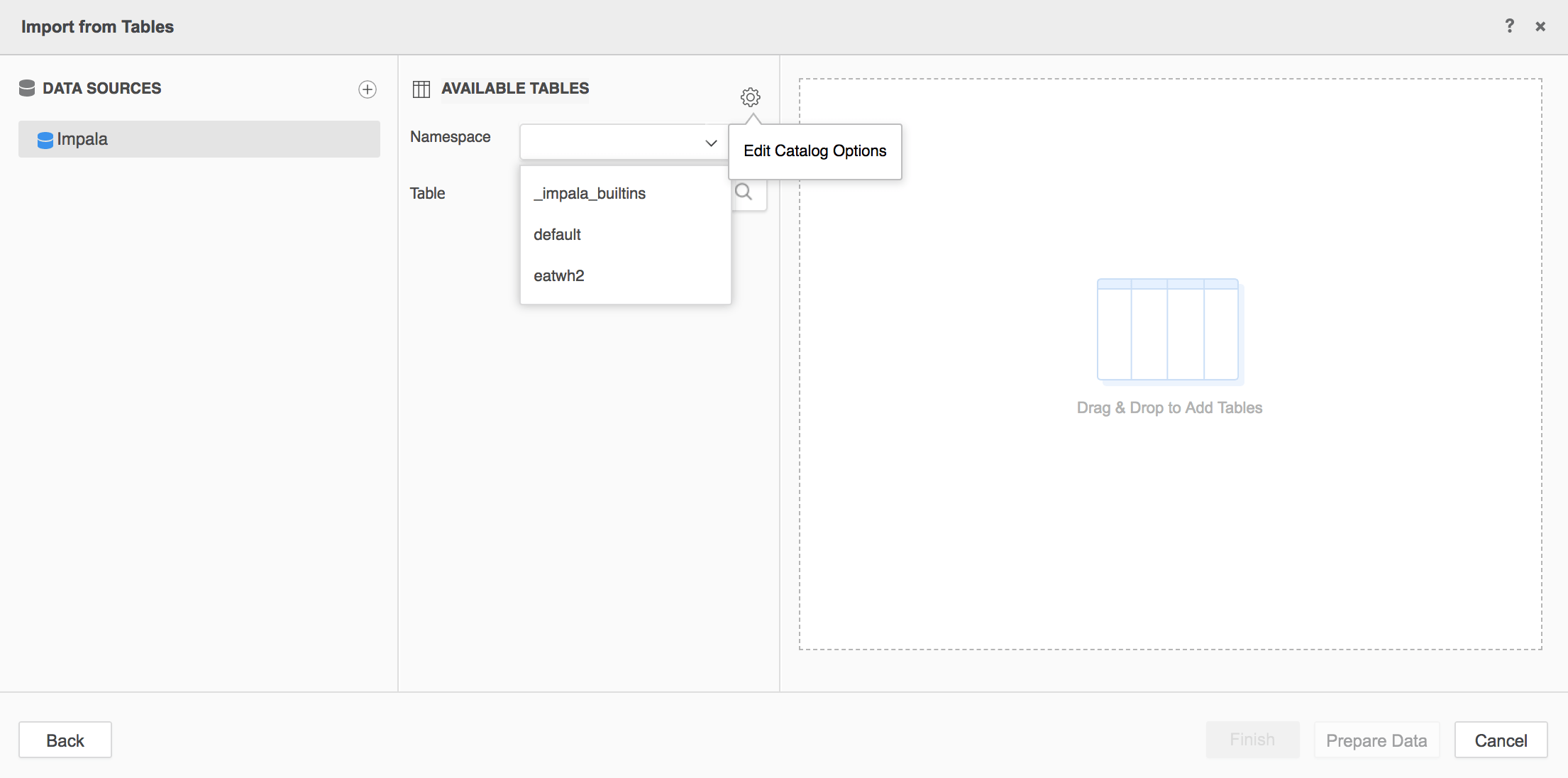
  7. Click the Edit Catalog Options.


ka04W00000148eRQAQ_0EM44000000WM06.png


  1. Change the Retrival mode from "ODBC Calls" to "Data Source SQL".
  2. Set Caching to "None".
  3. Choose Apply.
  4. Choose any Namespace. 
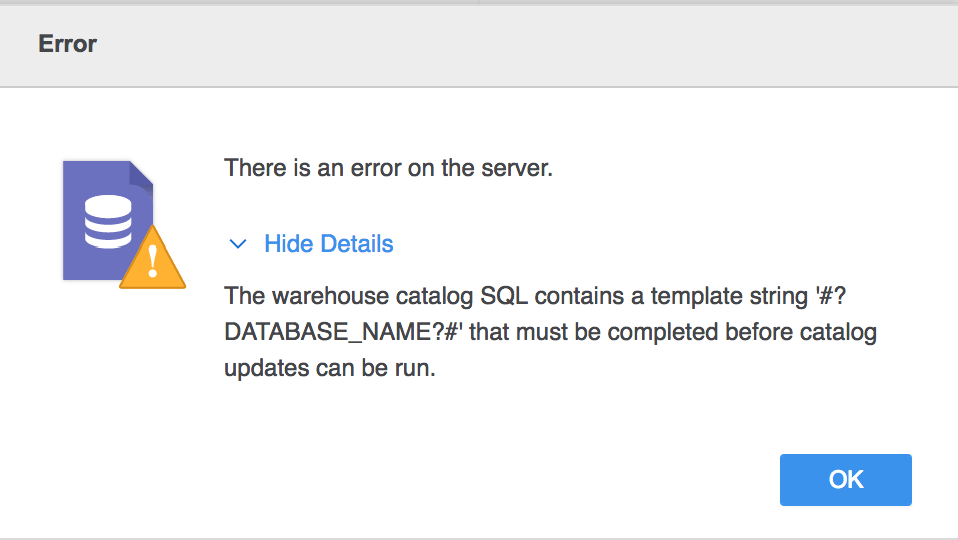
  5. You will encounter the following error.


ka04W00000148eRQAQ_0EM44000000WM0B.png

 
This is due to the fact that Impala does not have an information catalog.
 

Workaround

  • Change the Retrival mode from "Data Source SQL" to "ODBC Calls" in the Edit Catalog Option

This option will fetch columns by ODBC calls.
 

  • Create a set of custom tables that simulate a SQL catalog

There exists a work-around to allow customers to overcome this performance issue and use Strategy with Impala 2.x This enhances the warehouse catalog with the ability to specify Namespaces. We have a documented way to use a SQL statement that can be used to bring back the column mappings for Impala as outlined below.
 
Prerequisites for the next steps: Existing CDH environment utilizes MySQL as the Hive metastore. Sqoop libraries have to be installed on this CDH environment. A Hadoop environment with Impala can be configured with MySQL as the Hive Metastore. This tutorial assumes that the customer’s metastore is MySQL since that’s the most common platform. If the metastore is some other platform, then the SQOOP statements will need to be changed accordingly.
 

  • Create a database on Hive/Impala. You can name it however you like, for our example we are calling it “metastore”.
  • Run the following 4 SQOOP statements to import the tables from the Hive metastore into Impala locally. We need 4 tables – DBS, SDS, COLUMNS_V2, and TBLS from the MySQL metastore:


sqoop import -m 1 --connect jdbc:mysql://<HOST>:3306/<HIVEMETASTOREDB> -- username=<uid> --password=<pwd> --table DBS --hive-import --hive-overwrite --hive-table dbs --hive-database metastore
 
sqoop import -m 1 --connect jdbc:mysql://<HOST>:3306/<HIVEMETASTOREDB> -- username=<uid> --password=<pwd> --table TBLS --hive-import --hive-overwrite --hive-table tbls --hive-database metastore
 
sqoop import -m 1 --connect jdbc:mysql://<HOST>:3306/<HIVEMETASTOREDB> -- username=<uid> --password=<pwd> --table COLUMNS_V2 --hive-import --hive-overwrite --hive-table columns_v2 --hive-database metastore
 
sqoop import -m 1 --connect jdbc:mysql://<HOST>:3306/<HIVEMETASTOREDB> -- username=<uid> --password=<pwd> --table SDS  --hive-import --hive-overwrite --hive-table sds --hive-database metastore


The above process creates local copies of these 4 databases in Impala/Hive, so in case of any update to the data or new databases/tables being added, the user should run a SQOOP job to update these tables. The following is an example:
 

sqoop import -m 1 --connect jdbc:mysql://<HOST>:3306/<HIVEMETASTOREDB> --username=<uid_for_mysqldb> --password=< uid_for_mysqldb> --table DBS --hive-import --hive-overwrite --hive-table dbs --hive-database metastore


You can create a SQOOP job and schedule it to make sure all of your updated data gets reflected correctly in Impala, if there are any updates.
 

sqoop job --create sdsjob -- import -m 1 --connect jdbc:mysql://<server name>:3306/hivedb --username=<uid> --password=<pwd>
--table SDS
--hive-import 
--hive-overwrite
--hive-table SDS 
--hive-database metastore


You would then execute the following job to make sure your catalog is always up to date:

sqoop job --exec sdsjob

The job will prompt the user for a password.
 
Important Note: You should refresh your Impala metadata after any sqoop job. This can be done by running the following statement in Impala to refresh the tables and the metadata:

impala-shell -q "INVALIDATE METADATA"


Once the metastore tables are pulled into Impala, you should create the following 2 views:
1. V_TABLES:

create view metastore.v_tables (NAME_SPACE, TAB_NAME) as 
select distinct d.name, t.tbl_name from metastore.tbls t join metastore.dbs d ON t.db_id = d.db_id;

 
2. V_COLUMNS:
 

Create view metastore.v_columns
as
SELECT t.tbl_name TAB_NAME, 
c.column_name COL_NAME, 
d.name NAME_SPACE,
case when c.type_name like 'char(%' then 'char' when c.type_name like 'varchar(%' then 'varchar' when c.type_name like 'decimal(%' then 'decimal' else c.type_name end DATA_TYPE,
regexp_replace((case when c.type_name like '%har(%' then regexp_extract(c.type_name, '(\\().*?',0) else null end),'[^[:digit:]]','') DATA_LEN,
regexp_replace( regexp_extract((case when c.type_name like 'decimal(%' then regexp_extract(c.type_name, '(\\().*?',0) else null end),'.*?(\\,)',0),'[^[:digit:]]','')  DATA_PREC,
regexp_replace( regexp_extract((case when c.type_name like 'decimal(%' then regexp_extract(c.type_name, '(\\().*?',0) else null end),'(\\,).*?',0),'[^[:digit:]]','')  DATA_SCALE
  FROM metastore.tbls t
 JOIN metastore.dbs d
 ON t.db_id = d.db_id
 JOIN metastore.sds s
 ON t.sd_id = s.sd_id
 JOIN metastore.columns_v2 c
 ON s.cd_id = c.cd_id;
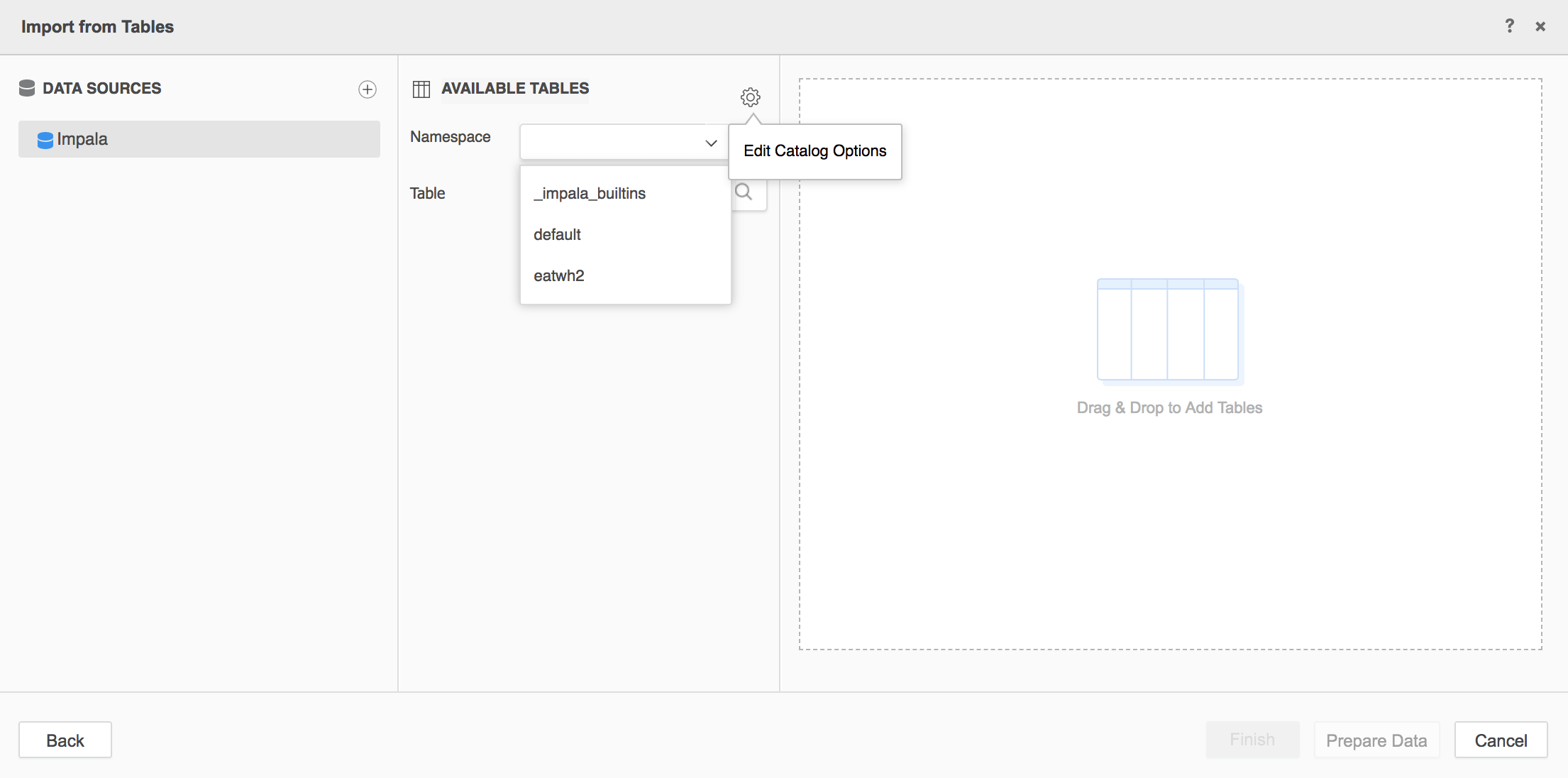


How to enable Catalog Statements in Strategy Developer

  1. Log into Strategy Web.
  2. Add External Data.
  3. Choose Impala
  4. Select any one of Import Options.
  5. Create a new Data source connection.
  6. Click the new connection you created. 
  7. Click the Edit Catlaog Options.


ka04W00000148eRQAQ_0EM44000000WM0G.png


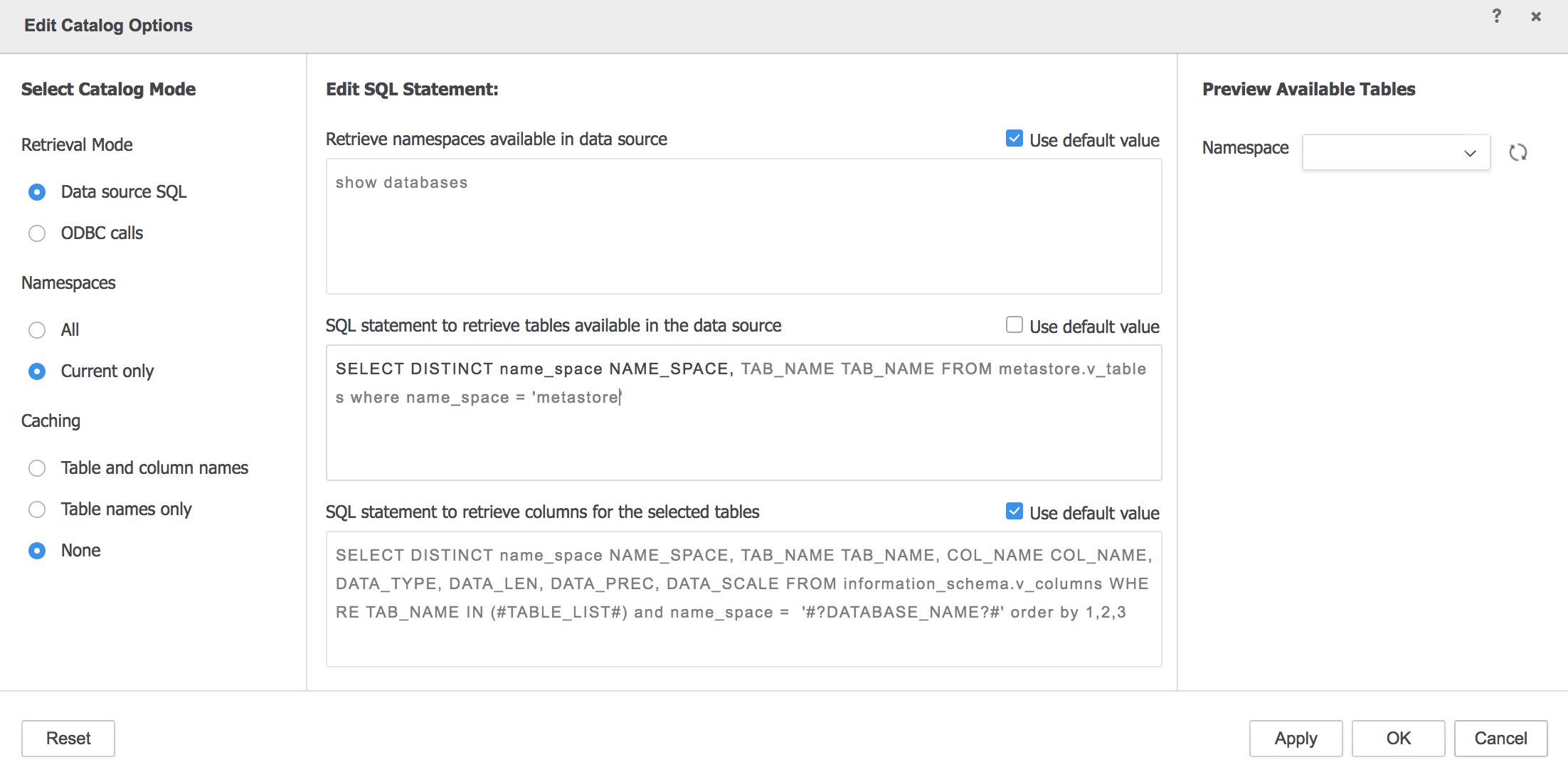
  1. Change the Retrival mode from "ODBC Calls" to "Data Source SQL".
  2. Uncheck on “Use Default Value” for both top and bottom sections that contain the SQL. Make sure to edit your name_space clause so that you replace the default with the actual name of the name space containing your information catalog tables that were pulled into Impala via SQOOP.
ka04W00000148eRQAQ_0EM44000000WM0L.png

Below is the suggested Catalog SQL based on the v_columns and v_tables views that were created. The wildcard #?DATABASE_NAME?# should be replaced with your information catalog name space. This is “metastore” in our example.
 
Column SQL:


SELECT DISTINCT name_space NAME_SPACE, TAB_NAME TAB_NAME FROM metastore.v_tables
where name_space = '#?DATABASE_NAME?#'

 
Table SQL:
 

SELECT DISTINCT name_space NAME_SPACE, TAB_NAME TAB_NAME, COL_NAME COL_NAME, DATA_TYPE, DATA_LEN,  DATA_PREC,
DATA_SCALE FROM metastore.v_columns WHERE TAB_NAME IN (#TABLE_LIST#) and name_space =  '#?DATABASE_NAME?#' order by 1,2,3
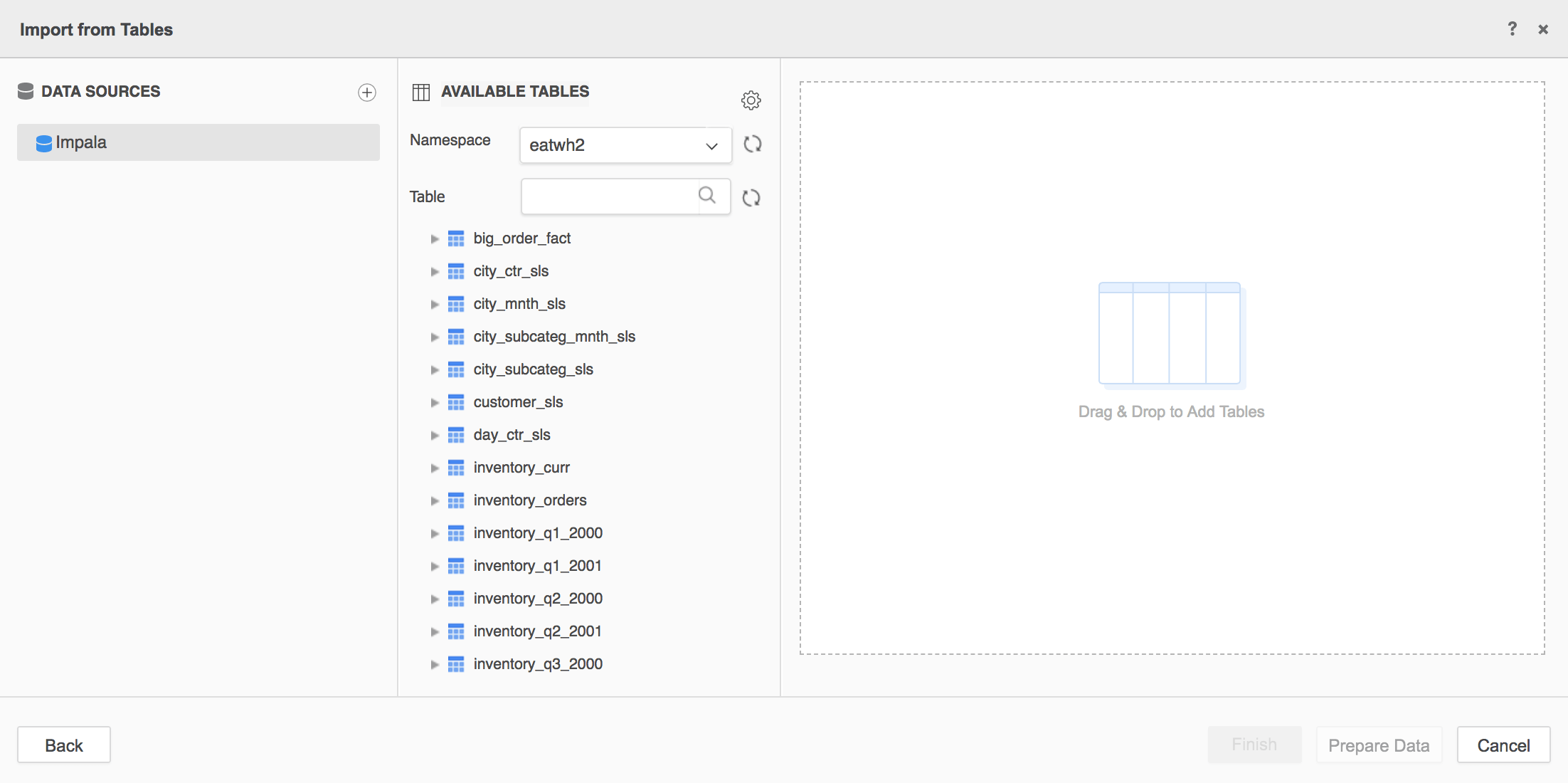
 

  1. Edit the above SQL and click Apply.
  2. After all of the above is done, users should now see all the tables available in Impala.
ka04W00000148eRQAQ_0EM44000000WM0Q.png


How to enable Catalog Statements in Strategy Developer 

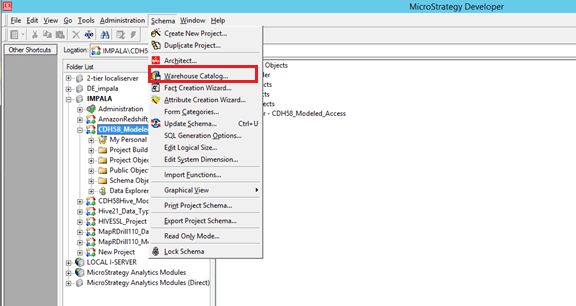
  1. Click on your project – Schema from the toolbar-> Click on Warehouse Catalog
ka04W00000148eRQAQ_0EM44000000WM0V.png
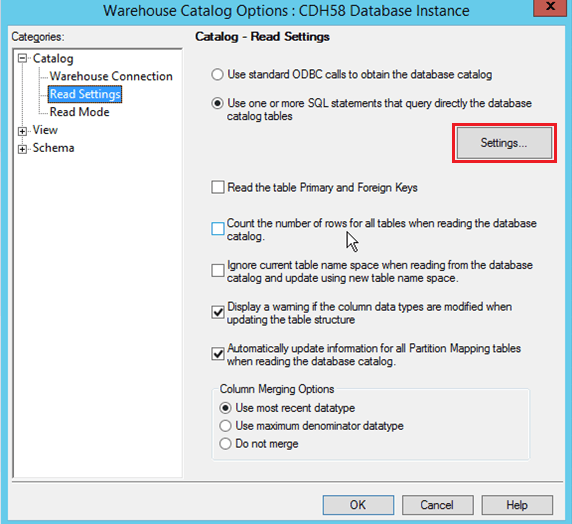
  1. In the Warehouse catalog, click on Read settings on the left panel; you will see 2 options to connect to the catalog. Switch from “Use standard ODBC Calls..” to “Use one or more SQL Statements…” option. Click the Settings button on the right.


ka04W00000148eRQAQ_0EM44000000WM0a.png


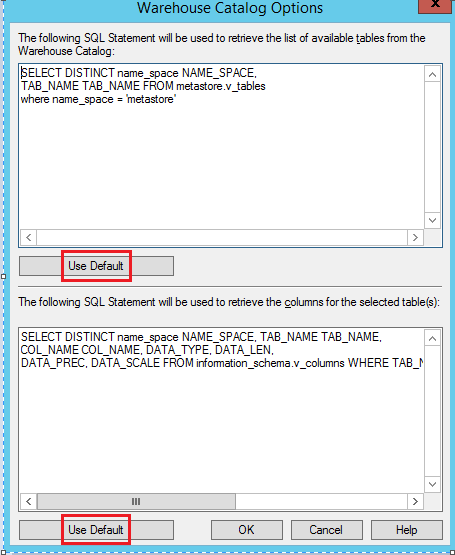
  1. Click on “Use Default” for both top and bottom sections that contain the SQL. Make sure to edit your name_space clause so that you replace the default with the actual name of the name space containing your information catalog tables that were pulled into Impala via SQOOP.
ka04W00000148eRQAQ_0EM44000000WM0f.png

Below is the suggested Catalog SQL based on the v_columns and v_tables views that were created. The wildcard #?DATABASE_NAME?# should be replaced with your information catalog name space. This is “metastore” in our example.
Column SQL:


SELECT DISTINCT name_space NAME_SPACE, TAB_NAME TAB_NAME FROM metastore.v_tables
where name_space = '#?DATABASE_NAME?#'


Table SQL:

SELECT DISTINCT name_space NAME_SPACE, TAB_NAME TAB_NAME, COL_NAME COL_NAME, DATA_TYPE, DATA_LEN,  DATA_PREC,
DATA_SCALE FROM metastore.v_columns WHERE TAB_NAME IN (#TABLE_LIST#) and name_space =  '#?DATABASE_NAME?#' order by 1,2,3


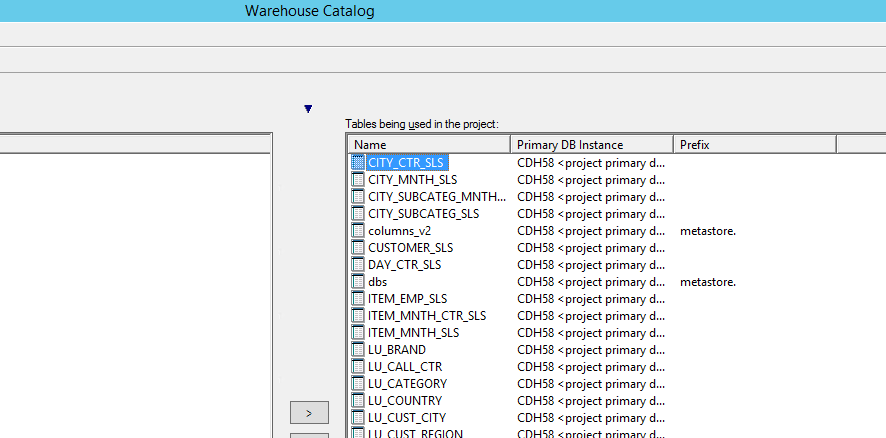
  1. After all of the above is done, users should now see all the tables available in Impala. It is now possible to pull over the tables that are needed to the right panel of the WH catalog and start using them in the project. This can lead to potential improvement in performance.


ka04W00000148eRQAQ_0EM44000000WM0k.png


Comment

0 comments

Details

Knowledge Article

Published:

May 4, 2018

Last Updated:

December 31, 2018