EducationSoftwareStrategy.com
StrategyCommunity

Knowledge Base

Product

Community

Knowledge Base

TopicsBrowse ArticlesDeveloper Zone

Product

Download SoftwareProduct DocumentationSecurity Hub

Education

Tutorial VideosSolution GalleryEducation courses

Community

GuidelinesGrandmastersEvents
x_social-icon_white.svglinkedin_social-icon_white.svg
Strategy logoCommunity

© Strategy Inc. All Rights Reserved.

LegalTerms of UsePrivacy Policy
  1. Home
  2. Topics

KB440940: How to simulate Trusted Authentication for MicroStrategy Web 9.x and 10.x using FiddlerScript in Fiddler


Monica Gallegos Salazar

Principal Product Specialist • MicroStrategy


Fiddler is a free tool that supports debugging HTTP(S) traffic and monitoring incoming and outgoing network traffic. FiddlerScript, which is included in the tool, can be used to make custom changes to web requests and responses. This article explains how trusted authentication can be simulated using these tools.

Use the following steps to simulate trusted authentication using FiddlerScript:
  1. Fiddler can be obtained from http://www.telerik.com/download/fiddler. Download the tool and install it in the client machine you will be using.
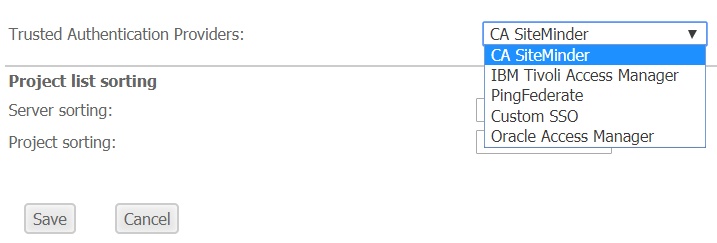
  2. In the Strategy Web 10.x Administrator make sure that Trusted Authentication is enabled under Default Properties>Login
  3. In this page select the Trusted Authentication Provider that wants to be simulated; choose from Siteminder, Tivoli, PingFederate, Custom SSO and Oblix.
ka02R000000kV6uQAE_0EM44000000WQUP.png
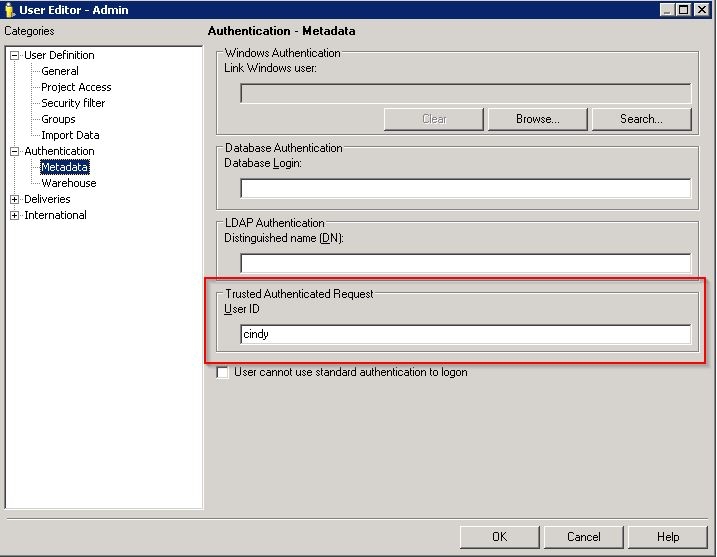
  1. Make sure a user in Strategy has been linked under the User Editor – Authentication – Trusted Authenticated Request.
ka02R000000kV6uQAE_0EM44000000WQUU.jpeg
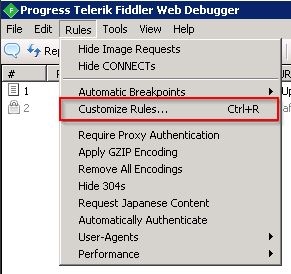
  1. Open Fiddler and go to Rules – Customize Rules:
ka02R000000kV6uQAE_0EM44000000WQUZ.jpeg
  1. Search for the “static function OnBeforeRequest(oSession: Session)” line. Add the following line inside the call:


oSession.oRequest["Header_Name"] = "Header_value";

The mode selected in step 3 will determine the name of the header that needs to be used:

  • SiteMinder: “SM_USER”
  • Oblix: “OAM_REMOTE_USER”
  • Tivoli: “IV_USER”
  • PingFederate: “PF_AUTH_SUBJECT”


The Header_value will be the User ID for the Strategy user that was added in step 5. An example of how the line will look (with the options that are shown in this article) is shown below:


oSession.oRequest["SM_USER"] = "cindy";
  1. Save the changes that were done to the rules and start capturing the traffic with Fiddler.
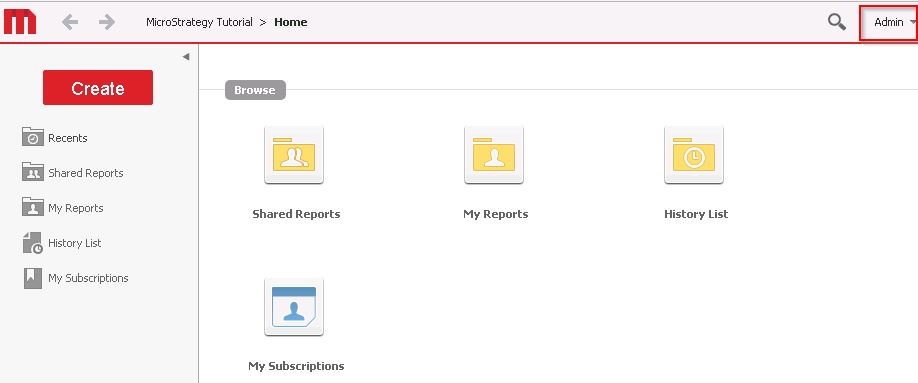
  2. Go to Strategy Web and use trusted authentication to login to the project of your choice. The Strategy user linked to Trusted ID set in the value parameter should now be logged in.
ka02R000000kV6uQAE_0EM44000000WQUe.jpeg

Third Party Software Installation:
WARNING:
The third-party product(s) discussed in this technical note is manufactured by vendors independent of Strategy. Strategy makes no warranty, express, implied or otherwise, regarding this product, including its performance or reliability. KB440940


Comment

0 comments

Details

Knowledge Article

Published:

June 4, 2018

Last Updated:

November 14, 2018