SUMMARY
Starting with Strategy Analytics Enterprise 10 Data Import has the functionality to pull data from various new sources. Facebook is part of the list and below the required steps are listed in order to configure the connector.
PREREQUISITES
Strategy Web is accessible using HTTPS protocol.
STEPS TO FOLLOW
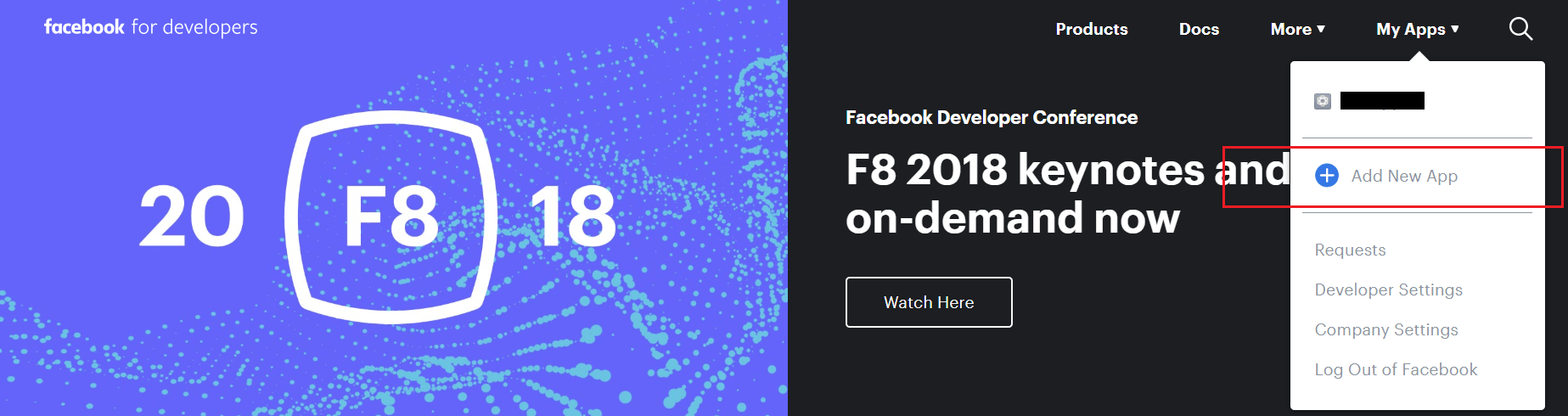
1. Login to the Facebook developers page: https://developers.facebook.com/.
2. Go to 'My Apps'->'Add New App'.
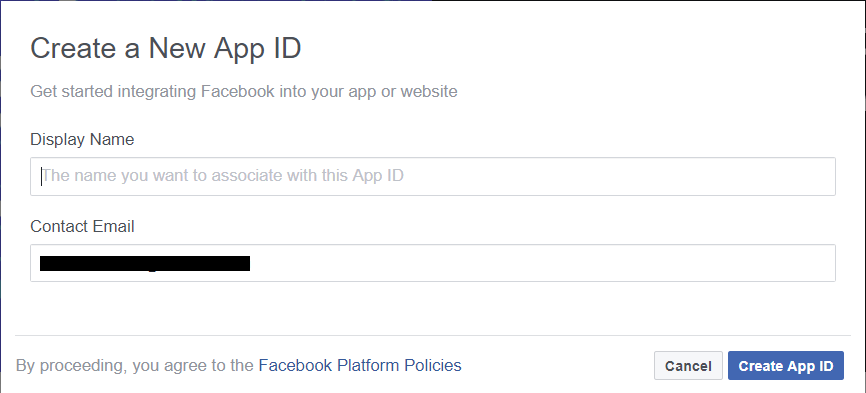
3. Fill out Display Name and Contact Email, and click 'Create App ID'.
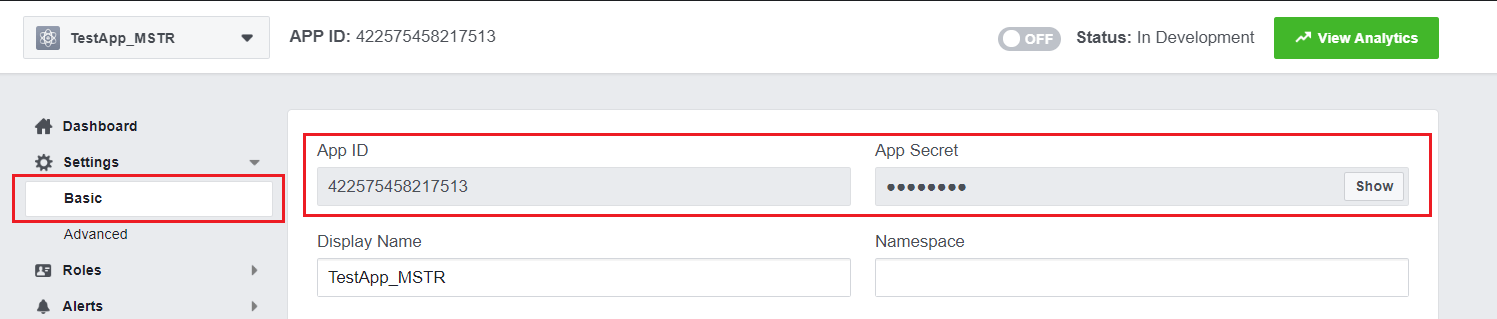
4. Go to Settings->Basic, take a note of the 'App ID' and 'App Secret', which will be used later on.
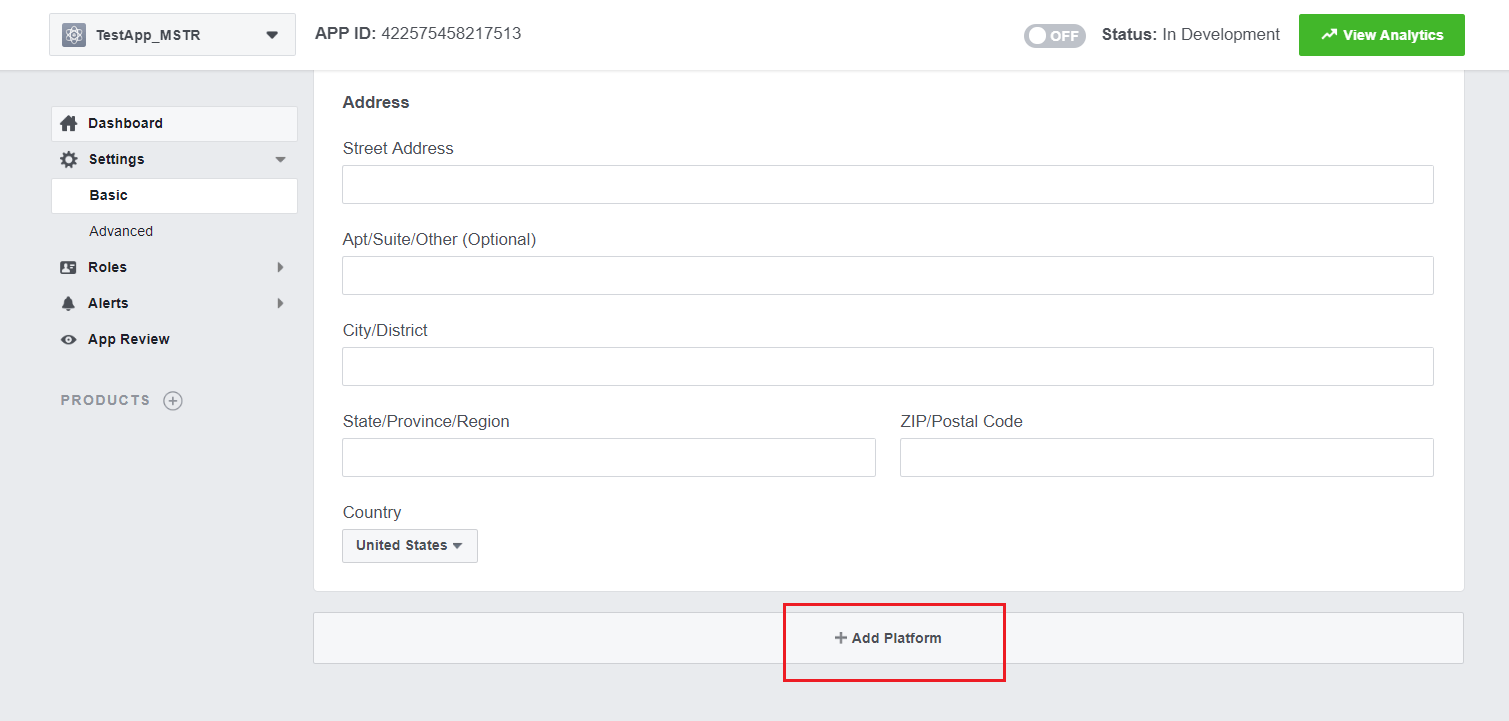
5. Scroll all the way down to the bottom, and click 'Add Platform'.
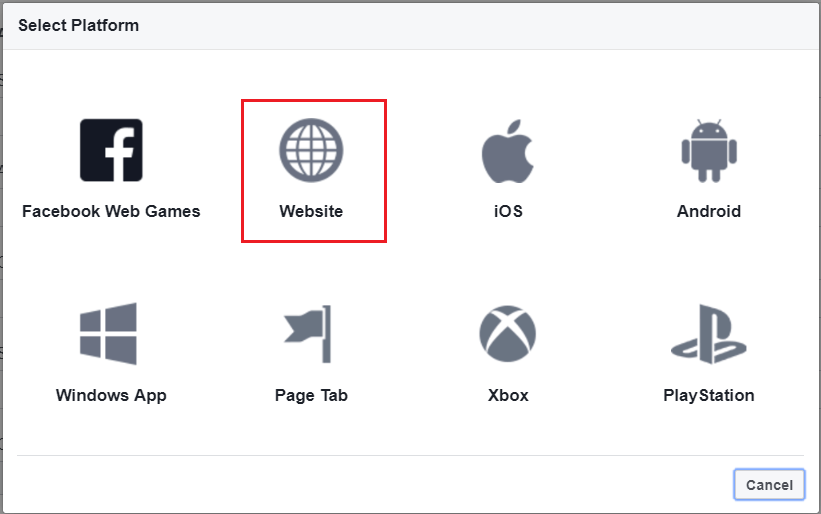
6. Select 'Website'.
7. Fill the Site URL field with the URL for Strategy Web.
ASP:
https://WebServerFQDN/StrategyApplicationName/asp/Main.aspx
https://WebServerFQDN/StrategyApplicationName/servlet/mstrWeb

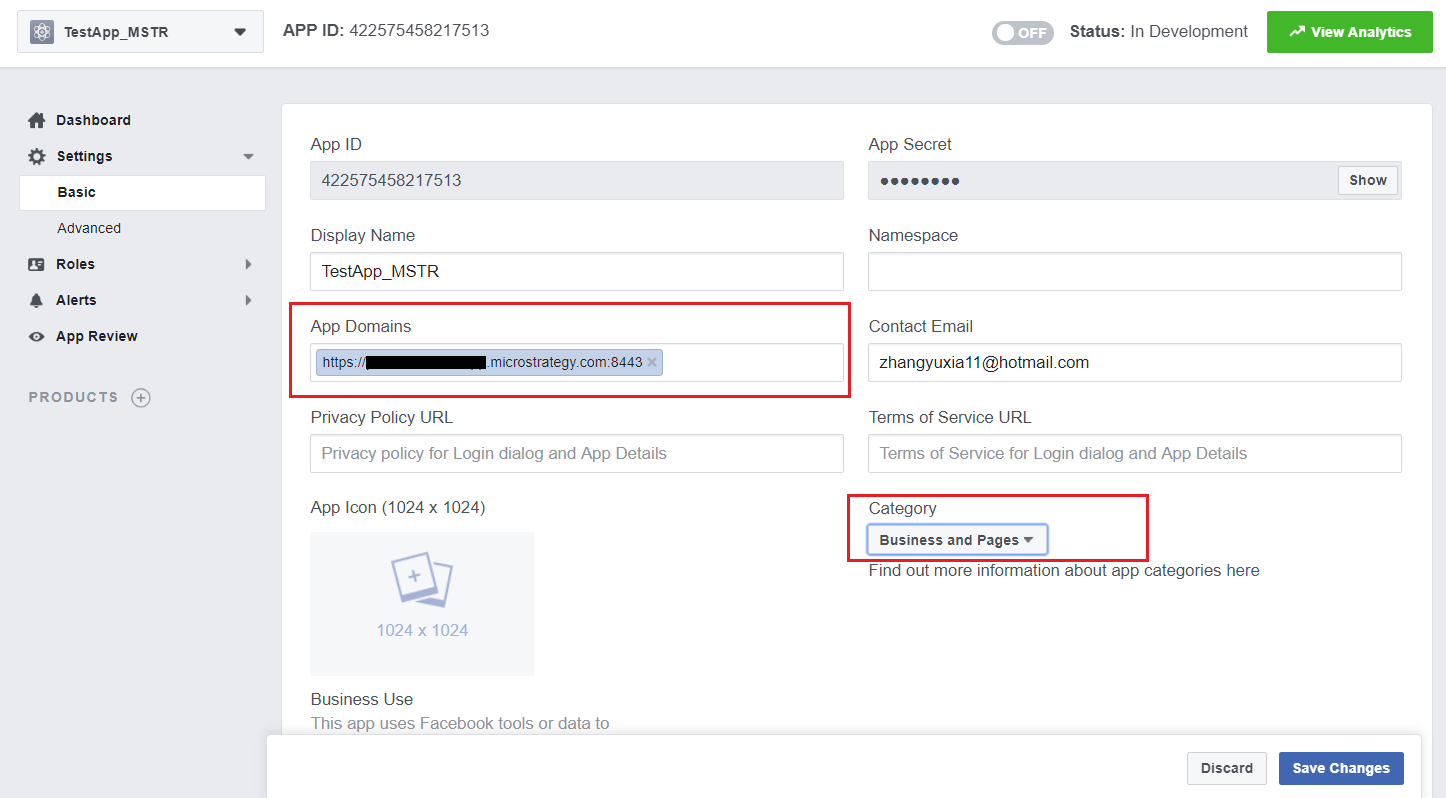
8. Scroll up, enter FQDN of web server machine in 'App Domains', select "Business and Pages' in 'Category', and click 'Save Changes'.
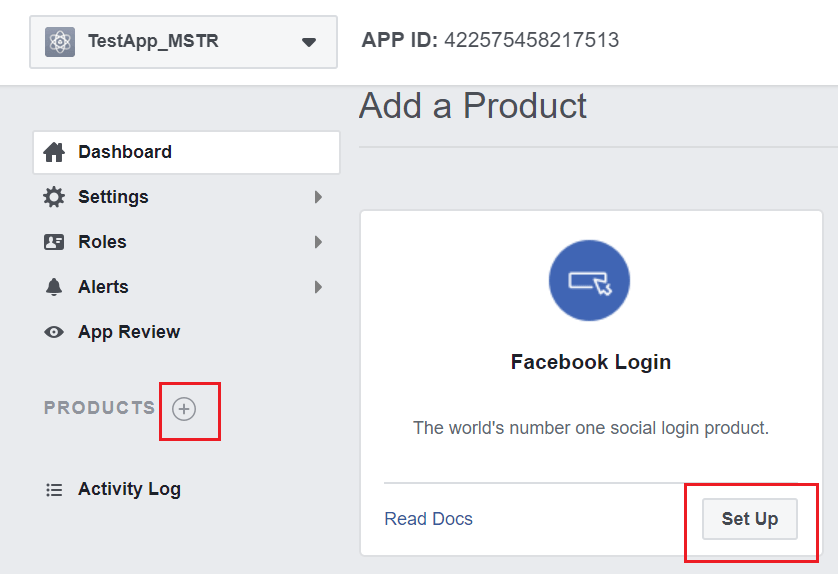
9. Click on the 'PRODUCTS' Plus icon in the left menu->click on 'Set Up' in the 'Facebook Login' block.
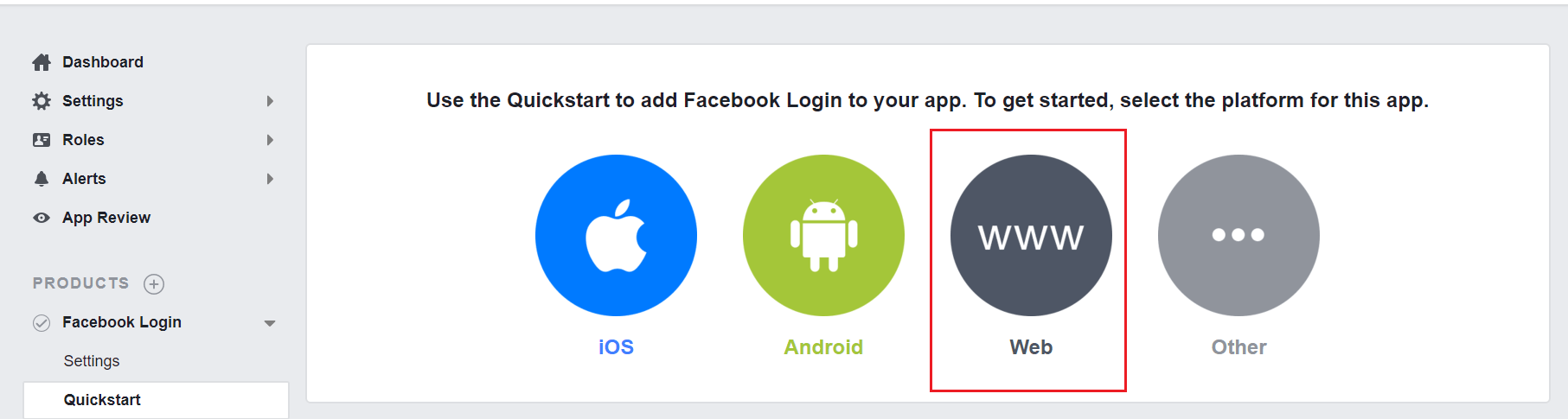
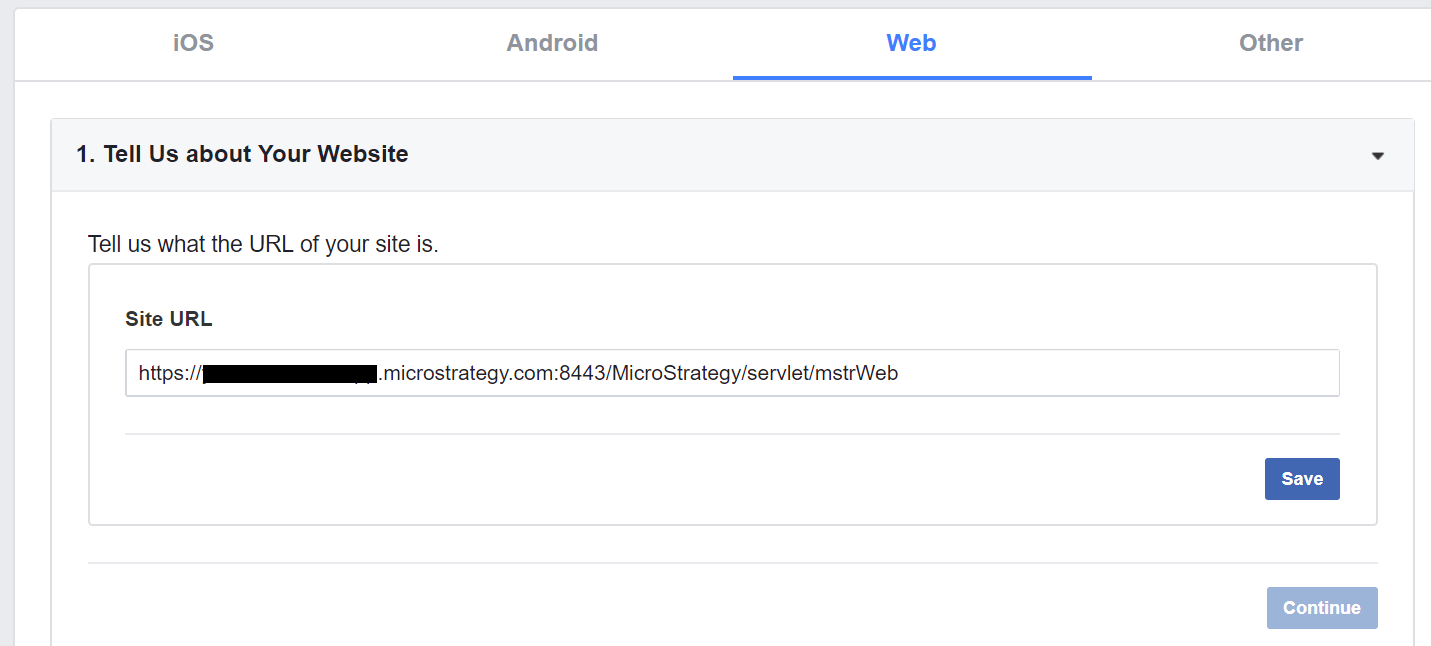
10. Select the Web icon->Make sure the Site URL is correct (step7)->click on 'Save'.
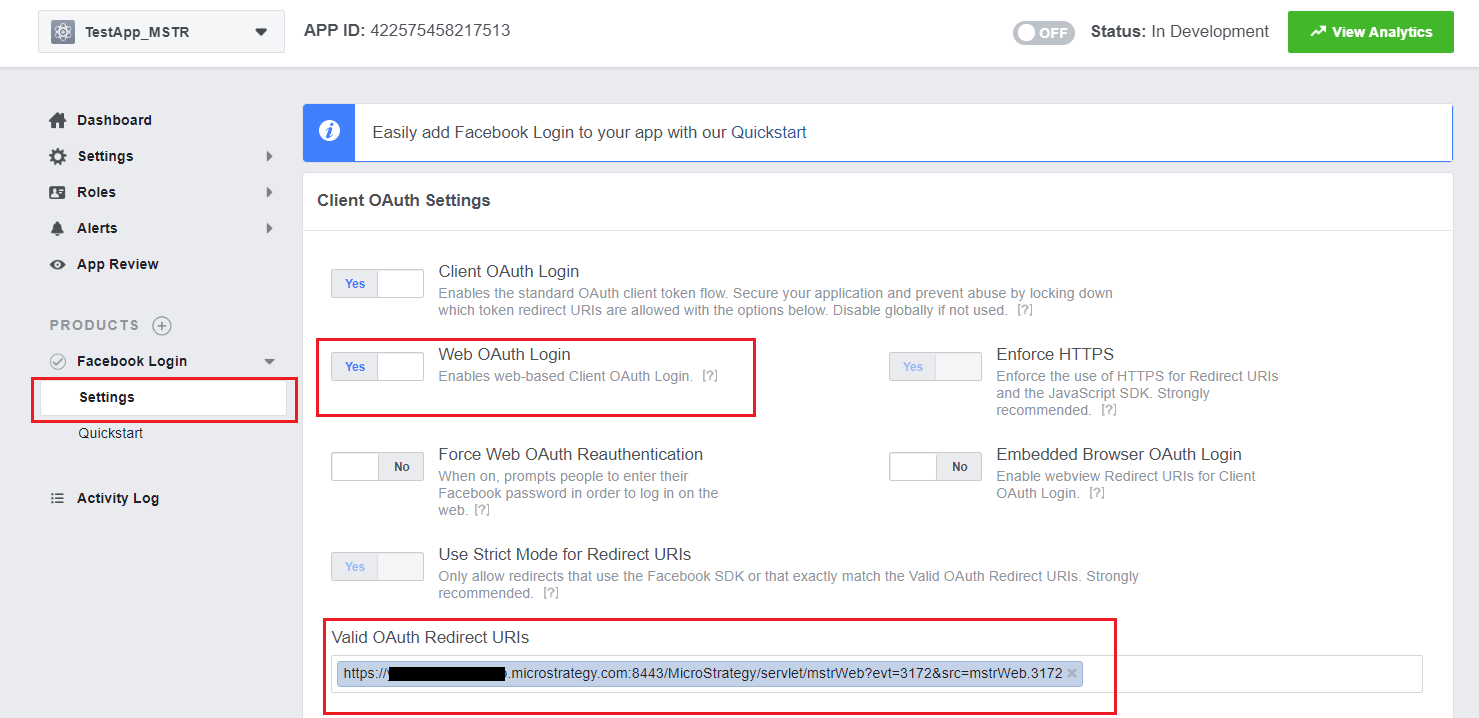
11. Go to 'Settings' under 'Facebook Login' in the left menu, make sure 'Web OAuth Login' is set to 'Yes' and enter the appropriate redirect URIs, which will be the callback URL:
ASP:
https://WebServerFQDN/WebApplicationName/asp/Main.aspx?evt=3172&src=Main.aspx.3172
https://WebServerFQDN:PortNumber/WebApplicationName/servlet/mstrWeb?evt=3172&src=mstrWeb.3172
12. Open Strategy Web with HTTPS protocol->click "Access External Data".
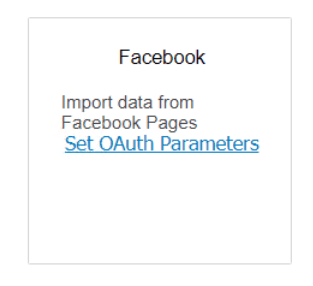
13. In the "Connect Your Data" window, hover the cursor over "Facebook" connector, click on the "Set OAuth Parameters"
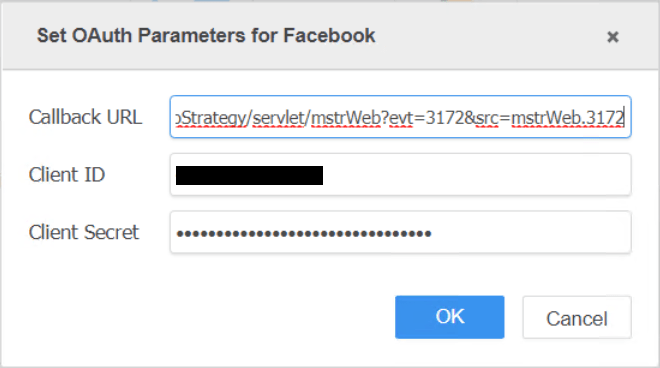
14. Enter Callback URL (step 11), Client ID (step 4 App ID), Client Secret (step 4 App Secret)->click 'OK'.
Now, users can click on the Facebook connector, login using Facebook account and import data from Facebook.
