EducationSoftwareStrategy.com
StrategyCommunity

Knowledge Base

Product

Community

Knowledge Base

TopicsBrowse ArticlesDeveloper Zone

Product

Download SoftwareProduct DocumentationSecurity Hub

Education

Tutorial VideosSolution GalleryEducation courses

Community

GuidelinesGrandmastersEvents
x_social-icon_white.svglinkedin_social-icon_white.svg
Strategy logoCommunity

© Strategy Inc. All Rights Reserved.

LegalTerms of UsePrivacy Policy
  1. Home
  2. Topics

KB441093: Mobile Processor Affinity Tool (MAMobileAff) is not working in MicroStrategy 10.x.


Yihuan Qian

Senior Support Engineer • MicroStrategy


In MicroStrategy 10.x, if user set Web and Mobile Servers to use different processors using Web Processor Affinity Tool and Mobile Processor Affinity tool, Mobile Server is always using the same processor as Web Server.

SYMPTOM
In Strategy 10.x, if user set Web and Mobile Servers to use different processors using Web Processor Affinity Tool and Mobile Processor Affinity tool, Mobile Server is always using the same processor as Web Server.
STEPS TO REPRODUCE
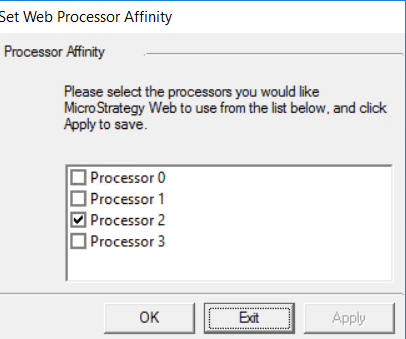
  • Set Web Server to use Processor 2 using Web Processor Affinity tool (MAWebAff.exe) located in Install_Path:\Program Files (x86)\MicroStrategy\Web ASPx. Click 'Apply'.

ka02R000000kV6tQAE_0EM44000000WUF4.png
  •  Set Mobile Server to use Processor 3 using Mobile Processor Affinity tool (MAMobileAff.exe) located in Install_Path\Program Files (x86)\MicroStrategy\Mobile Server ASPx. Click 'Apply'. 

ka02R000000kV6tQAE_0EM44000000WUFJ.png
  • Restart IIS.
  • Generate request from both Strategy Web and Mobile client.
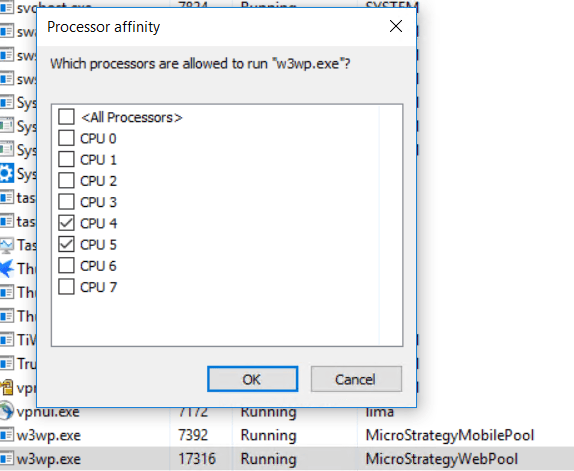
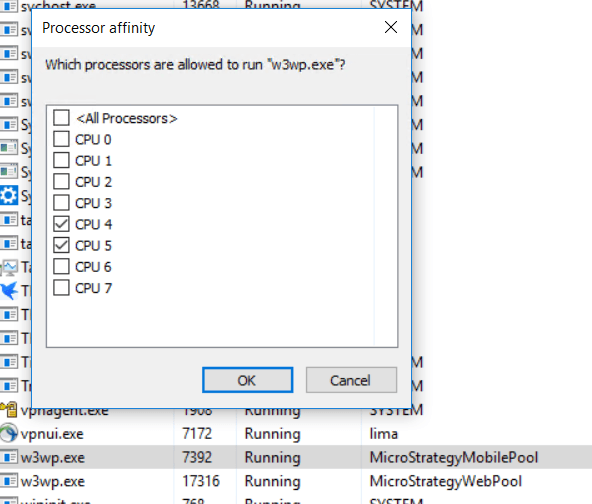
  • Check Task Manager. For StrategyWebPool process, and CPU 4 and CPU 5 are allowed. For StrategyMobilePool process, same processors are allowed.   

ka02R000000kV6tQAE_0EM44000000WUFd.png
ka02R000000kV6tQAE_0EM44000000WUGC.png
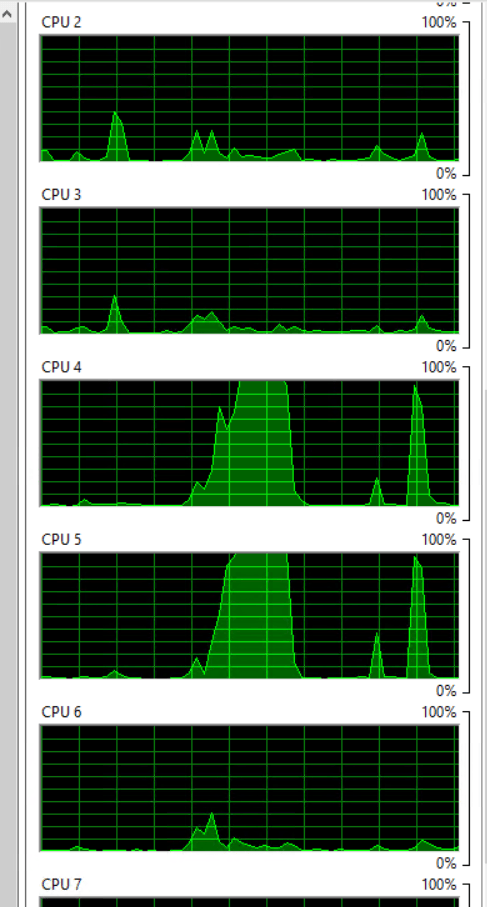
  • Open Resource Monitor. CPU 4 and CPU 5 are utilized.

ka02R000000kV6tQAE_0EM44000000WUGM.png
  • Do a swapping test by setting Web Server to use Processor 3 and Mobile Server to user Processor 4.
  • Restart IIS.
  • Generate request from both Strategy Web and Mobile client.
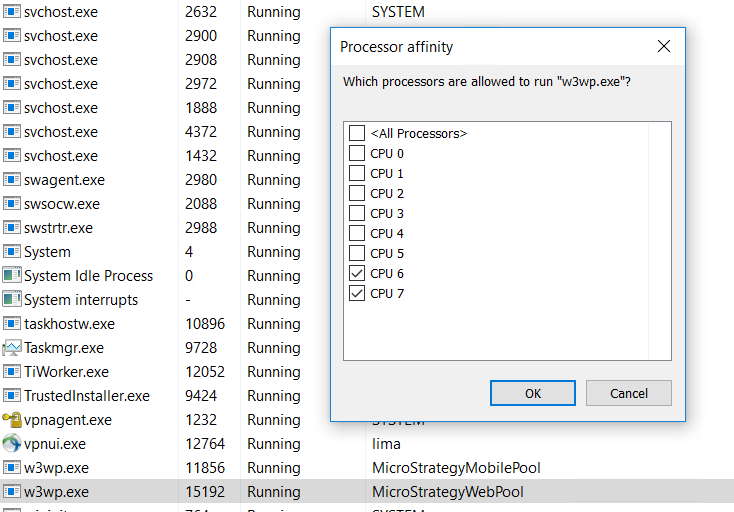
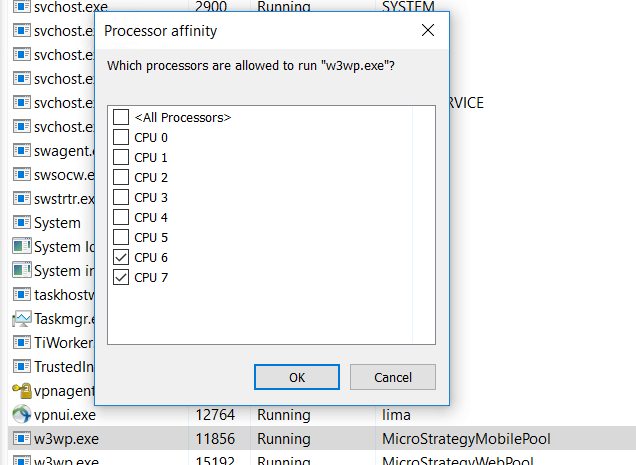
  • Check Task Manager. For StrategyWebPool process, and CPU 6 and CPU 7 are allowed. For StrategyMobilePool process, same processors are allowed.  

ka02R000000kV6tQAE_0EM44000000WUGv.png
ka02R000000kV6tQAE_0EM44000000WUH0.png
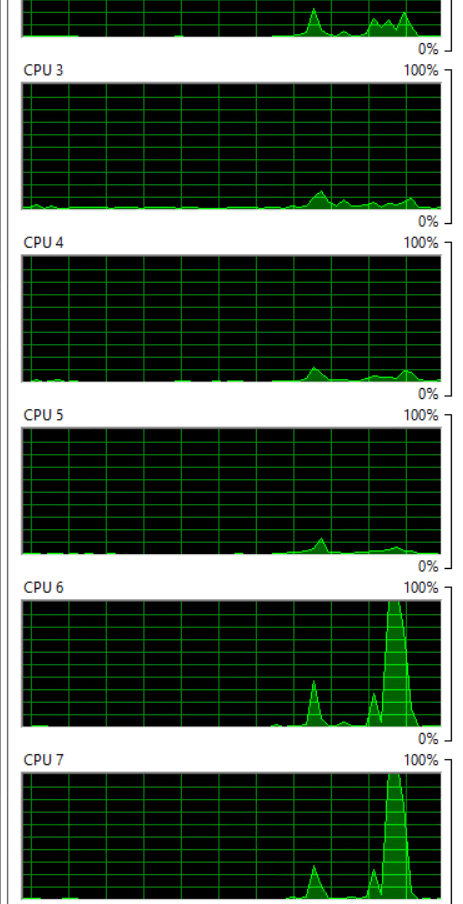
  • Open Resource Monitor. CPU 6 and CPU 7 are utilized.. 

ka02R000000kV6tQAE_0EM44000000WUHP.png
  • If user set Web to use CPU 4 and CPU 5 and Mobile to use CPU 6 and CPU 7 in task manager, after IIS is restarted, Web and Mobile Servers will inherit the setting in Web Processor Affinity tool.

CAUSE
WebAff and MAMobileAff tools are not been maintained in current releases. Strategy does not support these two tools anymore.
WORKAROUND
Set processor affinity directly in IIS.
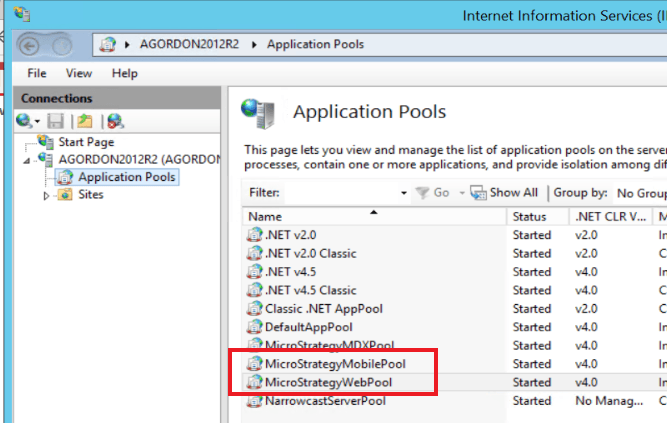
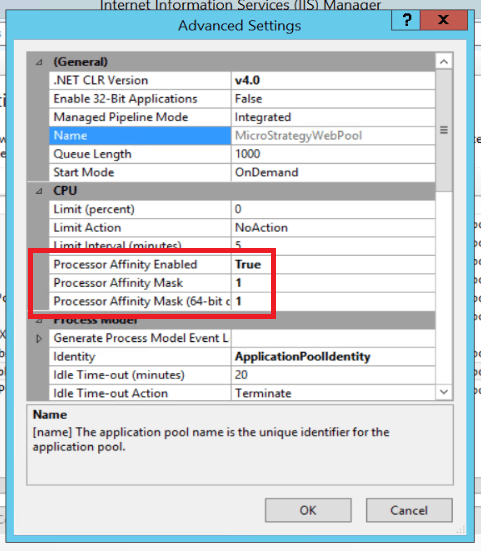
  • In IIS, go to Application Pools and find StrategyWebPool and StrategyMobilePool.
ka02R000000kV6tQAE_0EM44000000WUHU.png
  • Right-click on StrategyWebPool and go to Advanced Settings.
  • Change "Processor Affinity Enabled" to true, and then set the value for "Processor Affinity Mask". 
ka02R000000kV6tQAE_0EM44000000WUHo.png
  •  Repeat steps 2-3 for the StrategyMobilePool. Make sure to set a different value for the "Processor Affinity Mask" so that it uses a different CPU.

Please note, Processor Affinity Mask is using binary code.
For example:
Mobile to use CPU5 -> 0010000 -> Processor Affinity Mask=32
Web to use CPU4   -> 0001000 -> Processor Affinity Mask=16
KB441093


Comment

0 comments

Details

Knowledge Article

Published:

June 28, 2018

Last Updated:

November 14, 2018