EducationSoftwareStrategy.com
StrategyCommunity

Knowledge Base

Product

Community

Knowledge Base

TopicsBrowse ArticlesDeveloper Zone

Product

Download SoftwareProduct DocumentationSecurity Hub

Education

Tutorial VideosSolution GalleryEducation courses

Community

GuidelinesGrandmastersEvents
x_social-icon_white.svglinkedin_social-icon_white.svg
Strategy logoCommunity

© Strategy Inc. All Rights Reserved.

LegalTerms of UsePrivacy Policy
  1. Home
  2. Topics

KB441102: How to Customize the added Custom Message on Login Page Using MicroStrategy Web SDK


Community Admin

• Strategy


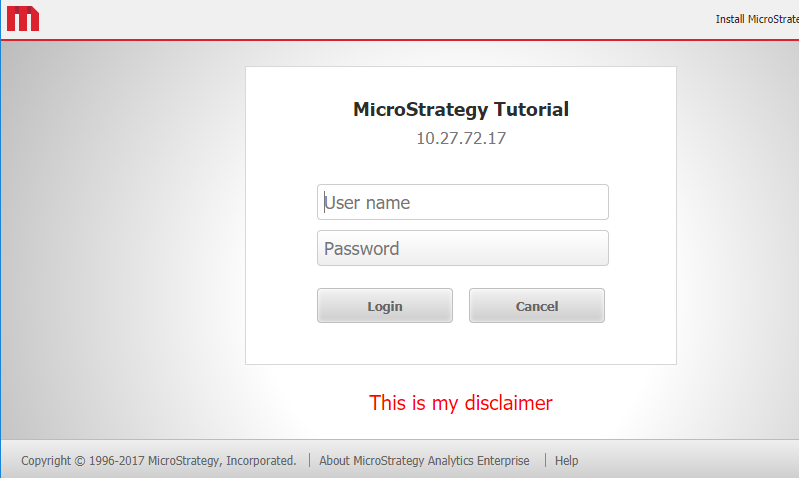
Users can refer KB38986 to add a custom message on the MicroStrategy web login page. This example described how to customize the added custom message.

CONTENT:
Users can refer KB38986 to add a custom message on the Strategy web login page. This example described how to customize the added custom message.
 

ka04W00000148YQQAY_0EM44000000WUJp.png

 
Using the Web Customization Editor to create a plug-in
Strategy SDK provides a Web Customization Editor that can be used to create a customization plug-in. The following steps show how to create the plug-in and deploy.

  • Launch the Web Customization Editor.
  • Create a new plug-in and give it a meaningful name. For example: CustomMessageLoginPage. (For step by step instructions on creating a new plug-in, please navigate to Home > Web SDK > Customizing Strategy Web > Web Customization Editor > Features and Customizable)
  • Click in Strategy Web Configuration inside the Application Settings view to expand the hierarchical tree. The expanded list comprises the different settings that can be modified to perform customizations.
  • Navigate to Strategy Web Configuration > Pages
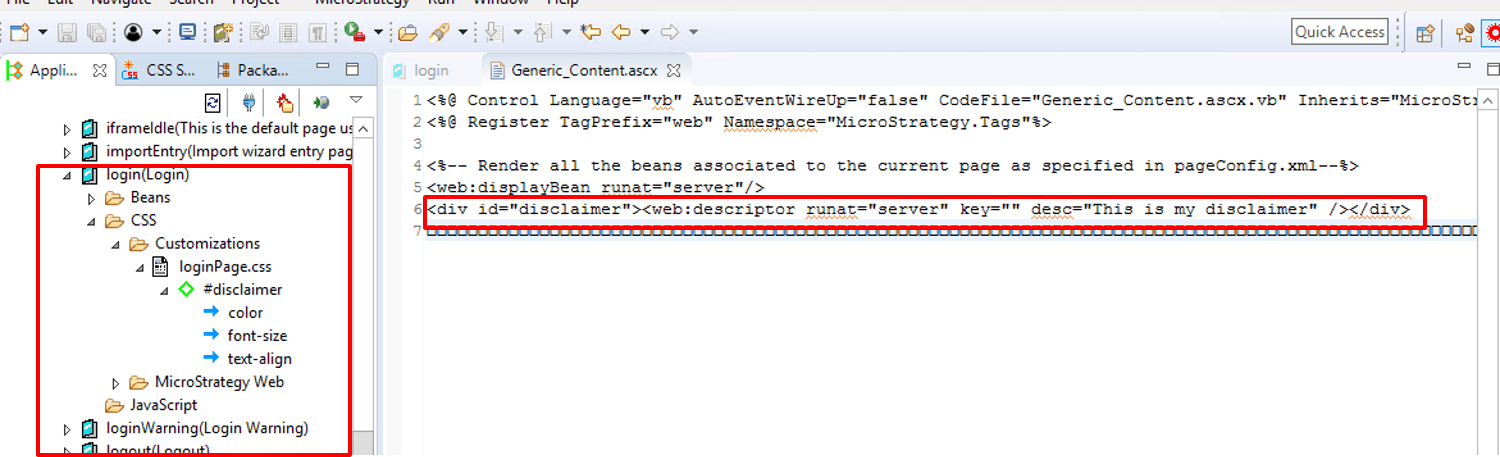
  • Double-click on login(Login) to open the page editor.
  • Click on the Template Properties tab.
  • Right-cllick on Generic_Content and select Edit current file
  • Click yes to any pop-up that appears and either the Generic_Content.jsp or Generic_Content.ascx file will open in a new tab.
  • Add the following content with a div tag and unique value included:For Generic_Content.jsp, make the following change at the end of the file: 
    
    <div id = "disclaimer"><web:descriptor key="" desc="This is my disclaimer" /></div>

    For Generic_Content.ascx, make the following change at the end of the file as seen below: 
    
    <div id = "disclaimer"><web:descriptor runat="server" key="" desc="This is my disclaimer" /></div>
ka04W00000148YQQAY_0EM44000000WUJk.png
  • Navigate to Strategy Web Configuration > Pages > login(Login) > CSS > Customization
  • Right mouse click on the loginPage.css and select New Selector
  • Enter #disclaimer as the selector name
  • Right mouse click on the #disclaimer selector and add properties as you want. e.g. Property: font-size Value: 20px !important ; Property: color Value: #ff0000 !important and Property: text-align Value: center !important
  • Save the new changes.
  • Restart the Web Server.


The example provided in this document is provided “as-is” to the user and assumes that the user:

  • Can program, compile (e.g. javac, jikes, etc.), and execute Java programs
  • Can configure environment variables (e.g. JAR files, property files, etc.)
  • Have all the necessary tools to create Java applications (JDK, IDE, etc.)
  • Has access to the Strategy SDK documentation.
  • Has read the customization warning at the bottom of this document


PREREQUISITES:
For the sample to work, the Strategy Web JAR files must be accessible by the Java Runtime
Environment. The Strategy Web JAR files can be found under:

  • Strategy Web Universal (JSP): {web_root}/WEB-INF/lib directory.
  • Strategy Web (.NET): Program Files\Common Files\Strategy directory.

Note:
More elaborate programs will require additional library files and are out of the scope of this document.
 
ADDITIONAL INFORMATION:
The Strategy SDK allows you to customize the standard Strategy Web interface, and extend and integrate the Strategy business intelligence functionality into other applications. However, before changing the way Strategy Web products look or behave, it is helpful to understand how the application is built. For more information regarding the Strategy Web architecture or the process of customizing Strategy Web, please refer to Strategy Developer Zone (https://community.Strategy.com/s/topic/0TO44000000FliLGAS/sdk).
 
To access the Strategy Developer Zone, you must have access to the Strategy Knowledge Base, you must have purchased the Strategy SDK, and you must be current on your Strategy maintenance agreement. If you are a US-based business and believe that you satisfy all three of these conditions but you do not have access to the Strategy Developer Zone, please contact Strategy Technical Support at support@Strategy.com or at (703) 848-8700. If you are an international business, please contact Strategy Technical Support at the appropriate email address or phone number found at https://www.microstrategy.com/en/support/contact-support.
 
CUSTOMIZATION WARNING:
This customization is provided as a convenience to Strategy users and is only directly applicable to the version stated. While this code may apply to other releases directly, Strategy Technical Support makes no guarantees that the code provided will apply to any future or previous builds. In the event of a code change in future builds, Strategy Technical Support makes no guarantee that an updated version of this particular customization will be provided. In the event of a code change in future builds, Strategy may not be able to provide additional code on this matter even though this customization is provided at this time for this specific build. For enhancements to this customization or to incorporate similar functionality into other versions, contact your Account Executive to inquire about Strategy Consulting assistance.
Article Reference Number: KB441102


Comment

0 comments

Details

Knowledge Article

Published:

June 26, 2018

Last Updated:

November 9, 2018