EducationSoftwareStrategy.com
StrategyCommunity

Knowledge Base

Product

Community

Knowledge Base

TopicsBrowse ArticlesDeveloper Zone

Product

Download SoftwareProduct DocumentationSecurity Hub

Education

Tutorial VideosSolution GalleryEducation courses

Community

GuidelinesGrandmastersEvents
x_social-icon_white.svglinkedin_social-icon_white.svg
Strategy logoCommunity

© Strategy Inc. All Rights Reserved.

LegalTerms of UsePrivacy Policy
  1. Home
  2. Topics

KB441186: How to sort attribute elements in reports, view filters, and report filters in MicroStrategy Web


Community Admin

• Strategy


This article describes how to sort the attribute elements in a report, a view filter, and in a report filter.

SYMPTOM:
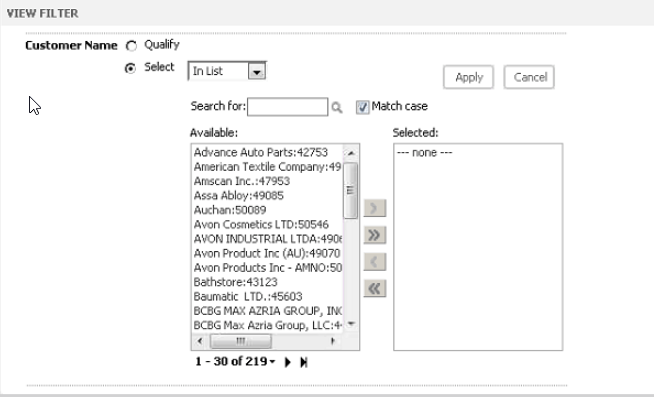
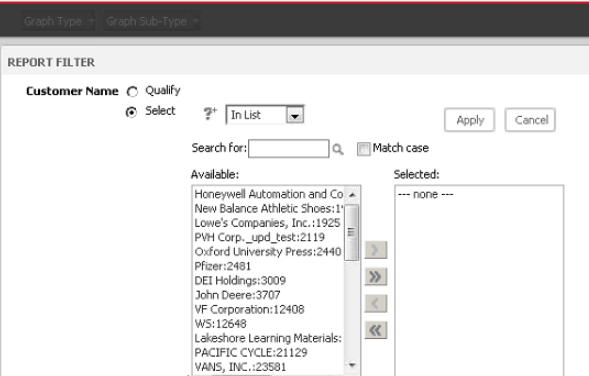
Users see that attribute elements in reports, view filters, or report filters are not sorted, making it more difficult to browse through and select the desired elements.
 

ka0PW00000012arYAA_0EM44000000WVgz.png

CAUSE:
Attribute element sorting is determined by the attribute settings in Strategy Developer.
ACTION:
To edit the desired attribute so it sorts in the report, view filter, and report filter, follow the steps below.
  1. Open Strategy Developer.
  2. Navigate to the desired attribute.
  3. Right click on the attribute, and click edit.
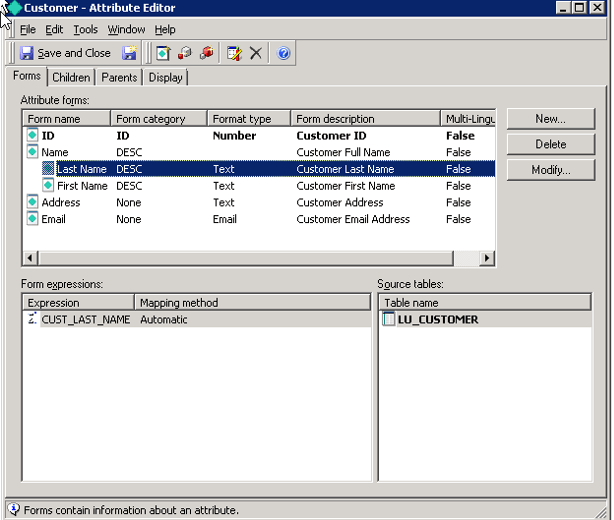
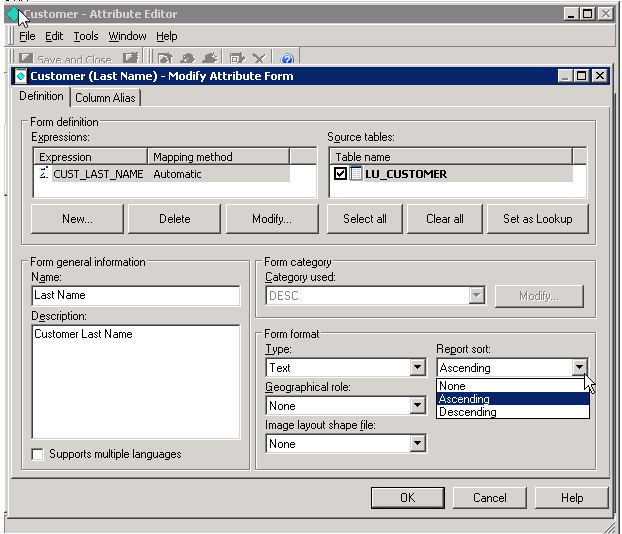
  4. Click on the attribute form that requires sorting.

ka0PW00000012arYAA_0EM44000000WVIs.png
  1. Click “Modify.”
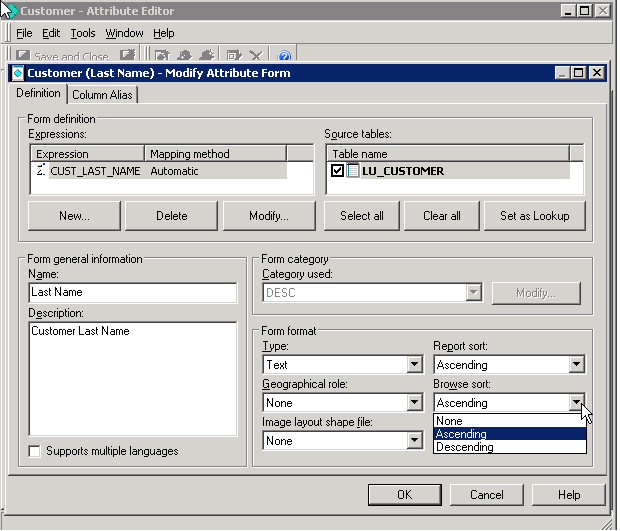
  2. To change attribute element sorting in both reports and view filters, change the Report sort drop down value.

ka0PW00000012arYAA_0EM44000000WVIx.png
  1. To change the attribute element sorting in report filters, change the Browse sort drop down value.

ka0PW00000012arYAA_0EM44000000WVJ2.png
  1. Click OK to close the attribute editor.
  2. Update the schema
  3. Close and re open your report. This should show the desired sorting.

ka0PW00000012arYAA_0EM44000000WVeZ.png

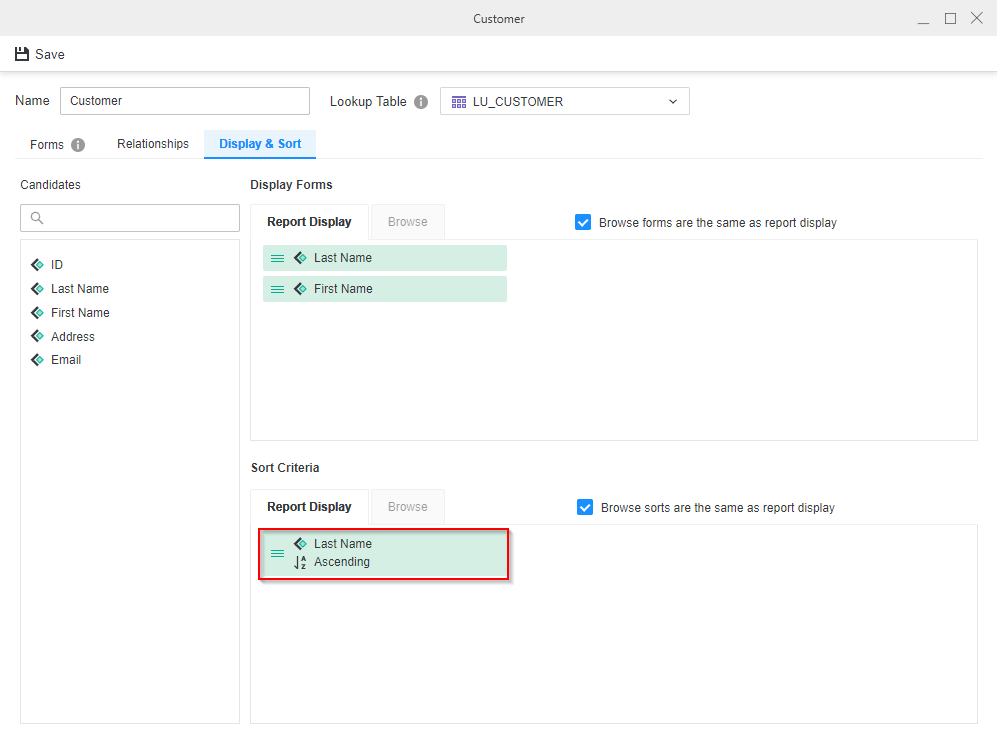
The same steps can be accomplished via Workstation:
  1. Login to the environment.
  2. Navigate to Objects and look for the attribute.
  3. Right click the attribute and select Edit.
  4. Select the Display and Sort tab and add the attribute form to the "Sort criteria" area and select either Ascending or Descending:
ka0PW00000012arYAA_0EMPW000004JF97.jpeg

KB441186


Comment

0 comments

Details

Knowledge Article

Published:

June 28, 2018

Last Updated:

March 4, 2024