SYMPTOM 1
On Windows OS, Strategy Configuration Wizard 10.x or newer fails to configure the Intelligence Server when pointing to metadata located in PostgreSQL 9.1 or later database. It fails with the following error message:
Server Definition manipulations error: Database error <5>: Execute Query failed.
Error type: Odbc error. Odbc operation attempted: SQLExecDirect. [22001:3452545: on HSTMT] [Strategy][ODBC PostgreSQL Wire Protocol driver][PostgreSQL]ERROR: value too long for type character varying(4000)
Server Definition manipulations error: (Failed to decompress definition of xx object 'CASTOR_SERVER_CONFIGURATION' (ID: xxx...))
(Configuration creation failed. See error log for reason of failure. Correct the error and rerun the configuration wizard again.)
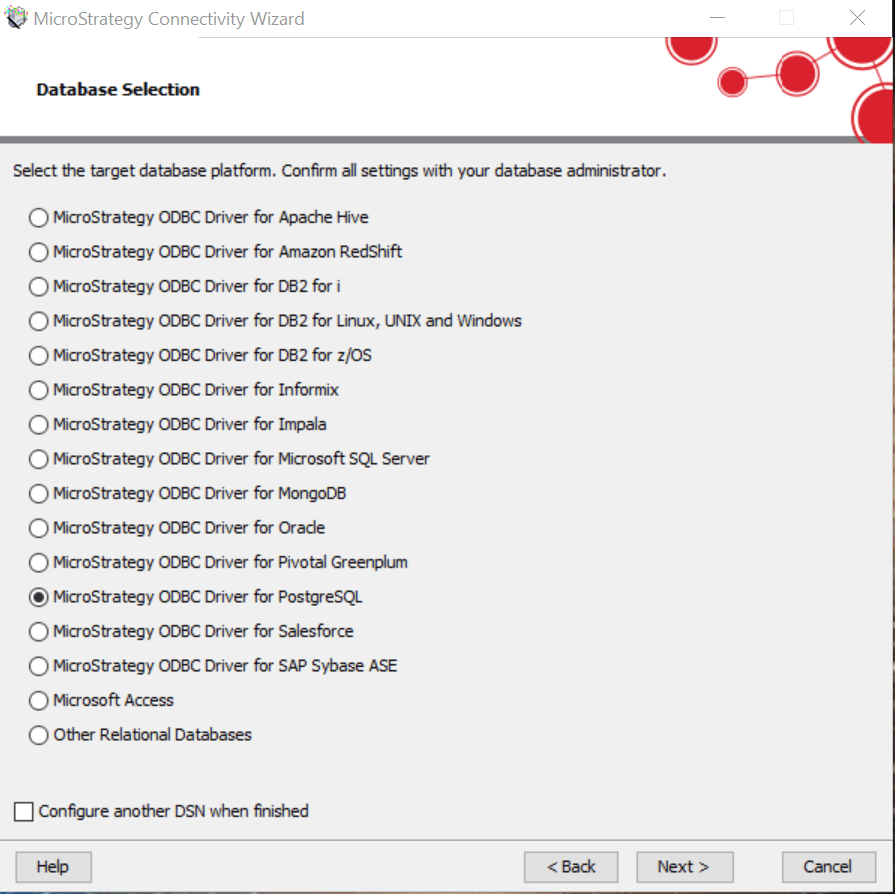
b) fill out Driver Details
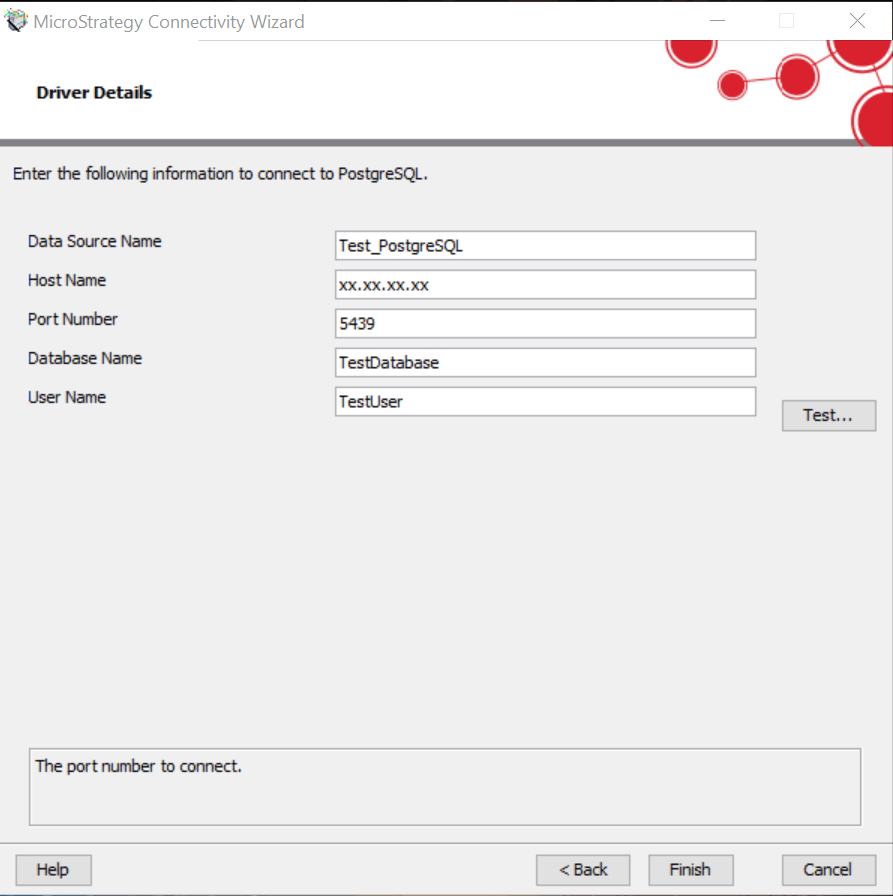
c) test the connection by entering database user's credentials.
2. If connection testing results are successful, finish the DSN creation, and open up Strategy Configuration Wizard > select Configure Intelligence Server.
3. Select the DSN created in step 1 and provide database user name and password to log in.

4. Provide Strategy Administrator credentials to log in.

5. Create a new Server Definition or select an existing one.
6. Fill out the Server Settings and pick available projects to be loaded at startup.
7. If not required, skip SSL and Statistics Configuration.
8. Click on "Apply" button to execute tasks in the summary. Error will pop up as the above symptoms.
CAUSE
The default value for the setting standard_conforming_strings was changed in PostgreSQL 9.1 and later versions. In PostgreSQL 9.1, the default for this setting is on.
WORKAROUND
The issue can be fixed by applying the following workaround based on the odbc driver used for the metadata DSN (Strategy ODBC Driver for PostgreSQL, PostgreSQL Unicode(x64))
For Strategy ODBC Driver for PostgreSQL:
1. Run ODBC Data Source Administrator (64-bit) on Windows machine hosting the Strategy Intelligence Server.
2. Click on System DSN tab and highlight the PostgreSQL metadata DSN where Strategy ODBC Driver for PostgreSQL is used. Click on Configure.

3. In the Advanced tab, set the InitializationString parameter to SET STANDARD_CONFORMING_STRINGS TO OFF;
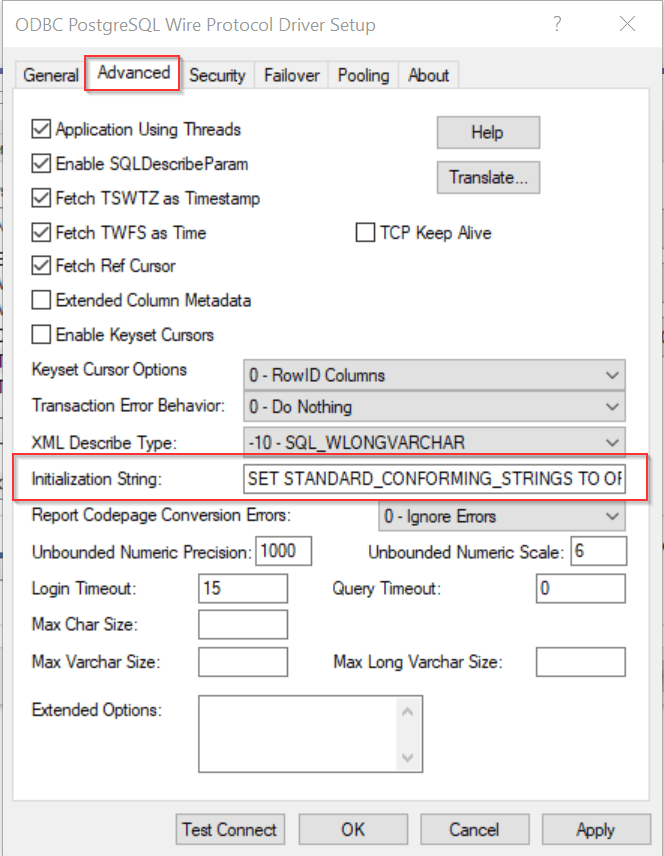
4. Try to configure the Intelligence Server again after applying these steps.
5. For Linux platform, add the following parameter in the metadata DSN: InitializationString=SET STANDARD_CONFORMING_STRINGS TO OFF in the odbc.ini file.
For PostgreSQL Unicode(x64) driver:
1. Run ODBC Data Source Administrator (64-bit) on Windows machine hosting the Strategy Intelligence Server.
2. Click on System DSN tab and highlight the PostgreSQL metadata DSN where PostgreSQL Unicode(x64) is used. Click on Configure.
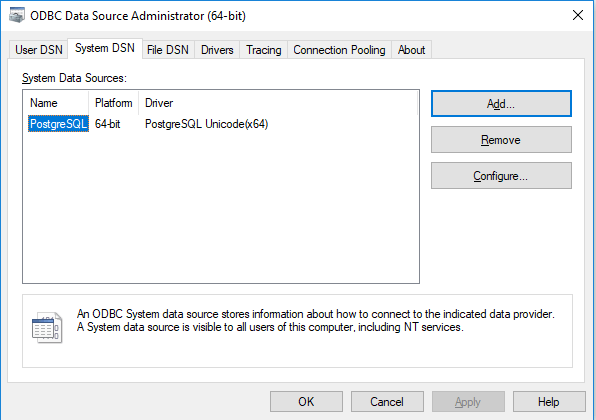
3. In the Setup page, click the Datasource under Option.

4. On Page 2, add SET STANDARD_CONFORMING_STRINGS=OFF in the Connect Settings.

5. Try to configure the Intelligence Server again after applying these steps.
6. For Linux platform, add the following parameter in the metadata DSN: ConnSettings=SET STANDARD_CONFORMING_STRINGS=OFF in the odbc.ini file.
