EducationSoftwareStrategy.com
StrategyCommunity

Knowledge Base

Product

Community

Knowledge Base

TopicsBrowse ArticlesDeveloper Zone

Product

Download SoftwareProduct DocumentationSecurity Hub

Education

Tutorial VideosSolution GalleryEducation courses

Community

GuidelinesGrandmastersEvents
x_social-icon_white.svglinkedin_social-icon_white.svg
Strategy logoCommunity

© Strategy Inc. All Rights Reserved.

LegalTerms of UsePrivacy Policy
  1. Home
  2. Topics

KB4413: How to modify the Access Control List for objects in MicroStrategy Developer


Stefan Zepeda

Salesforce Solutions Architect • Strategy


How to modify the Access Control List for objects in MicroStrategy Developer

To change the access permissions to a given object follow the steps below:
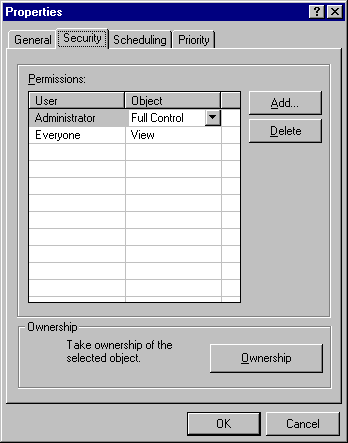
  • Select the desired object and right-click to display its menu.
  • Select the last option, 'Properties', and a window appears showing general information about the object.
  • Click on the 'Security' tab. The window is similar to the one shown below:
     
ka02R000000kYEBQA2_0EM440000002GIx.gif

 
Each row in the permissions list shows the permissions assigned to groups and users. To add an existing user or group to the access control list, execute the following steps:
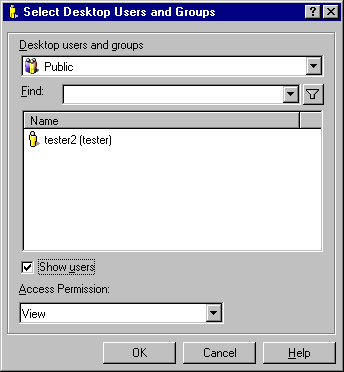
  • Press the 'Add' button and a new window is displayed:
     
ka02R000000kYEBQA2_0EM440000002GJ6.gif
  • Check the 'Show users' checkbox to view the users under a group.
  • Select from the list of groups or users which ones to specify access permissions.
  • With the 'Access Permission' combination box, select the permission for the users and press 'OK'. The users and groups selected will be added to the access control list with the specified permission.

 
To change the current access permission for an existing user or group:

  1. Select the user in the 'Security' tab list.
  2. Click on the 'Object' column. The permission option will show a combination box with the available permissions.

 
To delete a user or group from the access control list:

  1. Select the user in the 'Security' tab list.
  2. Click on the Delete button. Confirm the operation when prompted.

 
Please reference KB4000-007-0063 for more information on the meaning of permissions.


Comment

0 comments

Details

Knowledge Article

Published:

June 9, 2017

Last Updated:

June 9, 2017