Starting with the release of Strategy ONE (March 2024), dossiers are also known as dashboards.
SYMPTOM:
Users may share a dashboard built in Strategy Analytics Desktop that was created with a DSN-less connection set to Connect Live. When users try to open the dashboard, they are prompted to enter credentials for the connection, but cannot edit the host name, port number, etc. in the connection information. Users see the following error when valid credentials are submitted:
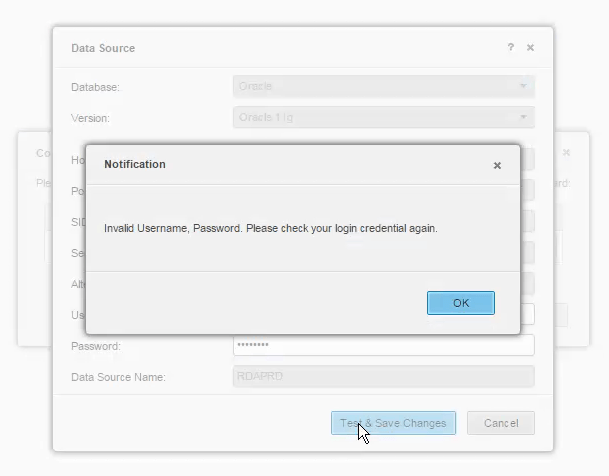
“Invalid Username, Password. Please check your login credential again.”
STEPS TO REPRODUCE:
1. Create a new dashboard in Strategy Analytics Desktop
2. Add new data by either selecting “Add New Data” from the left or clicking the database icon.
3. In the “Connect to Your Data” window, select Database and any of the options for adding data (Build a Query, Type a Query, Pick Tables)
4. In the next window, select “Add…” to add a data source.
5. Enter credentials and connection information for a DSN-less Data Source.
6. Select “OK,” add data, and select “Finish.”
7. When prompted, select “Connect Live.”
8. Add any data to the dashboard and save the dashboard.
9. Drop that database, sunset it, or otherwise make it unavailable for any database users.
10. Share the file with another Desktop user.
11. The user is prompted to “Input Credentials” when first opening the dashboard.
12. After entering credentials, the login is denied and users are unable to open the dashboard.
CAUSE:
This is a known limitation in Strategy Analytics Desktop 10.10 and lower.
ACTION:
Upgrade to Strategy 10.11 and higher to take advantage of the “Pause” functionality that will allow the dossier to be opened without first establishing a connection to the database.
WORKAROUND:
On versions 10.10 and lower, if the database server has been taken offline, but is still available, temporarily bring the database back online. While the database is online, the dashboard can connect to the database and the credentials for the dashboard can be modified to point to the new database.
KB441402
