EducationSoftwareStrategy.com
StrategyCommunity

Knowledge Base

Product

Community

Knowledge Base

TopicsBrowse ArticlesDeveloper Zone

Product

Download SoftwareProduct DocumentationSecurity Hub

Education

Tutorial VideosSolution GalleryEducation courses

Community

GuidelinesGrandmastersEvents
x_social-icon_white.svglinkedin_social-icon_white.svg
Strategy logoCommunity

© Strategy Inc. All Rights Reserved.

LegalTerms of UsePrivacy Policy
  1. Home
  2. Topics

KB441647: Metrics formatted as Time convert to Date in a transaction document in MicroStrategy Web 10.6 and above


Monica Gallegos Salazar

Principal Product Specialist • MicroStrategy


This issue has been classified as a defect by MicroStrategy. The impact is limited to MicroStrategy Web 10.6 and above when editing a field formatted as time in a transaction services document.

SYMPTOM
When editing a transaction input that has been formatted as Time:
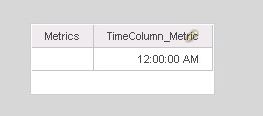
ka04W000001IuQ4QAK_0EM44000000QlSo.jpeg

 
A date format will show in its place as shown below:
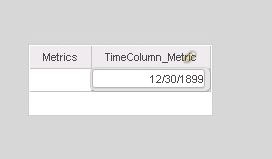
 

ka04W000001IuQ4QAK_0EM44000000QlSt.jpeg


STEPS TO REPRODUCE

  1. Create a table in a DB that is not Access (SQL Server was used in this steps) that contains a column with datatype time and one of the values is 12:00:00 AM.
    1. A Select statement shows the following running it in DB Query tool.
ka04W000001IuQ4QAK_0EM44000000QlSy.jpeg
  1. Create a fact based on the table’s column with datatype 'Time'.
  2. Create a metric based on the fact with the expression 'Min(Fact_Name)’:
ka04W000001IuQ4QAK_0EM44000000QlT8.jpeg


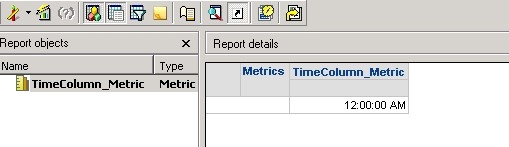
  1. Create a Report with the newly created metric on the template and run it, notice that the correct time is shown:
ka04W000001IuQ4QAK_0EM44000000QlTD.jpeg
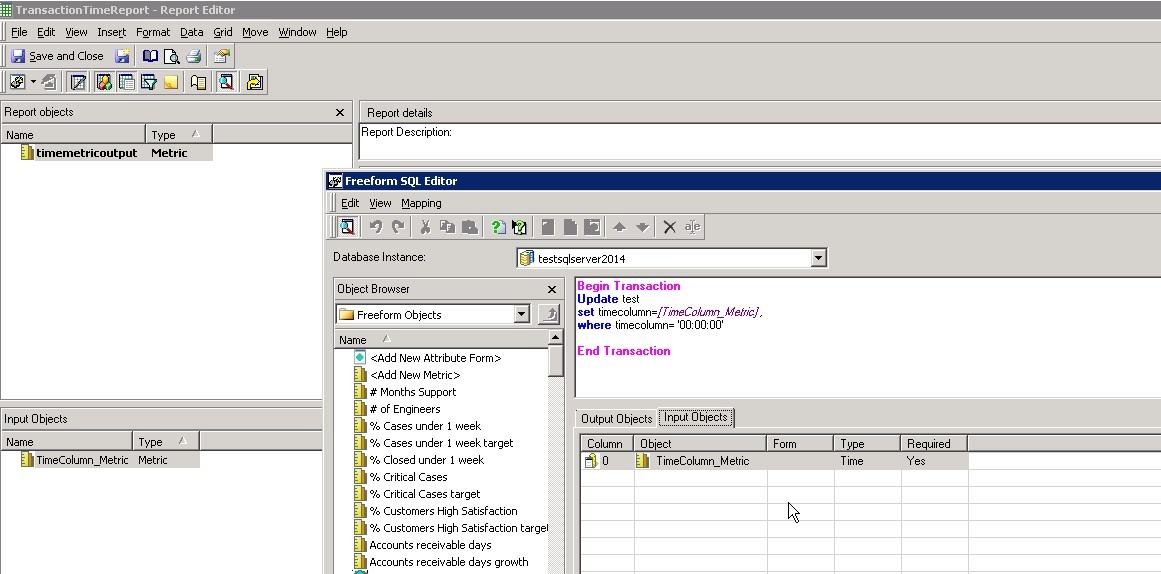
  1. Create a Transaction Report using the metric recently created as Input object using an Update statement:
ka04W000001IuQ4QAK_0EM44000000QlTI.jpeg


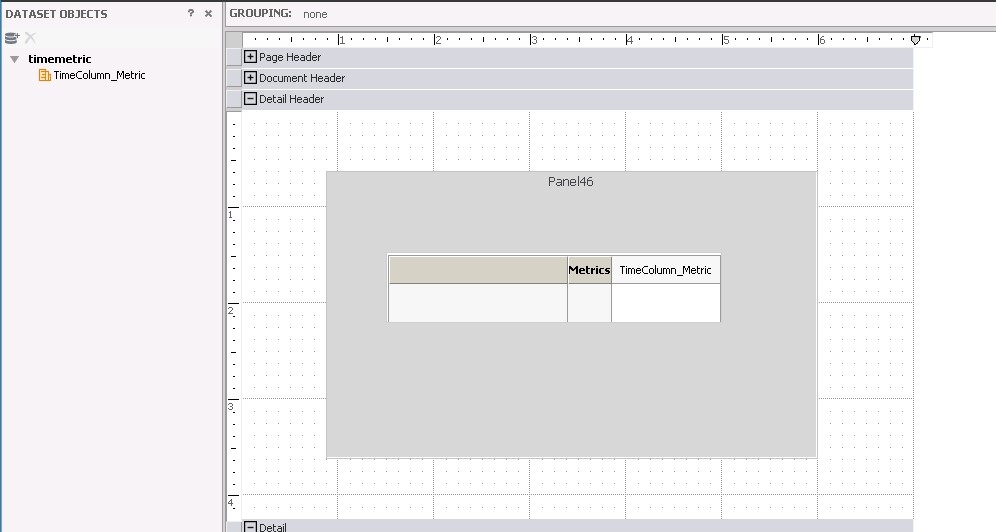
  1. Create a document that will use as dataset the report created in step 4, which contains the metric. Add a panel stack to the document and a grid. The grid should have the metric on the rows or columns.
ka04W000001IuQ4QAK_0EM44000000QlTN.jpeg
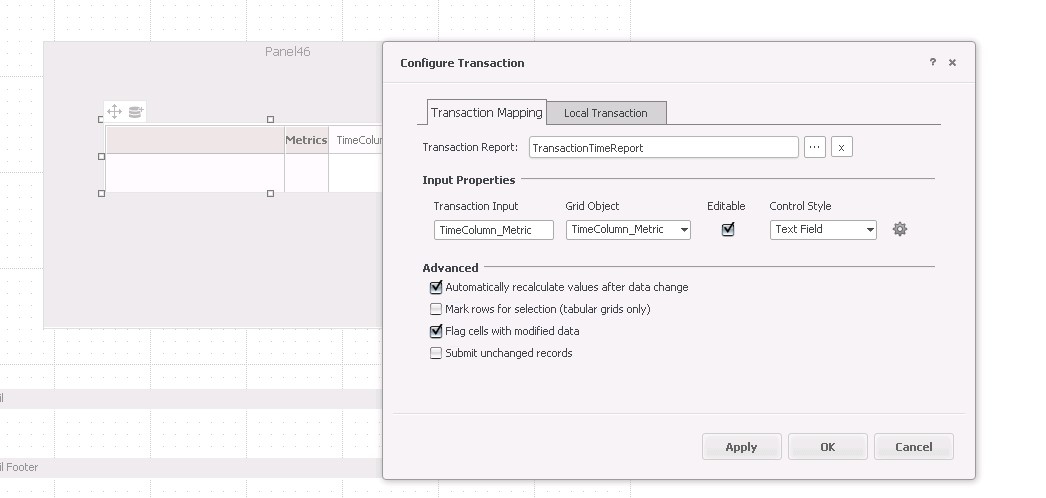
  1. Right click on the grid to “Configure Transaction”, use the Transactions Report created in step 4, choose the metric created as Transaction Input, for the Grid Object choose the Metric, check the Editable checkbox and the control style as Text Field:
ka04W000001IuQ4QAK_0EM44000000QlTS.jpeg
  1. Apply the changes and run the document. Notice how when the document is run the field shows “12:00:00 AM”. The issue comes when clicking on the field to edit it, it shows a date “12/30/1899”, which is not even the date stored in the DB. This only happens when the hour stored in the DB is 00:00:00 or 12:00:00.


CAUSE
This is a known issue in Strategy Web 10.6 and above.
 
ACTION:
The issue has been addressed in Strategy version 2019 Update 2, please feel free to upgrade to take advantage of the fix.
Article Reference Number:    KB441647


Comment

0 comments

Details

Knowledge Article

Published:

September 6, 2018

Last Updated:

March 9, 2022