EducationSoftwareStrategy.com
StrategyCommunity

Knowledge Base

Product

Community

Knowledge Base

TopicsBrowse ArticlesDeveloper Zone

Product

Download SoftwareProduct DocumentationSecurity Hub

Education

Tutorial VideosSolution GalleryEducation courses

Community

GuidelinesGrandmastersEvents
x_social-icon_white.svglinkedin_social-icon_white.svg
Strategy logoCommunity

© Strategy Inc. All Rights Reserved.

LegalTerms of UsePrivacy Policy
  1. Home
  2. Topics

KB441702: How to Export Grid Data From a Report Services Document to Excel


Community Admin

• Strategy


In MicroStrategy 2021 it is possible to export only the data from a grid within a Document to an Excel spreadsheet. This Knowledge Base article describes the method for performing the export.

There are two methods for exporting grid data to an Excel spreadsheet without exporting the entire document to the spreadsheet, depending on whether or not the Title Bar of the grid can be shown. 
Method 1: Using the Grid Title Bar
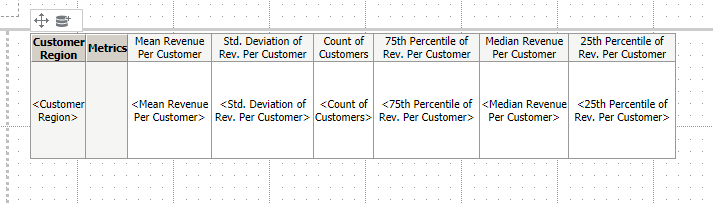
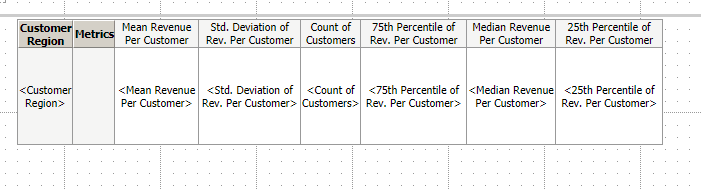
  1. Create a Report Services Document in Strategy Web that contains a Grid.
ka04W00000148xqQAA_0EM44000000Qp1S.png
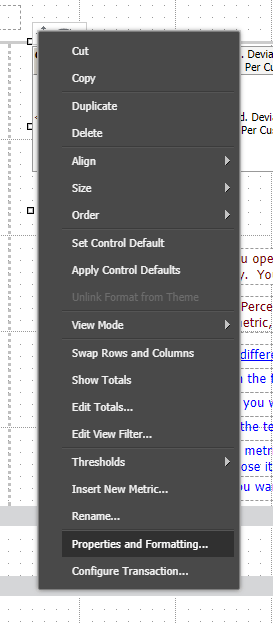
  1. Right Click the Grid options menu and select 'Properties and Formatting'.
ka04W00000148xqQAA_0EM44000000Qp1N.png
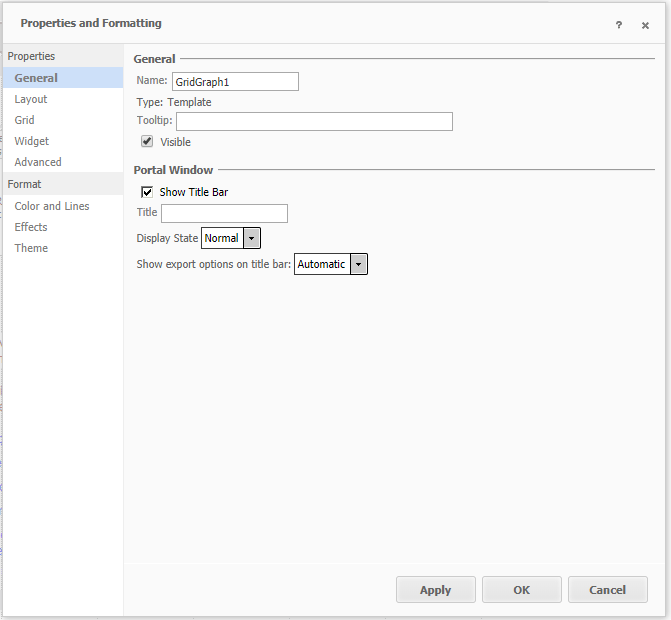
  1. In the Properties and Formatting dialog box, under the General pane, mark the checkbox for 'Show Title Bar.'
ka04W00000148xqQAA_0EM44000000Qp2B.png
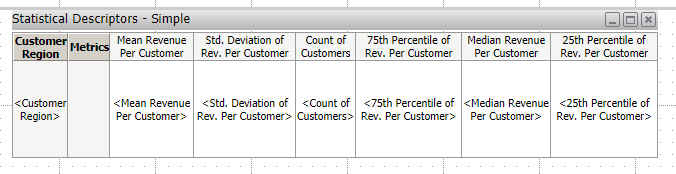
  1. Select 'OK' in the Properties and Formatting dialog box. The Grid Object will now display the Title Bar.
ka04W00000148xqQAA_0EM44000000Qp2G.png
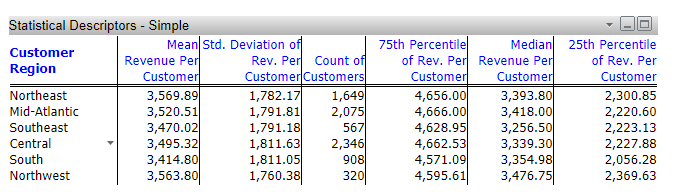
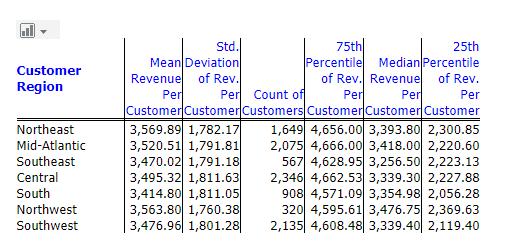
  1. Run the Document. The Grid Object will display the Title Bar in Presentation Mode.
ka04W00000148xqQAA_0EM44000000Qp2L.png
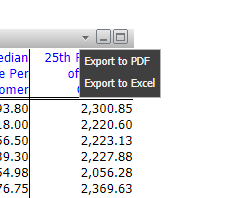
  • Select the Dropdown Icon (
ka04W00000148xqQAA_0EM44000000Qp1r.png
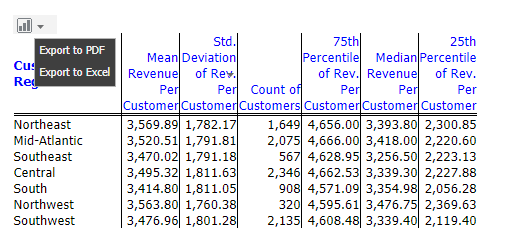
  • ) on the right-hand side of the title bar. The Export to Excel option will now appear.
ka04W00000148xqQAA_0EM44000000Qp2Q.png
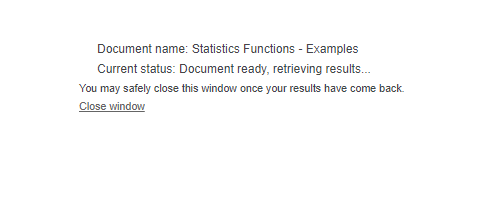
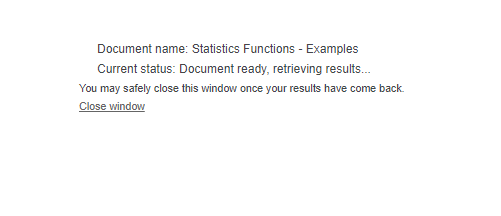
  1. Select 'Export to Excel' to generate a new Excel document.
ka04W00000148xqQAA_0EM44000000Qp2V.png
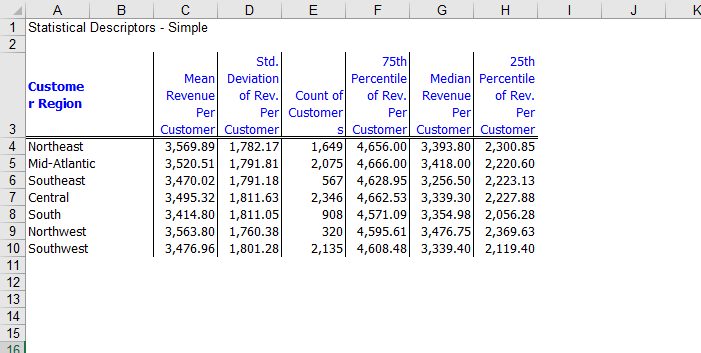
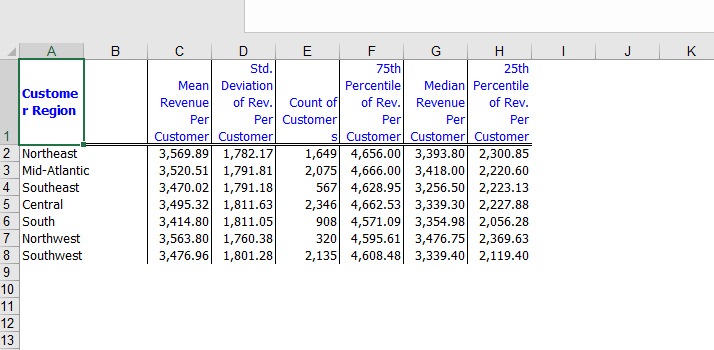
  1. The Excel File will contain only the selected Grid Object data from the Document.
ka04W00000148xqQAA_0EM44000000Qp2a.png

 
Method 2: Document with a Grid without the Grid Title Bar
 

  1. Create a Document in Strategy Web that contains a Grid.
ka04W00000148xqQAA_0EM44000000Qp1S.png
  1. Right Click the Grid options menu and select 'Properties and Formatting.'
ka04W00000148xqQAA_0EM44000000Qp1N.png
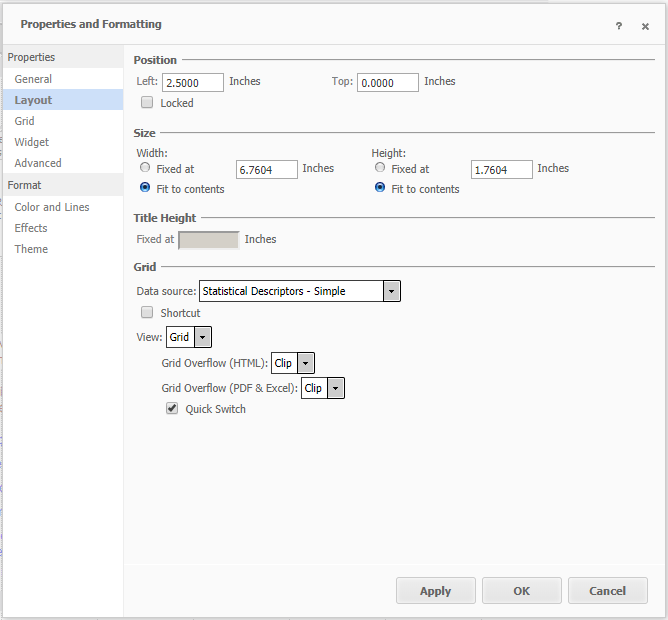
  1. In the Properties and Formatting dialog box, navigate to the Layout pane. Mark the Quick Switch checkbox in the Layout pane.
ka04W00000148xqQAA_0EM44000000Qp3d.png
  1. Select 'OK' in the Properties and Formatting dialog box. Note that the appearance of the Grid Object in Edit Mode has not changed.
ka04W00000148xqQAA_0EM44000000Qp3Y.png
  1. Run the Document. When hovering over the Grid Object, the Quick Switch bar will display.
ka04W00000148xqQAA_0EM44000000Qp3n.png
  • Select the Dropdown Icon (
ka04W00000148xqQAA_0EM44000000Qp47.png
  • ) on the Quick Switch bar. The Export to Excel option will now appear.
ka04W00000148xqQAA_0EM44000000Qp3x.png


  1. Select 'Export to Excel' to generate the Excel file.
ka04W00000148xqQAA_0EM44000000Qp4M.png


  1. The Excel File will contain only the selected Grid Object data from the Document.
ka04W00000148xqQAA_0EM44000000Qp4W.png


Comment

0 comments

Details

Knowledge Article

Published:

September 14, 2018

Last Updated:

November 22, 2018