What is MDMover?
MD Mover is a Strategy developed the application that will allow users to migrate the Strategy Metadata database to a different database server platform or to a higher database server version of the existing platform utilized.
Why is MDMover utilized?
The original method of migrating Strategy Metadata database server platforms consisted of creating a new MD shell in the destination environment and migrate projects one by one into the destination shell. MDMover allows everything to be moved with one click.
How to install MDMover?
MDMover is not installed by default. It may be downloaded via this technical article at the bottom. After downloading the .exe, place the file in the ../Common Files/Strategy directory. This application can only be utilized on a Windows platform. A Linux equivalent is not being considered at this time.
What are the steps to use MDMover?
Prerequisites:
1. Create a new database in the destination environment.
2. Create a DSN to the new database and create a new Metadata shell using Strategy Configuration Wizard.
3. Open Project Source Manager in Developer and create a 2-tier connection to the new MD shell for the Destination Metadata Location. Also, ensure the Source Metadata Location has a 2-tier Project Source created in this window as well.
Main steps:
1. Launch MDMoverUtil.exe. The application will look as below.
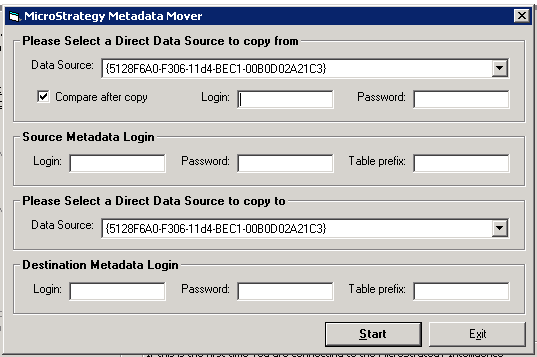
2. Choose the Source Metadata Location as well as the Compare checkbox if you would like to 'Compare the Copy' after completion. The Login and Password next to the compare option will be the Strategy credentials. All other credentials are DSN oriented.
3. Choose the Destination Metadata Location and input the DSN credentials accordingly. Afterward, the window should look as below.
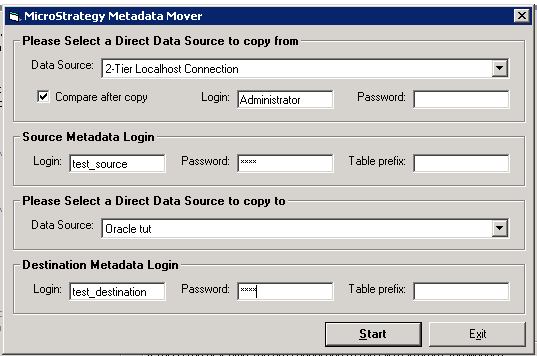
4. Click the 'Start' button
Note: You will not receive a progress bar for this program. It is performing in the background. You will receive an error in the GUI if the process has terminated.
For Troubleshooting Purposes, refer to the article below:
KB38988 : What Logs Should I Provide When Opening A Technical Support Case Relating To MDMover
Article Reference Number:
KB441856
