PREREQUISITES
Download Strategy Secure Enterprise on your Linux machine from our download site (integrated with Community)
Action
1. The first thing we need to do is to go to the Downloads folder where our file is, so just type in the terminal: cd /root/Downloads/ (the path folder could be different)
2. Then we got to extract the files that are in the Gzip: tar xzf 10.4.0026.0049_10.4_GA_Linux.tar.gz (the name of the file could be different)

3. Now we have the file extracted, we need to go to the install folder that has the setup.sh (the executable installer) that will start our install: cd /root/Downloads/Installation/QueryReportingAnalysis_Linux/

4. Now run the executable: ./setup.sh
5. After running the command it will check for the install integrity:

6. And then present you with the UI, which is pretty similar to the windows version:
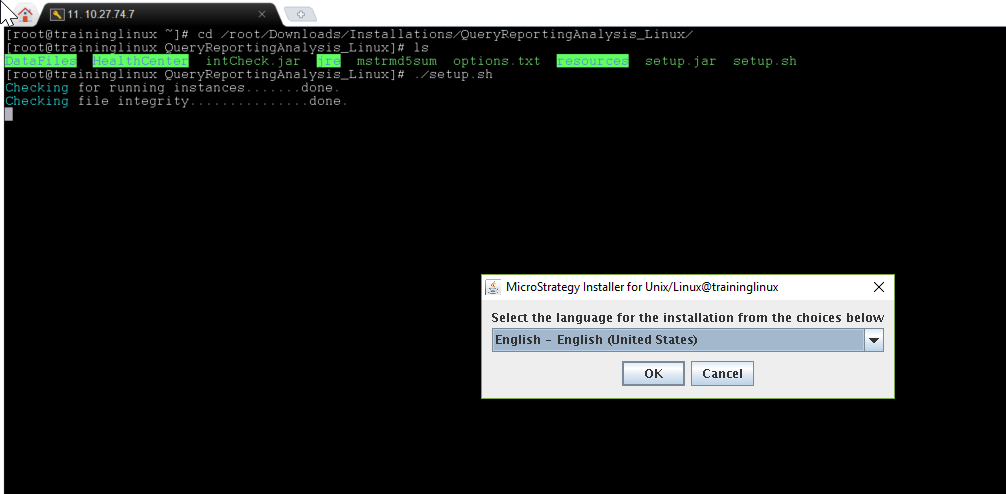
7. Select the desired language and hit OK.
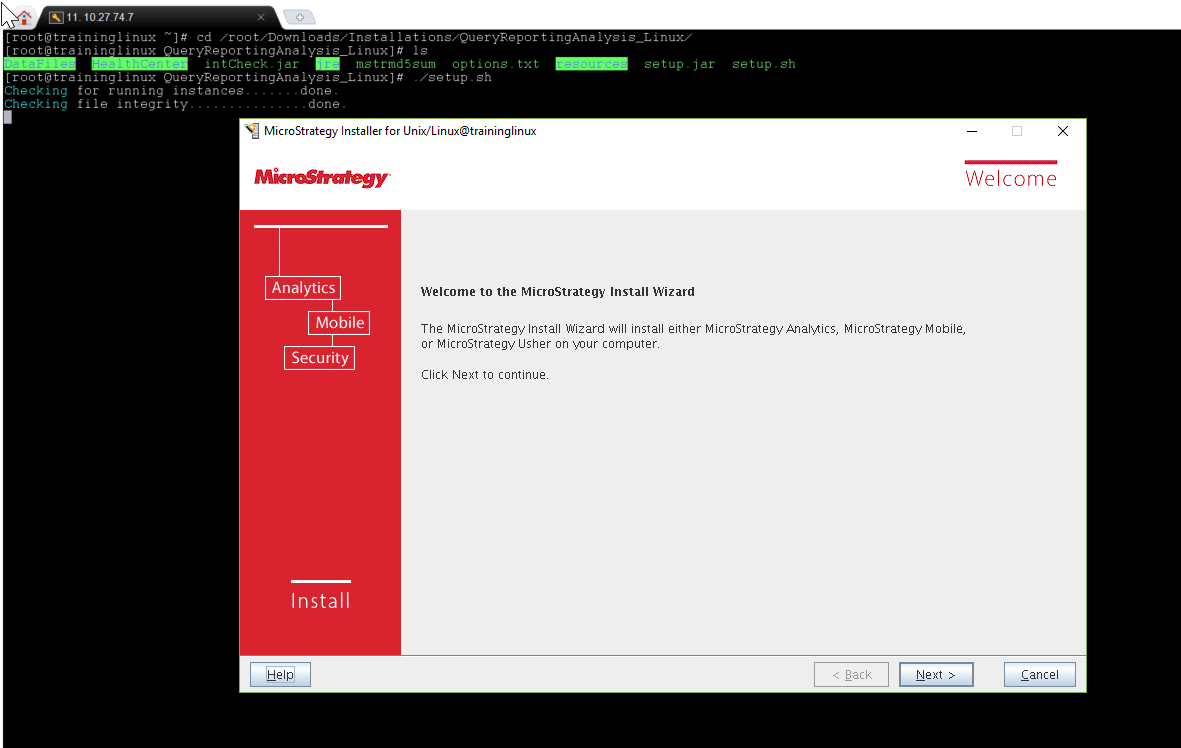
8. Hit Next
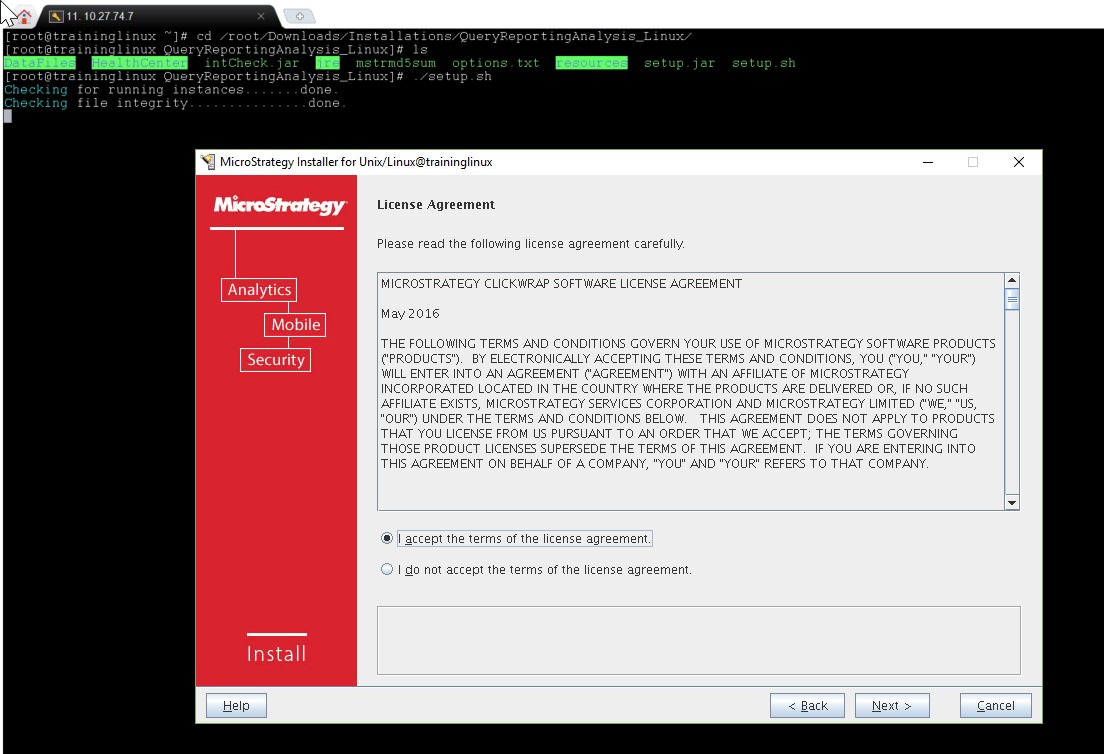
9. Click on "I accept the terms..." and hit Next:
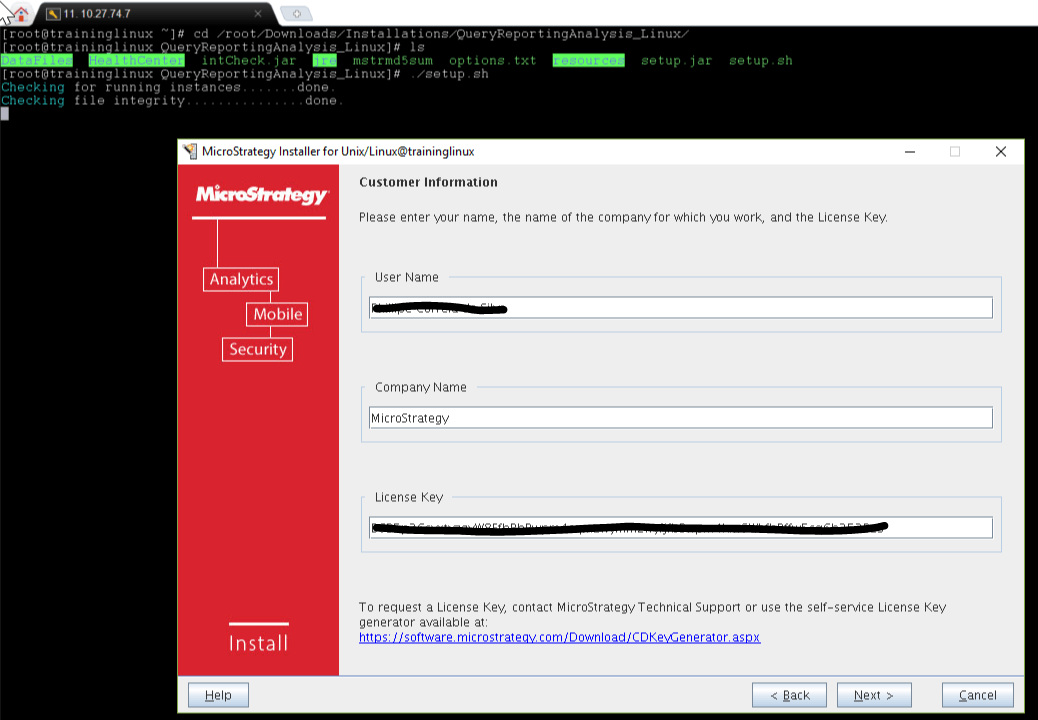
10. On the next screen you need to input license related info for your user:
11. After you hit Next you will have the screen where you can choose your installation folders, in this case, we won't change anything so just hit Next:
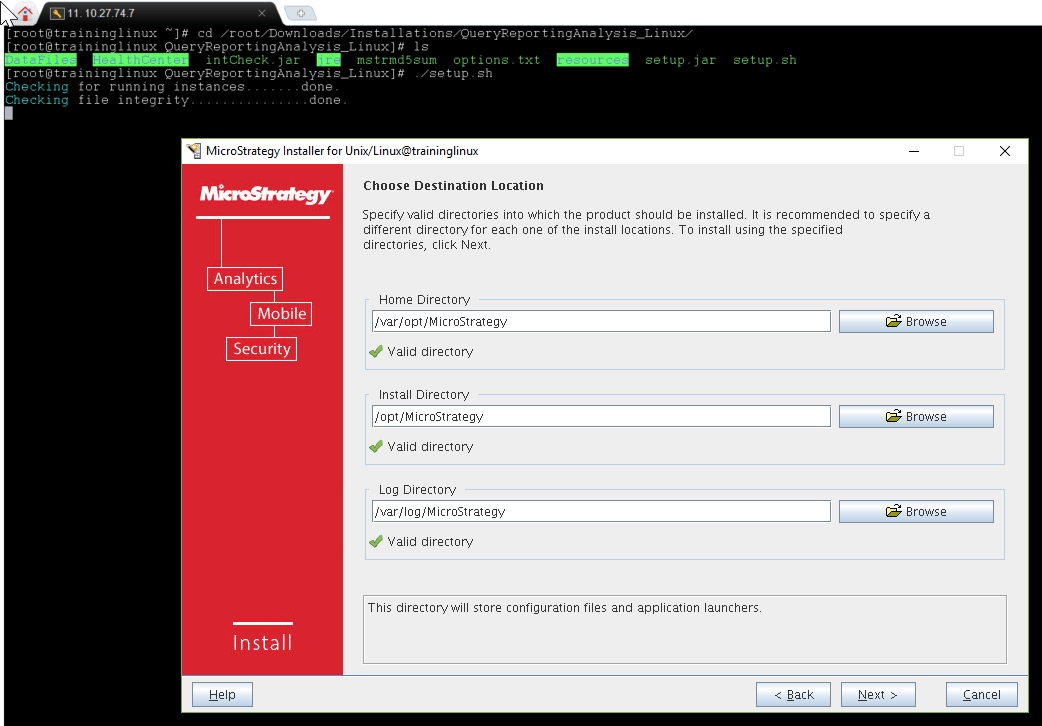
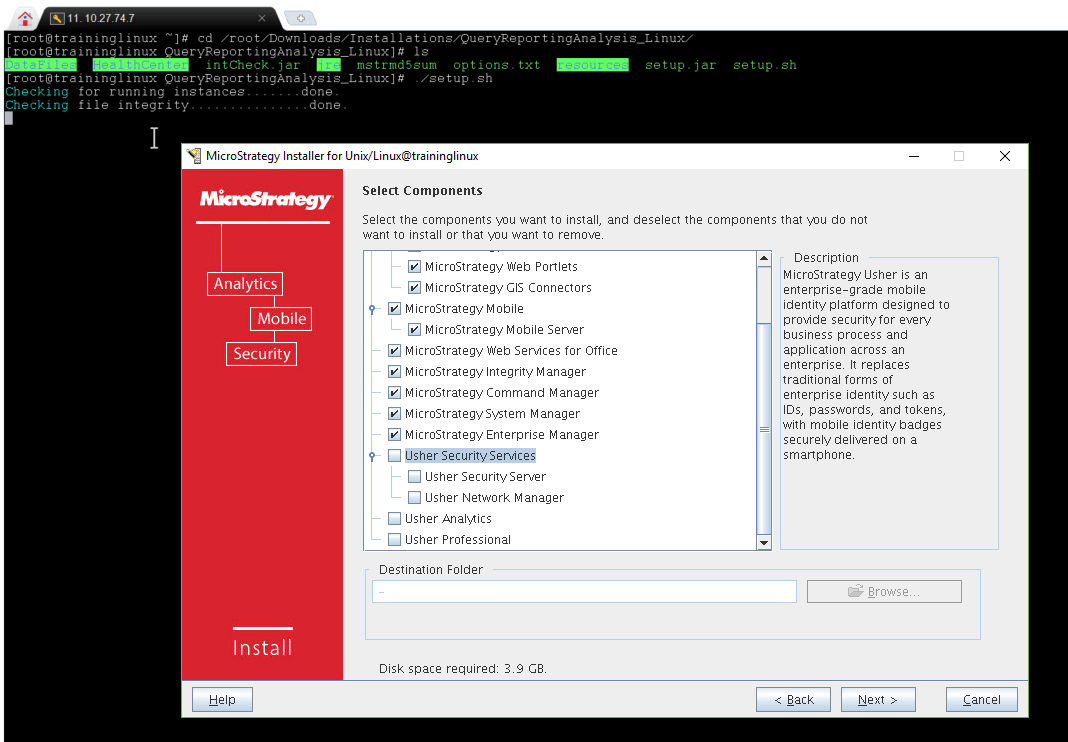
12. This next screen allows us to choose the components of our Install, we will un-check the Usher Security Services, since it requires the PHP 5.4 or higher installed, and we do not have this pre-installed on this machine, so un-check it and hit Next
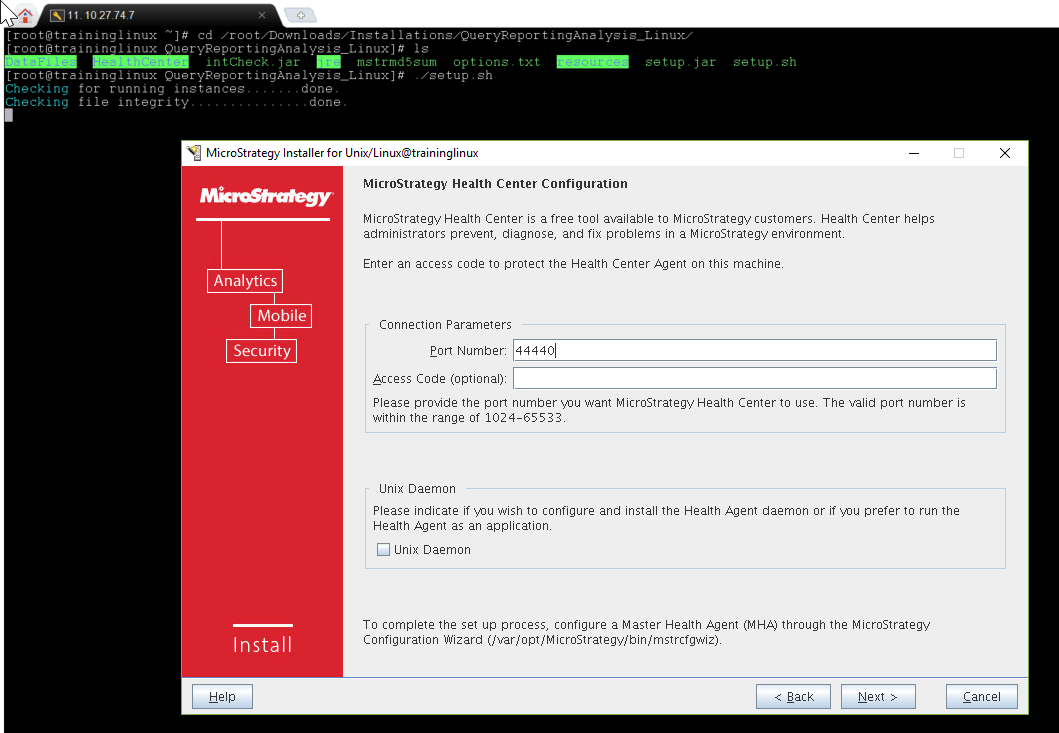
13. Next screen allows us to configure Health Center, you can Just hit Next and leave it as default in case you don't need any changes.
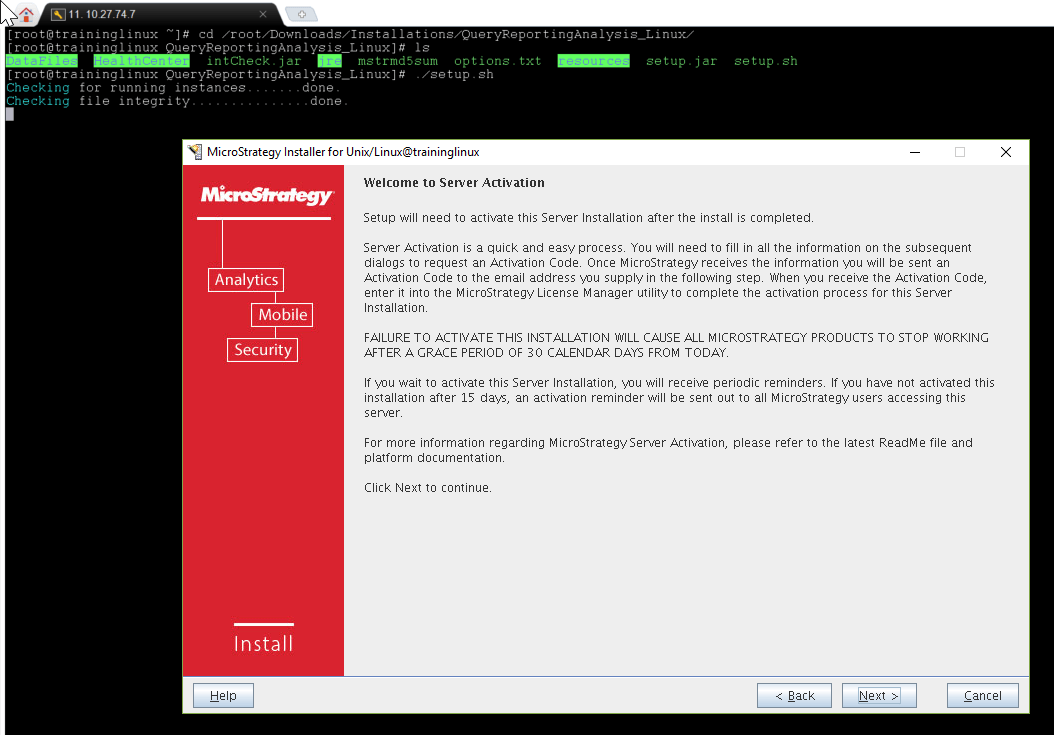
14. The next screen is a warning for the activation of the server, please don't miss it, but hit Next to continue:
15. Provide some info about the server for the activation, in this case just use the info I provided and hit Next:
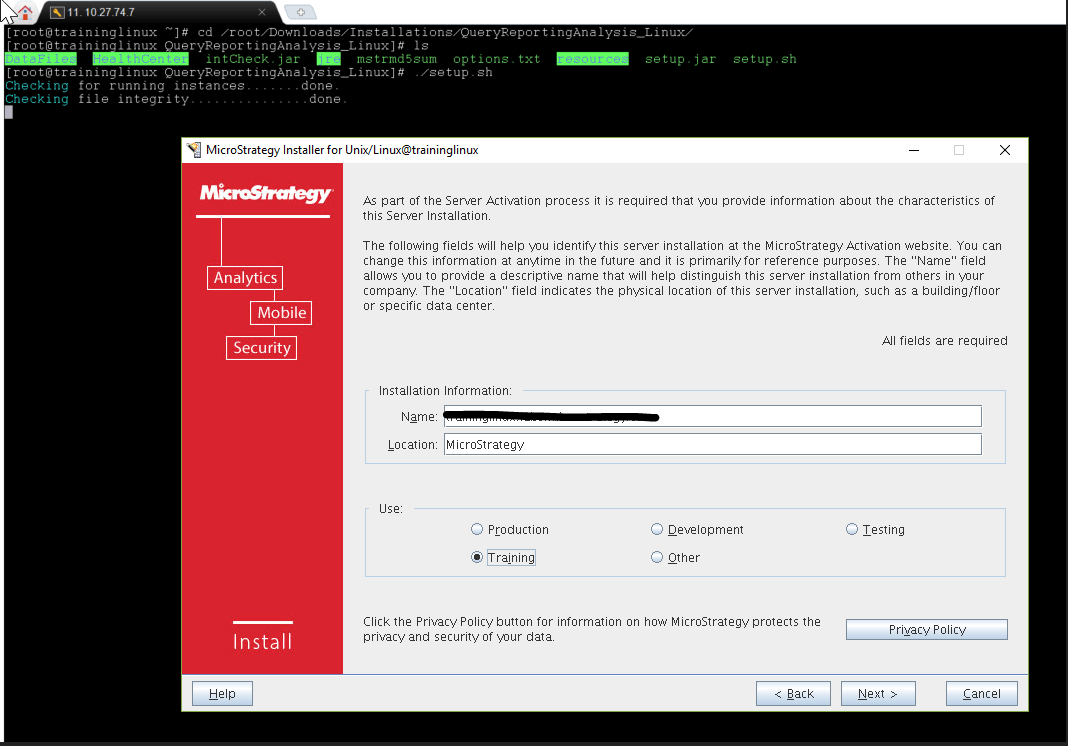
16. Now fill the fields for activation of the server and hit Next:
17. This next screen allows you to choose how to activate your server. "Why?", simple, some servers do not have direct access to the internet so the automatic activation is not possible like that, you need to choose the option "No, I will request my activation code later", if you have internet access you can choose the option "Yes, I want to request an Activation Code.", this will send you an activation email with the activation code (BE SURE TO HAVE FILLED THE FIELDS ON THE CONTACT INFORMATION CORRECTLY).
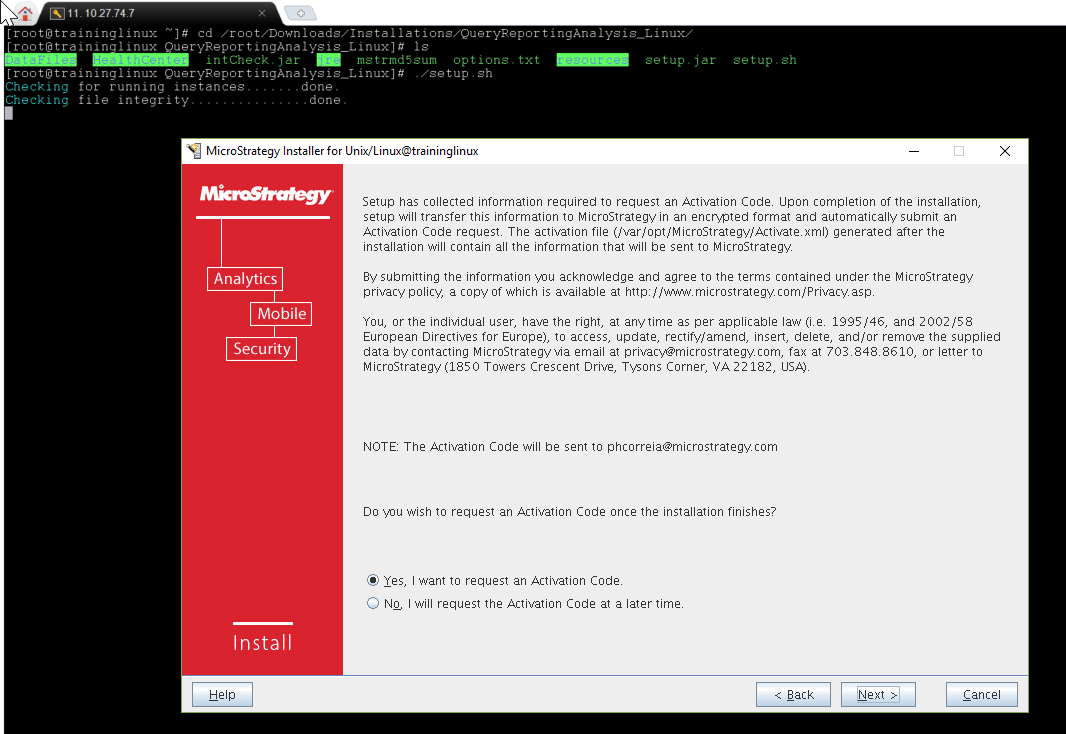
18. Confirm your configuration and hit Start:
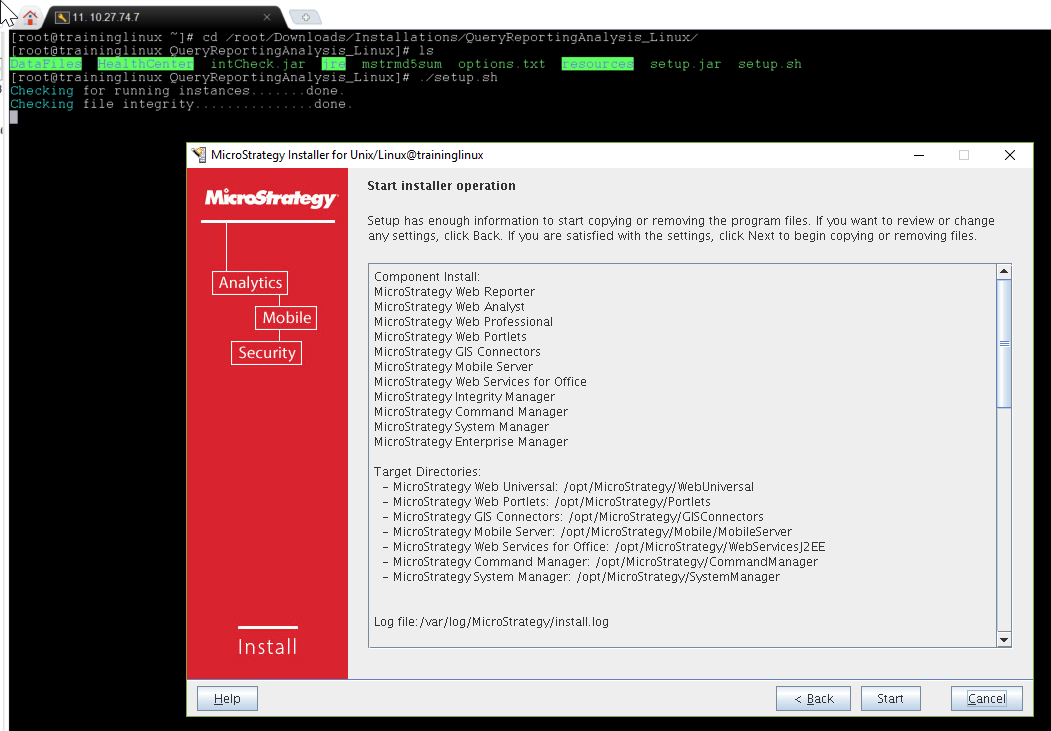
19. Your install should start, allow it some time to finish.
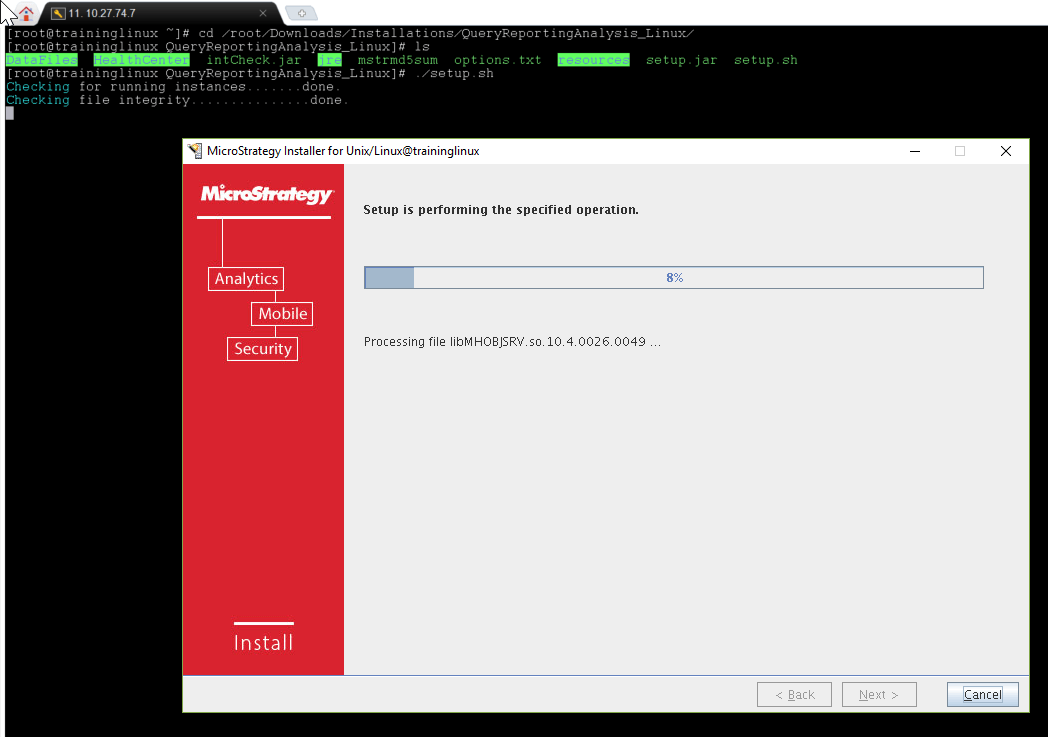
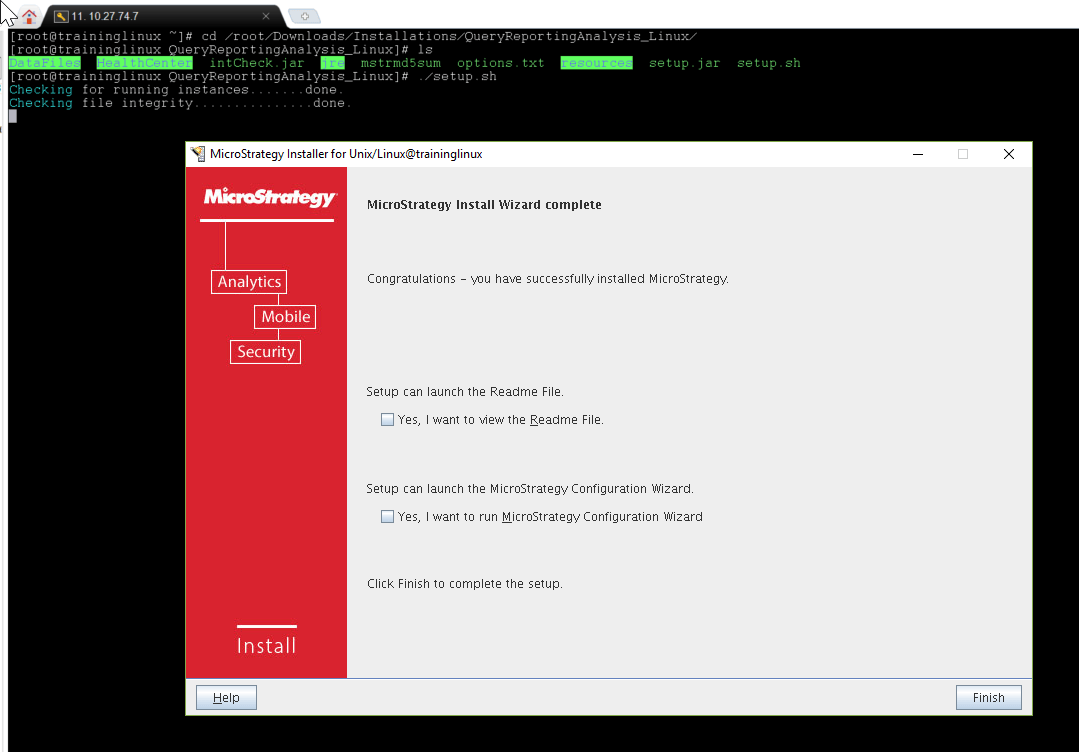
20. After finishing it will present with the option to open the Readme File and the Configuration Wizard, you may skip those since the objective was only to install and activate Strategy. Hit Finish and this part will be complete.
KB441889
