EducationSoftwareStrategy.com
StrategyCommunity

Knowledge Base

Product

Community

Knowledge Base

TopicsBrowse ArticlesDeveloper Zone

Product

Download SoftwareProduct DocumentationSecurity Hub

Education

Tutorial VideosSolution GalleryEducation courses

Community

GuidelinesGrandmastersEvents
x_social-icon_white.svglinkedin_social-icon_white.svg
Strategy logoCommunity

© Strategy Inc. All Rights Reserved.

LegalTerms of UsePrivacy Policy
  1. Home
  2. Topics

KB442042: 10.x MicroStrategy Web Login page displays “Login Failure” error with &connMode=1 parameter in URL when Windows Authentication is default authentication method


Darren Burns

Senior Cloud Support Engineer III • MicroStrategy


This knowledge base article describes an expected behavior in MicroStrategy 10.x where, if Windows Authentication is set to the default login method and users use a URL API link to access MicroStrategy Web with &connMode=1 to try and force Standard Authentication, the Login Page will display a Login Failure error.

SYMPTOM
When Windows authentication is set to default and connect to a project using URL API, if the parameter &connMode=1 is appended then there is a login error on the login screen.
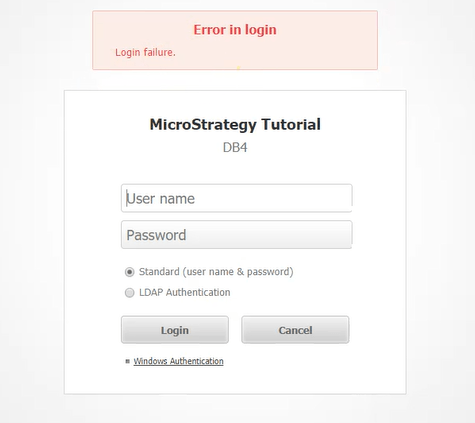
ka044000000kP54AAE_0EM44000000Qxwd.png

STEPS TO REPRODUCE

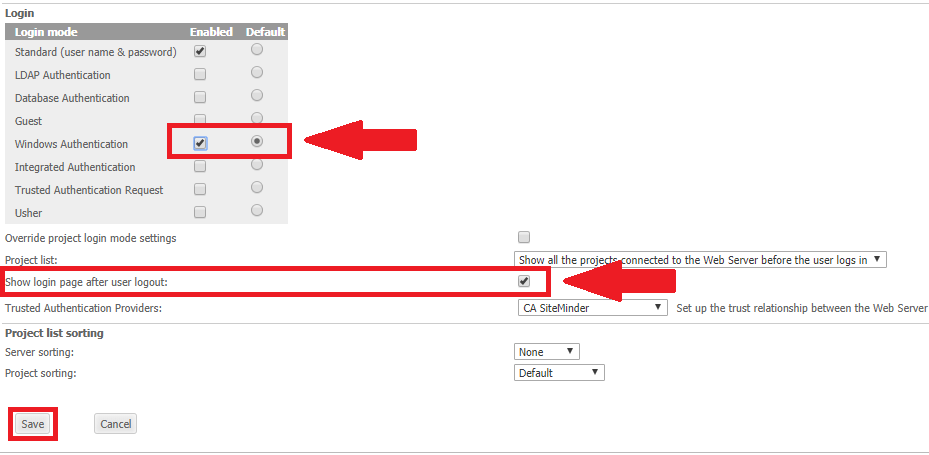
ka044000000kP54AAE_0EM44000000Qxwi.png


  1. Go to the Strategy Admin Page
  2. Enable Windows and Standard Authentication
  3. Set Windows as Default Authentication
  4. Enable setting, "Show login page after user logout."
  5. Use URL API to connect to project
  6. Append &connMode=1 to URL API to prompt standard login (see below)

EG:
http://ServerName/Strategy/asp/Main.aspx?evt=3010&src=Main.aspx.3010&Server=DB4&Project=Strategy+Tutorial&Port=0&connMode=1
CAUSE
The login error only shows when the login defaults to windows authentication, where the windows login credentials that are passed, do not match with the connection mode specified in the URL.
This triggers the login failure as expected and then the login page where the user can then log in with the correct credentials.
 
ACTION
Currently, this issue is still being reviewed for feasibility by our Technology team, and it is not scoped for any upcoming scheduled Strategy release.
WORKAROUND
Disabling the setting to “Show Login Page after Logout” will prevent the login page from displaying after logout which in turn prevents the error from being displayed on that page.
 
THIRD PARTY SOFTWARE INSTALLATION WARNING:
The third-party product(s) discussed in this technical note is manufactured by vendors independent of Strategy. Strategy makes no warranty, express, implied or otherwise, regarding this product, including its performance or reliability.
 
Article Reference Number: KB442042


Comment

0 comments

Details

Knowledge Article

Published:

September 28, 2018

Last Updated:

January 4, 2019