To configure OAuth Parameters for Server based Dataset from Desktop, following steps are required.
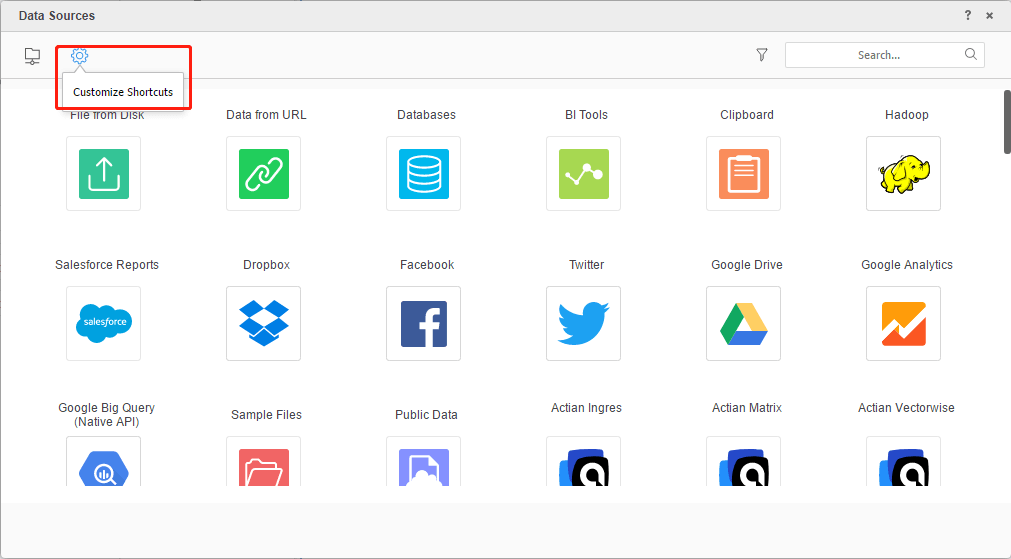
1. On Data Sources page, click Customize Shortcuts button to enter customize setting page.
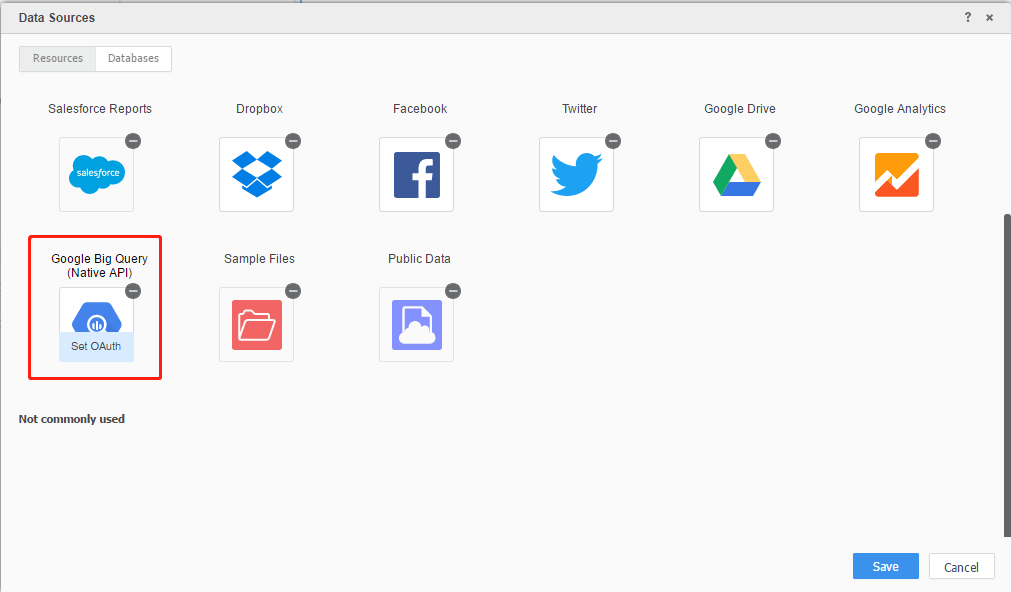
2. Hover over the cloud sources, and click Set OAuth (User required to have the privilege to Set OAuth Parameters).
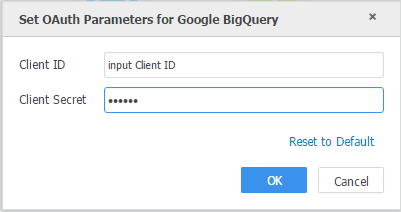
3. Set required OAuth Parameters "Client ID" and "Client Secret" in the dialog box. The credential is created in Google Cloud Platform.
Refer here for detailed steps to generate credentials to access Google API.
4. Please note "Callback URL" patterns for different sources:
User should add "Callback URL" or "Redirect URL" to 3rd party data sources according to following pattern. Since some oauth sources can only support one Redirect URL for single app, so it is suggested user to set up separate apps for Web Server - Browser connection and Rest Server - Desktop / Workstation connection, otherwise user may need to update Redirect URL saved in 3rd party data sources frequently.
Data Sources | Support Multiple Authorized URLs in single app? | Callback URL |
Google Analytics | Y | http://localhost |
http://localhost | http://localhost | http://localhost |
http://localhost | http://localhost | http://localhost |
Salesforce Reports | N | |
Dropbox | Y | |
Facebook | N | |
Twitter | N |
5. Click OK to save the OAuth parameters.
Article reference number KB442063
