EducationSoftwareStrategy.com
StrategyCommunity

Knowledge Base

Product

Community

Knowledge Base

TopicsBrowse ArticlesDeveloper Zone

Product

Download SoftwareProduct DocumentationSecurity Hub

Education

Tutorial VideosSolution GalleryEducation courses

Community

GuidelinesGrandmastersEvents
x_social-icon_white.svglinkedin_social-icon_white.svg
Strategy logoCommunity

© Strategy Inc. All Rights Reserved.

LegalTerms of UsePrivacy Policy
  1. Home
  2. Topics

KB44219: Badge alert icon for the MicroStrategy Mobile iPhone/iPad


Community Admin

• Strategy


The following KB article will address what prerequisites need to be configured for this feature to work and a case scenario of how this badge icon is used with MicroStrategy Mobile.

With Strategy Mobile, the badge icon can be displayed next to the Strategy Mobile application on a user's iPhone or iPad.  The following KB article will address what prerequisites need to be configured for this feature to work and a case scenario of how this badge icon is used with Strategy Mobile.
 
Prerequisites

  1. Strategy Mobile Application 9.4.x-10.x is downloaded onto the mobile device (iPhone or iPad)
  2. Configuration of Alert Push Notification needs to be set up.  Steps on how to configure this is in KB35792: How to enable Alert Push Notification when using MicroStrategy Mobile 9.4.x-10.x 
  3. Notification Center is configured properly for the Strategy Mobile App. 

Use Case Scenario:
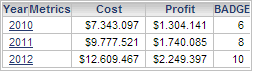
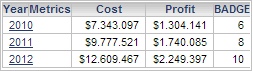
Given the following report, a badge will be created for the BADGE metric based on a threshold for Profit:
ka04W000000Ofm2QAC_0EM440000002Uuy.png

 
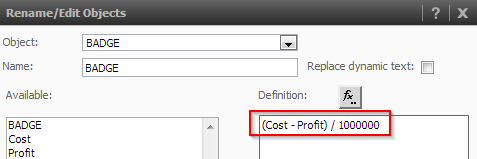
Note: BADGE is a derived metric with the following definition:
ka04W000000Ofm2QAC_0EM440000002Uus.png

 
First, a subscription is created to define the conditions for the badge alert icon.
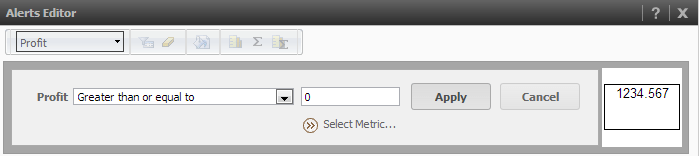
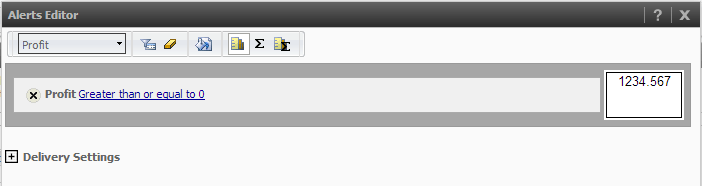
  • In this scenario, the threshold condition will be created on Profit.  Right click on Profit > Alerts > Mobile Notification…  
  • Create the condition to determine when the push will be sent to the mobile device.  In this scenario, a condition that will always hold true is created for testing purposes:
     
ka04W000000Ofm2QAC_0EM440000002Uv0.png
  • Click Apply  
ka04W000000Ofm2QAC_0EM440000002Uur.png
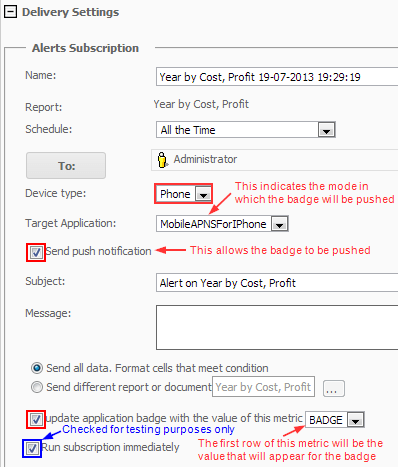
  • Expand the Delivery Settings.  The following parameters will need to be set in order to create a push for the badge icon:
    • Device type: Phone
    • Target Application is set to
      • MobileAPNSForIPhone for the iPhone
      • MobileAPNSForIPad for the iPad
         
        NOTE: Configuration of Alert Push Notification needs to be set up prior to this step.  Steps on how to configure this is in KB35792: “How to enable Alert Push Notification when using MicroStrategy Mobile 9.0.2 and later”
    • Checkbox is checked for Send push notification
    • Checkbox is checked for Update application badge with the value of this metric
       
      NOTE: Use the dropdown menu to choose the metric whose value should be updated within the badge.  Note that only the first row’s data for this metric will be used as the value for the badge.
    • For testing purposes, the checkbox is checked for Run subscription immediately.  This will allow the badge to be pushed immediately to the mobile device for the user specified in the subscription below:

ka04W000000Ofm2QAC_0EM440000002Uuu.png
  • Click OK
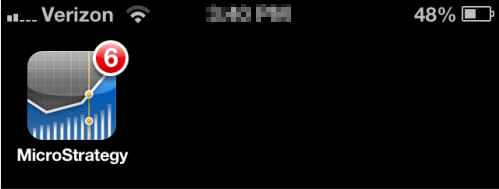
  • The subscription should run and push the badge alert notification to the iPhone
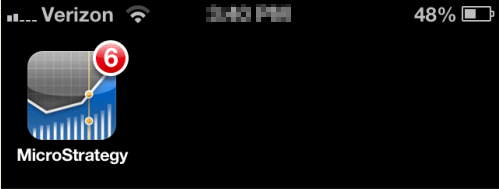
  • The iPhone should have a badge alert icon of 6 for this particular scenario:
     
ka04W000000Ofm2QAC_0EM440000002Uux.png


Use Case Scenario: FAQs

  • How do you know what value will be set for the badge? 

    The badge value is based on the metric in which it is based.  Only the metric's first row value in the report will be set to the badge's value.   
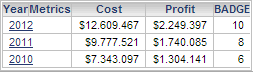
    Given the scenario above, the original report was as follows:
     
ka04W000000Ofm2QAC_0EM440000002Uv5.png
  • In this scenario, the badge was based on BADGE.  The first metric value for BADGE is 6.  This first row value will be reflected in the value of the badge:

ka04W000000Ofm2QAC_0EM440000002Uup.png
  •  
    If the report changes – for example, if there is a sort (Data > Sort…) on the report:
     
ka04W000000Ofm2QAC_0EM440000002UvF.png
  •  
    The report will now display as follows:
     
ka04W000000Ofm2QAC_0EM440000002Uuw.png
  •  
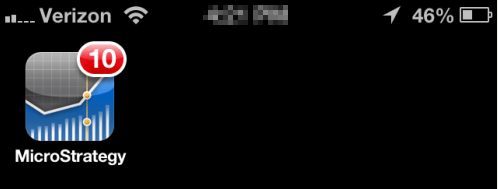
    In the updated report, the metric's first row value is 10.  Once the report is saved and the subscription is rerun, the badge will update:
     
ka04W000000Ofm2QAC_0EM440000002UvG.png
  • How does the badge icon disappear from the Strategy Mobile App?

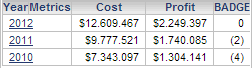
    When the value in which the badge was defined has a value of 0, the badge will no longer appear.

    If the scenario is modified, with the report returning the following:

ka04W000000Ofm2QAC_0EM440000002Uv3.png
  • Note that BADGE's first row value is 0.  When the subscription is rerun, then there will no longer be a badge icon on the Strategy Mobile App:

ka04W000000Ofm2QAC_0EM440000002Uuz.png


Comment

0 comments

Details

Knowledge Article

Published:

July 21, 2017

Last Updated:

July 24, 2017