EducationSoftwareStrategy.com
StrategyCommunity

Knowledge Base

Product

Community

Knowledge Base

TopicsBrowse ArticlesDeveloper Zone

Product

Download SoftwareProduct DocumentationSecurity Hub

Education

Tutorial VideosSolution GalleryEducation courses

Community

GuidelinesGrandmastersEvents
x_social-icon_white.svglinkedin_social-icon_white.svg
Strategy logoCommunity

© Strategy Inc. All Rights Reserved.

LegalTerms of UsePrivacy Policy
  1. Home
  2. Topics

KB44220: "MISSING: "Default Web Site" in IIS" when installing MicroStrategy Mobile 9.3.1 ASP.NET version in Windows Server 2003


Community Admin

• Strategy


This document shows a known issue that error "MISSING: "Default Web Site" in IIS" appears when installing MicroStrategy Mobile 9.3.1 ASP.NET version in Windows Server 2003

SYMPTOM:
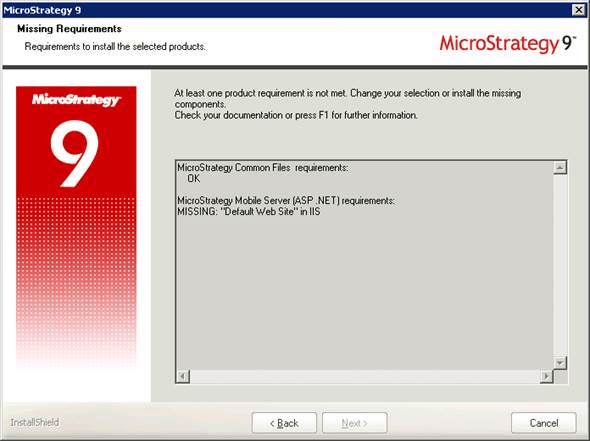
When installing Strategy Mobile 9.3.1 ASP.NET version in Windows Server 2003, the following informative message shows up:
ka04W000001MKt6QAG_0EM440000002ACa.png


Strategy Mobile Server (ASP.NET) requirements:
MISSING: "Default Web Site" in IIS

 
CAUSE:
It is missing the Default Web Site with identifier 1 that is required by the installation process of Strategy Mobile 9.3.1.
 
ACTION:
If the referred website doesn’t exist, then:
 
1) Follow the instructions described in the Strategy technical note below to create the Default Web Site:
 

  • KB32084: "Access to path is denied" error message appears when opening MicroStrategy Web page in MicroStrategy Web 9.x with IIS as the application server

 
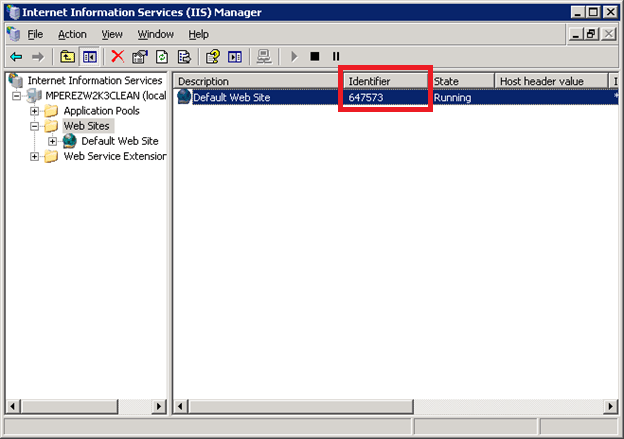
2) Take note of the site identifier (site ID) of the web site newly created. To do this, launch the Internet Information Services (IIS) Manager console, click on the Web Sites folder, so on the right side, take note of the site Identifier number, as shown:
 

ka04W000001MKt6QAG_0EM440000002ACu.png

 
3) Before changing the web site identifier number, the web site must be stopped by executing the following command from Command Prompt:


CSCRIPT C:\Inetpub\AdminScripts\adsutil.vbs STOP_SERVER W3SVC/<siteID>
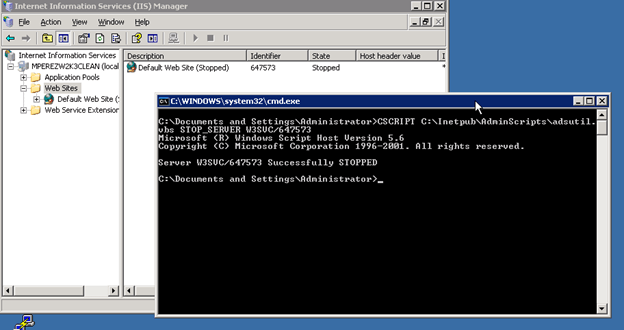
 
4) After running the command above and refreshing the Internet Information Services (IIS) Manager console, validate whether the web site is really on the Stopped state, as shown:

ka04W000001MKt6QAG_0EM440000002ACp.png


5) Now that the web site is stopped, it is necessary to change its ID with the desired number by executing the command below from Command Prompt:


CSCRIPT C:\Inetpub\AdminScripts\adsutil.vbs MOVE W3SVC/<siteID> W3SVC/1
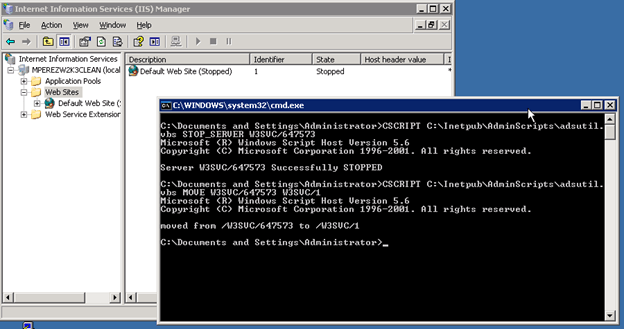
 
6) After running the command above and refreshing Internet Information Services (IIS) Manager console, the web site identifier (site ID) appears as 1:

ka04W000001MKt6QAG_0EM440000002ACt.png

 
7) Start the web site by running the command that follows from Command Prompt:


CSCRIPT C:\Inetpub\AdminScripts\adsutil.vbs START_SERVER W3SVC/1
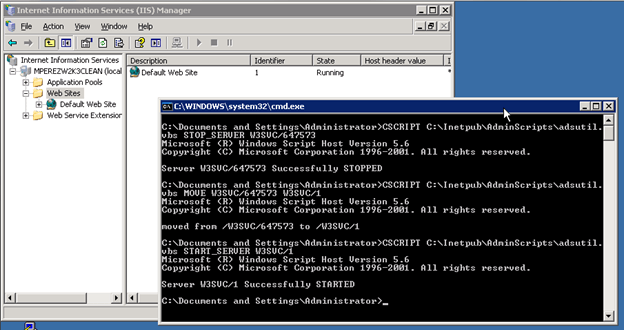
 
8) After running the command above and refreshing the Internet Information Services (IIS) Manager console, the Default Web Site started under the identifier 1:

ka04W000001MKt6QAG_0EM440000002ACb.png

 
Third Party Software Installation:
WARNING:
The third-party product(s) discussed in this technical note is manufactured by vendors independent of Strategy. Strategy makes no warranty, express, implied or otherwise, regarding this product, including its performance or reliability.


Comment

0 comments

Details

Knowledge Article

Published:

April 4, 2017

Last Updated:

April 4, 2017