SYMPTOM:
A attribute form's format type is set as Big Decimal, if an element of this form greater than 99999999999 will be formatted as scientific: #.##############E+000 under default format. For example, 1234567890123456789 will be formatted as 1.23456789012345E+18, which causes precision lost and less readability in some scenarios.
STEPS TO REPRODUCE:
1) In mysql, create a table containing account_id, column type is big int(20), insert some rows of 19 digits, such as 1234567890123456789;
2) Create an attribute "Account" based on table created in step 1), set ID form type to Big Decimal;
3) Create a report and add "Account" and run it, show ID form, we can see ID form format is scientific, for example: 1.23456789012345E+18.
CAUSE:
In this case, we use a general format rule to process default Big Decimal format: [>99999999999]#.##############E+000;[=0]0;[<0.0001]#.##############E+000;#.##########;#.################################.
Account ID is greater than 99999999999 will be formatted as scientific #.##############E+000.
ACTION:
This issue has been fixed in Strategy 11.0. Upgrade Intelligent Server to 11.0 can fix this issue.
WORKAROUND:
The issue is with the default format, user can set a format instead of default format.
Steps to change format:
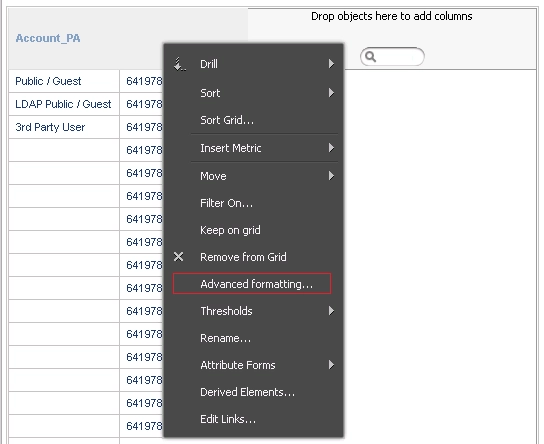
1) Open a report, right click the attribute that need change, click Advanced formatting;
2) Switch to Number table, select Fixed radio, set Decimal places to 0(because Account ID is a integer);
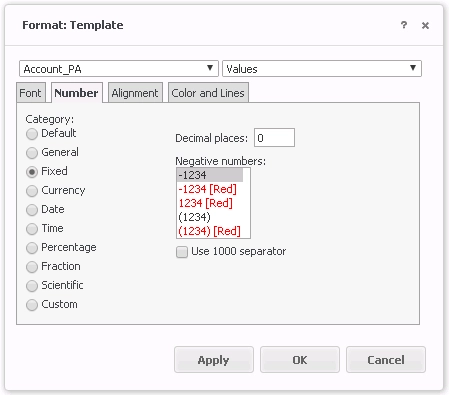
3) Click OK, then the attribute form format changed.
Refer to: http://www2.microstrategy.com/producthelp/current/MSTRWeb/WebHelp/Lang_1033/Content/Format_Template_dialog_Number.htm
The internal reference numbers for this article are KB442282 and DE95629.
