In Strategy Web 2021, data in Report Services Document gets updated unexpectedly when multiple records are modified and submitted through the transaction service.
If the issue is observed with transaction configured to update ID forms for attributes, this might be a known limitation in Strategy 2021.
Please refer to below example to see the behavior.
The report contains attribute A, B with their ID forms as below.
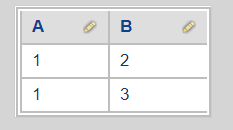
Configure a transaction services report to update value for A and B.
Run it. The initial display is as below:
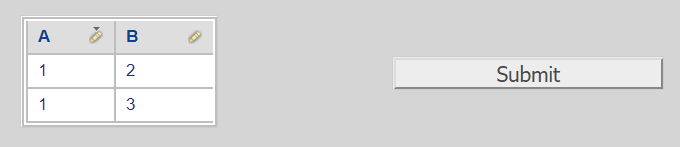
Test 1: Modify 2 records
Modify the data as below to see how the behavior is when different elements in multiple records are updated.

Submit the change.
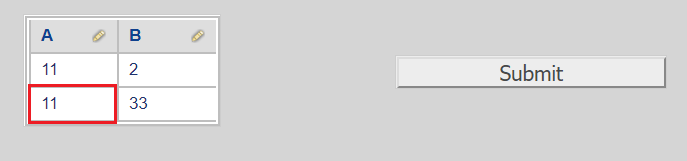
The highlighted cell might be considered as unexpected result.
Test 2: Modify 1 record
Modify the data as below to see how the behavior is when only one record is updated.
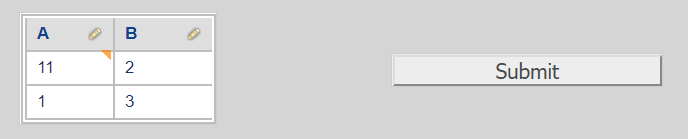
Submit the change.
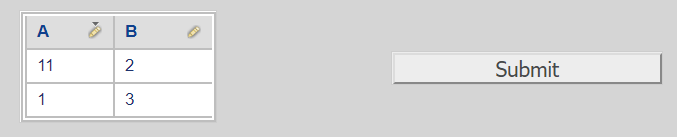
Only the modified cell is updated as expected.
This is a known limitation for transaction services in Strategy when the transaction services are configured to update the attribute ID forms.
For attribute ID form, 1 element, even across multiple rows, would have 1 element ID. Changing 1 of the multiple rows with same element would take effect for all rows with this element ID.
Please check below explanation to understand this situation:
Before changing, notice that that A actually has only one element 1.
A B
1st row: 1 2
2nd row: 1 3
For Test1
Although only 1st row of A is changed from 1 to 11, engine will take the change as that attribute element 1 is updated to element 11. Thus, the result will affect the 2nd row of A.
Before submitting, at engine side, the data is as below:
A B
1st row: 11 2
2nd row: 11 33
As both rows are modified, above change will be submitted to database.
A B
1st row: 11 2
2nd row: 11 33
*Red means for updated rows in tables.
For Test 2
Similarly, before submitting, at engine side, the data is as below:
A B
1st row: 11 2
2nd row: 11 3
However, only 1st row is modified thus only 1st row will be written back to database.
A B
1st row: 11 2
2nd row: 1 3
*Red means for updated rows in tables.
Note 1:
When configuring transactions, there is an advanced option called "Automatically recalculate values after data change".
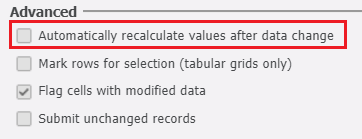
If this option is unchecked, the data change in engine could only be seen after the change is submitted or when a page refresh happens in the page before submitting, e.g. changing the browser size with Zoom level set to "Fit to Page" or "Fit to Width".
If this option is checked, the data change in engine could be observed on the fly without submitting to the database.
User could temporarily check this option to better understand how the data is updated.
Note 2:
In the above test, Test 1 shows unexpected result but Test 2 doesn't have this issue.
Actually this is because the Advanced option "Submit unchanged records" is unchecked.
If this option is checked, for Test2, similar behavior could be observed.
The data would be displayed as below after submit:
A B
1st row: 11 2
2nd row: 11 3
*Red means for updated rows in tables.
If the below result is expected for Test1, either of below workarounds could be considered depending on the design complexity.
A B
1st row: 11 2
2nd row: 1 33
Workaround 1:
Modify the dataset report only:
Avoid updating attribute ID forms here. Use attribute DESC forms instead.
Sample:
Note DESC_A@DESC is from the column for original A@ID. DESC_A@ID is using another column as ID and this column would make each row in the grid UNIQUE. Same for DESC_B.
DO NOT create attribute ID and DESC forms using the same table column.
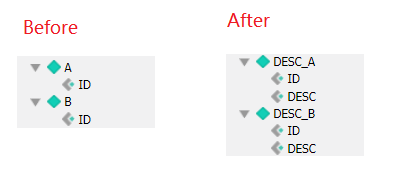

Change data:

After Submit:
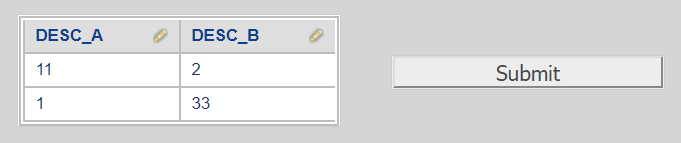
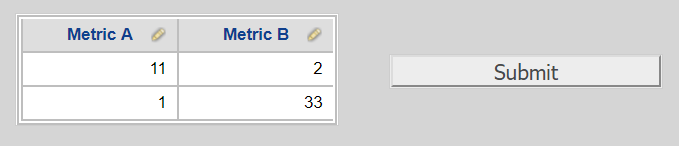
Workaround 2:
Modify the dataset report only:
Create a metric instead of using the attribute ID. Here derived metric is not allowed.
Sample:
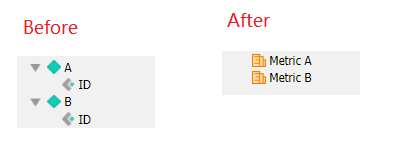
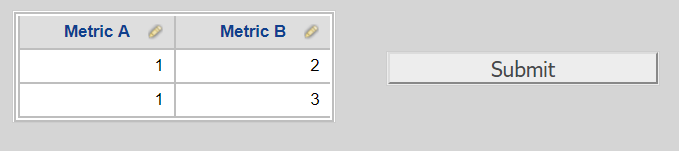
Change data:
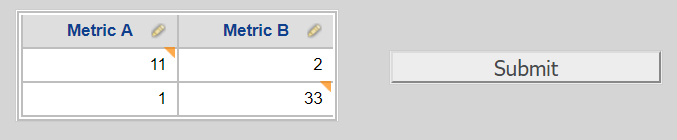
After Submit:
Workaround 3:
Modify the transaction report only:
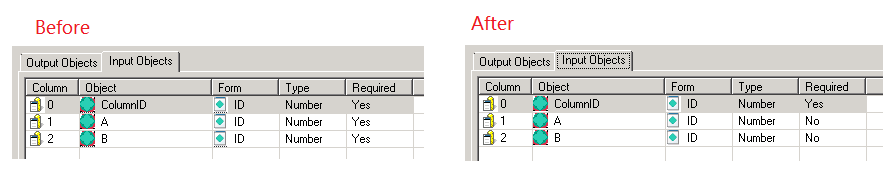
Change the required field to be 'No' in transaction services report to make the input optional on SQL side.
This requires to leverage the setting "Input-dependent Text" also.
Please refer to manual Advanced Reporting for the details:
Creating a Transaction Services Report
It might be observed that simply changing required field to No and adding "Input-dependent Text" setting would get ODBC error when submitting transaction in document. If the issue is encountered, clear the input objects in transaction report and re-insert them again from scratch with corresponding settings.
Sample: