Although “Schedule Administration Tasks” could be used to schedule a task to unload project and load it again with some time delay to achieve the aim to reload project. Or some users might use Command Manager in similar way. However the time required to completely unload a project is not predictable. It may cause some unexpected issues when trying to load a project which has not been completely unloaded yet. Users might want to do a seamless reload.
To fulfill this requirement, Strategy System Manager could be used to create a basic workflow like below. Users could complete the workflow per their own requirements.
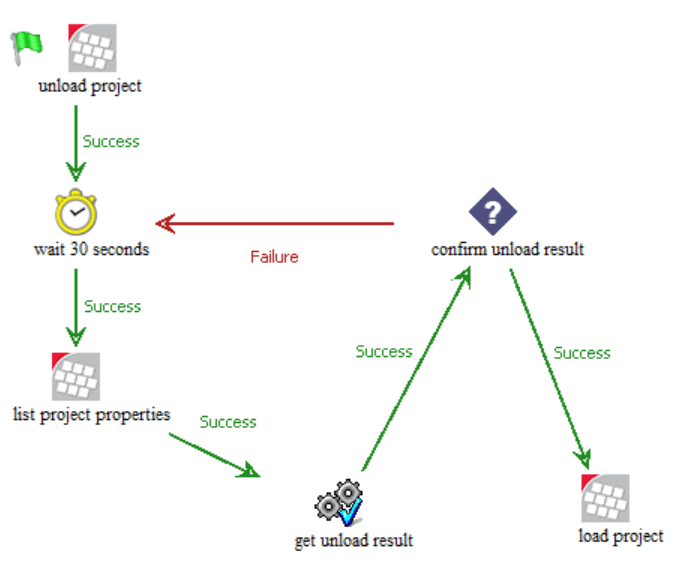
This workflow contains the basic steps as below:
Step 1: Unload project
Use Command manager command:
UNLOAD PROJECT "XXXXX";
LIST PROPERTIES FOR PROJECT "XXXXX";
GetProjectStatus.bat:

@echo off
cd C:\ProjectReloadProcess
cscript //nologo GetProjectStatus.vbs ListProjectPropertiesResult.xml
exit /b %errorlevel%

notice: ListProjectPropertiesResult.xml is the output result of step 3

GetProjectStatus.vbs:

Set args = WScript.Arguments
Your_file = args.Item(0) 'thought that workDir would come in here

Dim xDoc
Set xDoc = CreateObject("Microsoft.XMLDOM")
xDoc.validateOnParse = False
If xDoc.Load(Your_file) Then
   DisplayNode xDoc.childNodes, 0
Else
   ' The document failed to load.
End If

WScript.Quit 1

Public Sub DisplayNode(ByRef Nodes, ByVal Indent)
   Dim xNode
   For Each xNode In Nodes
      If xNode.hasChildNodes Then
         DisplayNode xNode.childNodes, Indent
      else
        if xNode.parentNode.nodeName = "ProjStatus" and xNode.nodeValue = "Unloaded" then
            wscript.echo xNode.parentNode.nodeName & ":" & xNode.nodeValue
            wscript.quit 0
        end if

      End If
   Next
End Sub
Step 6: Load project
Using Command manager command:
LOAD PROJECT "XXXXX";
