EducationSoftwareStrategy.com
StrategyCommunity

Knowledge Base

Product

Community

Knowledge Base

TopicsBrowse ArticlesDeveloper Zone

Product

Download SoftwareProduct DocumentationSecurity Hub

Education

Tutorial VideosSolution GalleryEducation courses

Community

GuidelinesGrandmastersEvents
x_social-icon_white.svglinkedin_social-icon_white.svg
Strategy logoCommunity

© Strategy Inc. All Rights Reserved.

LegalTerms of UsePrivacy Policy
  1. Home
  2. Topics

KB44234: Cannot save a new Mobile Configuration in MicroStrategy Mobile 9.3.x (ASP.NET) version running on Windows Server 2008 64-bit


Community Admin

• Strategy


Getting an error when trying to create a mobile configuration in MicroStrategy Mobile 9.3.x due to a permissions issue.

SYMPTOM:
 
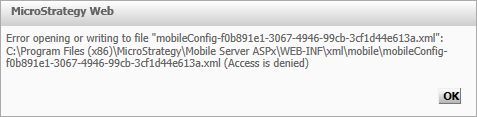
The error message below appears when saving a new mobile configuration in Strategy Mobile 9.3.x (ASP.NET) version running on Windows Server 2008 64 bits:
ka04W000001MKvmQAG_0EM440000002ACx.png


Error opening or writing to file “mobileConfig-xxxxxxxx-xxxx-xxxx-xxxx-xxxxxxxxxxxx.xml”: C:\Program Files (x86)\MicroStrategy\Mobile Server ASPx\WEB-INF\xml\mobile\mobileConfig-xxxxxxxx-xxxx-xxxx-xxxx-xxxxxxxxxxxx.xml (Access is denied)
CAUSE:
The C:\Program Files (x86)\MicroStrategy\Mobile Server ASPx\WEB-INF\xml\mobile folder doesn’t have all the necessary permissions enabled.
 
ACTION:
Follow the next steps below in order to enable the necessary permissions on the mobile folder:
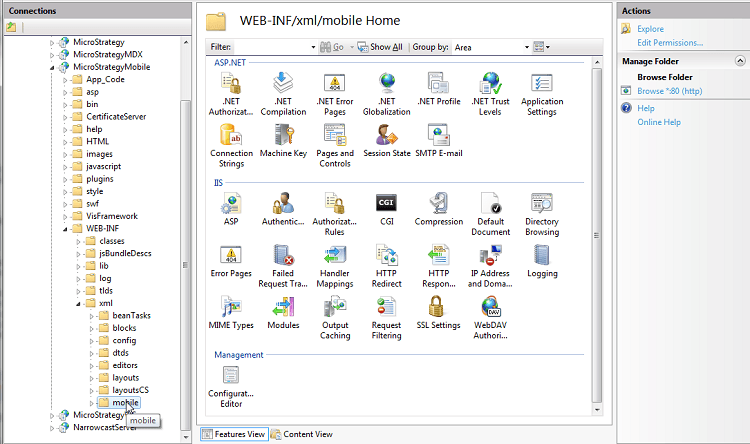
1. Launch the Internet Information Services (IIS) Manager console,  go to the folder StrategyMobile -> WEB-INF -> xml -> mobile, as shown:

ka04W000001MKvmQAG_0EM440000002ACz.png

 
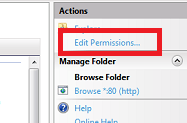
2. Click on the Edit Permissions… option:
ka04W000001MKvmQAG_0EM440000002ACy.png

 
3. In the mobile Properties window, click on the Security tab then on the Advanced button:

ka04W000001MKvmQAG_0EM440000002ACq.png

 
4. In the Advanced Security Settings for mobile window, click on the Change Permissions... button:

ka04W000001MKvmQAG_0EM440000002ACv.png

 
5. In the Advanced Security Settings for mobile window, select the Everyone user and click on the Edit... button:

ka04W000001MKvmQAG_0EM440000002ACo.png

 
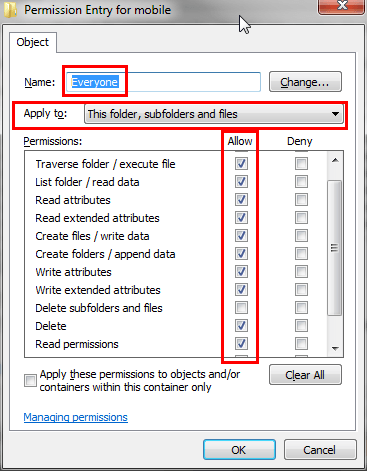
6. In the Permission Entry for mobile window, enable the following permissions:
ka04W000001MKvmQAG_0EM440000002AD1.png

 
7. Click on the OK button from all opened Windows.  After granting the expected set of permissions, it will be possible to save a new Mobile Configuration with success. 
 
Third Party Software Installation:
WARNING:
The third-party product(s) discussed in this technical note is manufactured by vendors independent of Strategy. Strategy makes no warranty, express, implied or otherwise, regarding this product, including its performance or reliability.


Comment

0 comments

Details

Knowledge Article

Published:

April 3, 2017

Last Updated:

April 3, 2017