With Strategy versions 11.0 and above, after inputting a newly created MySQL DSN and credentials for Platform Analytics Repository, users receive the error message “Please specify a valid Platform Analytics warehouse.” occurs.
View the message that appears in the window with the image below:
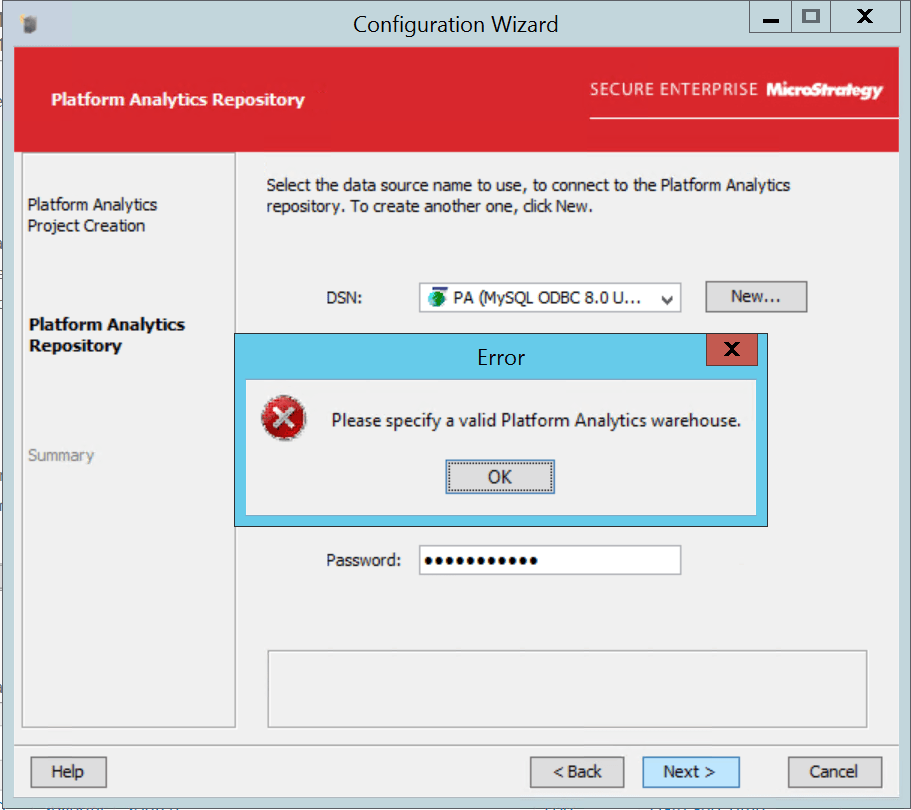
The message might be appears due to that the selected database is not a PA Warehouse but an empty shell.
The Platform Analytics (PA) Warehouse could only be installed via the Strategy installer.
Solution
To ensure that the PA warehouse is configured correctly and avoid the error messaging:
1. Launch Strategy installer via Control Panel > Uninstall Program > Strategy > Modify.
2. Check Strategy Platform Analytics as shown in the image below:
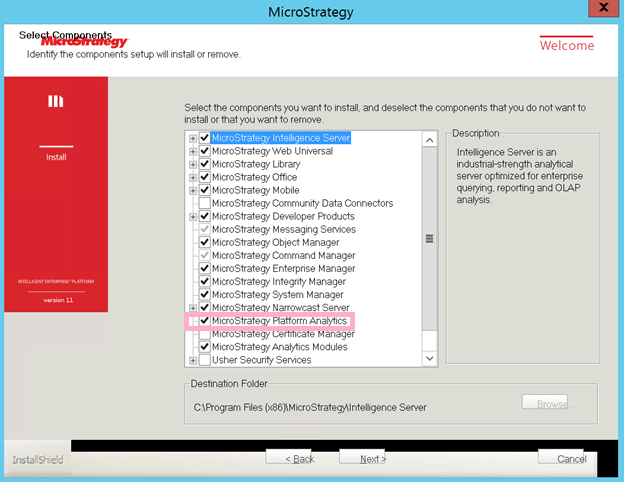
3. Click Next.
The screen shows the MySQL database that was created during the installation of Platform Analytics to host the Platform Analytics Repository.
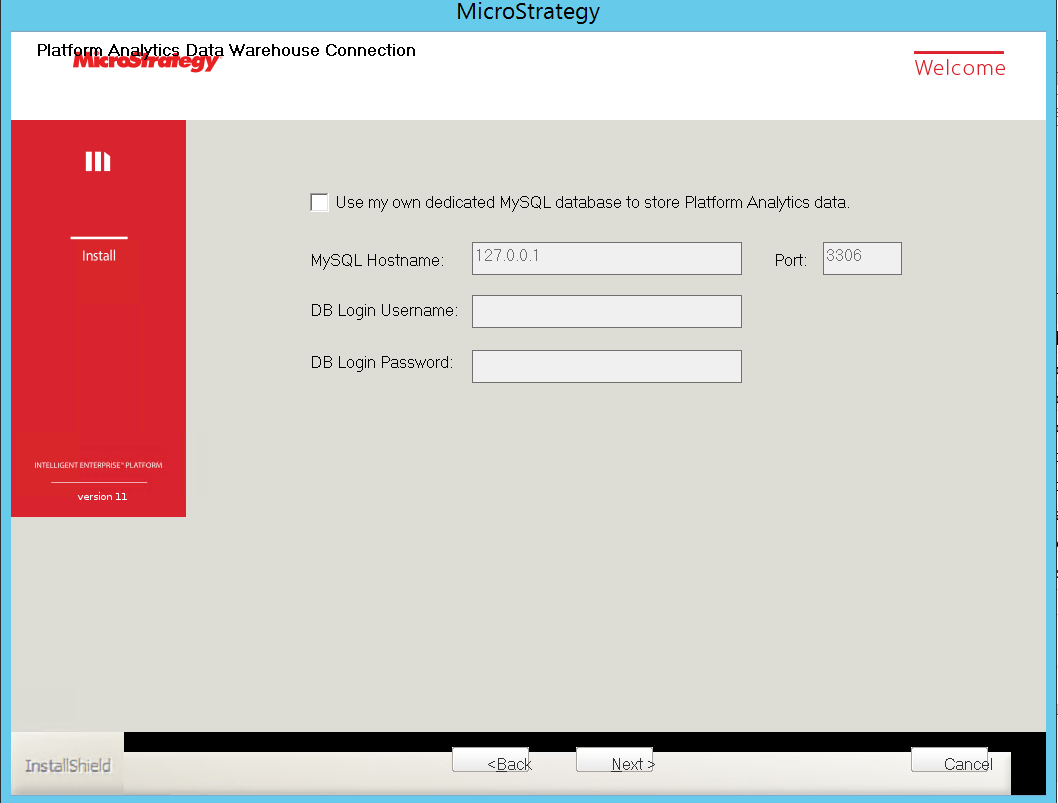
4. Click Next once again, the PA (Platform Analytics) warehouse will be installed.
5. Launch Configuration Wizard. A new DSN “PLATFORM ANALYTICS WH” is populated automatically.
Input User Name and Password.
That is the MySQL database server which was downloaded during the Strategy installation, the credentials can be found in the following file generated during installation:
C:\Program Files (x86)\Common Files\Strategy\express_password.txt
Note: DB login username is mstr.
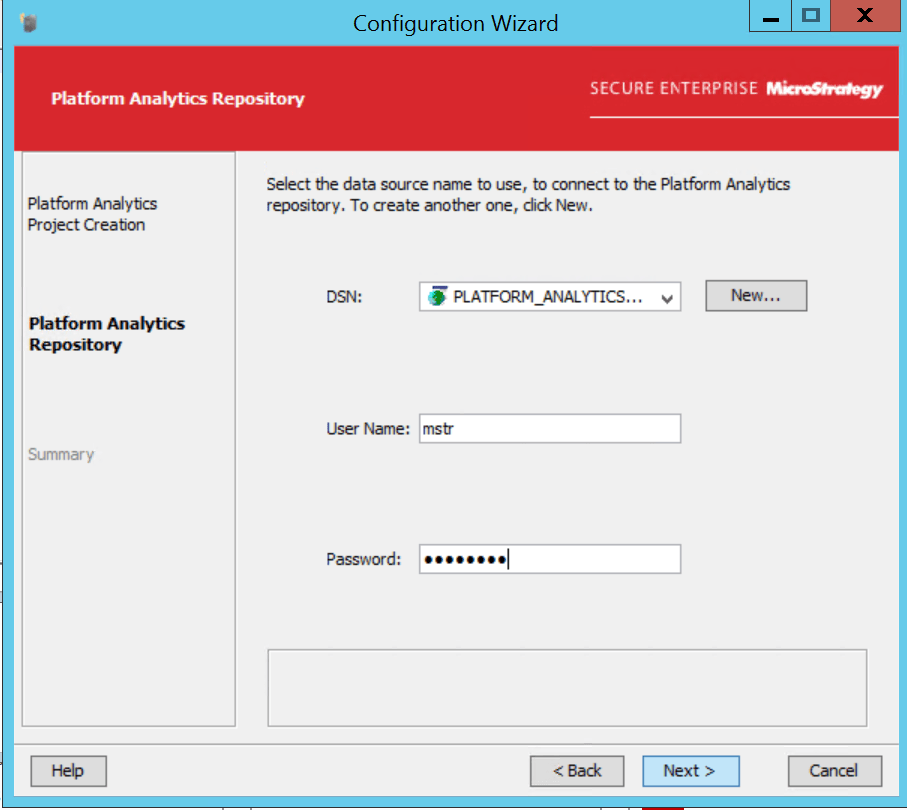
6. Click Apply.
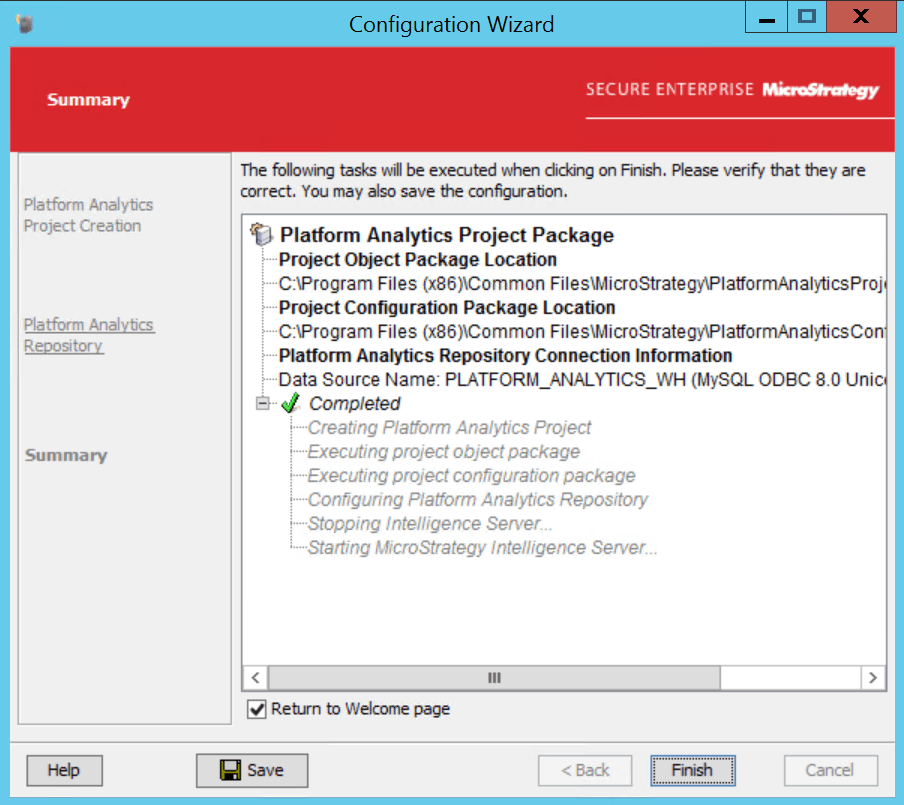
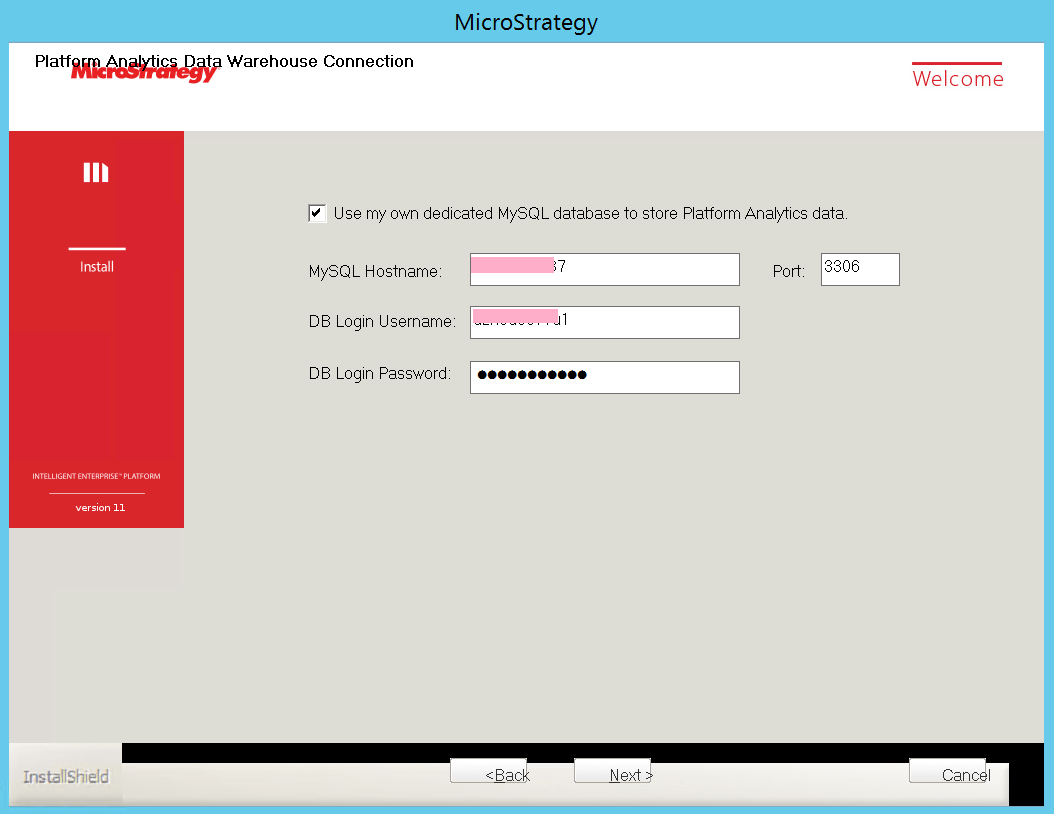
7. If in Step 3 you checked the “Use my own dedicated MySQL database to store Platform Analytics data” box, you will need to:
This information will be used during Platform Analytics Repository creation via Configuration Wizard.
Interested in learning more about Platform Analytics? Visit the Learning Center on Community!
Or feel free to go to our Documentation pages for product information.
