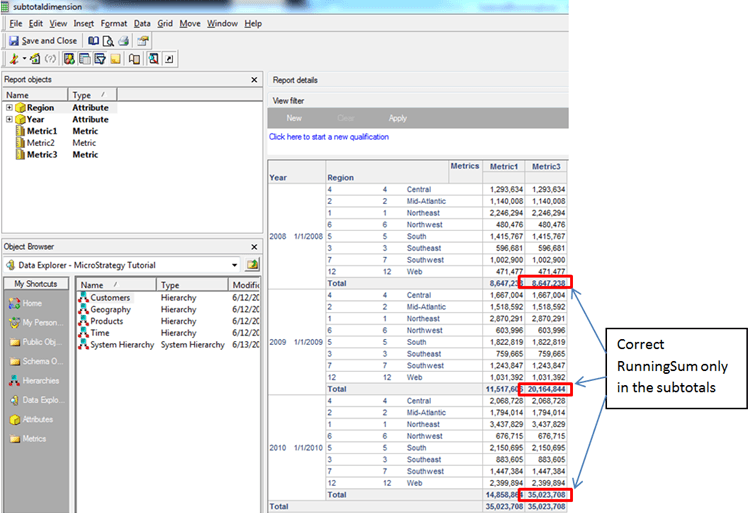
This article describes a series of steps to setup report objects in which metrics and subtotals so only the subtotal field will contain the RunningSum and the regular metric values will be standard sum values.
1) Create Metric 1 which is the sum of the fact that is to be in the columns.

2) Create Metric2 as the RunningSum of Metric1. NOTE: The sortby parameter for the RunningSum should be set to whichever attribute you want the report sorted by.
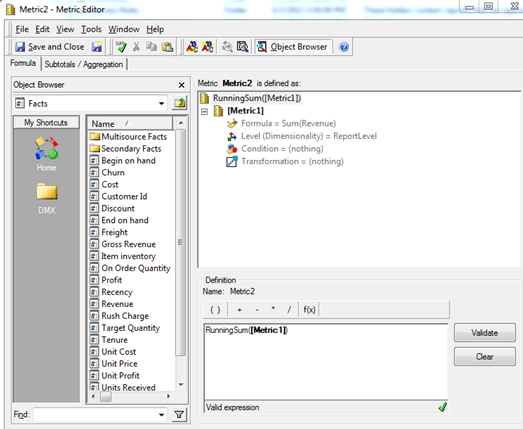
3) Create Metric3 as Metric1 + (Metric2 x 0)

4) Create a new subtotal called "Max" which is defined as Max()
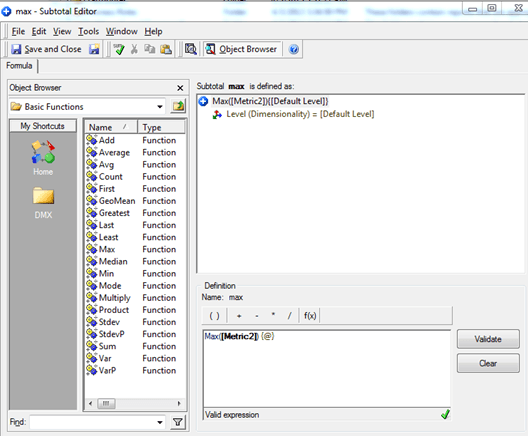
5) On the Subtotals/Aggregation tab for Metric 3, set the Total subtotal function to be "Max" and select the check box for "Allow Smart Metric"

6) Create the desired report and place the 3 metrics on the report. NOTE: Only Metric3 is required on the grid as it is the final metric which will display the desired RunningSum subtotal. The other two metrics simply need to be in the report objects window.
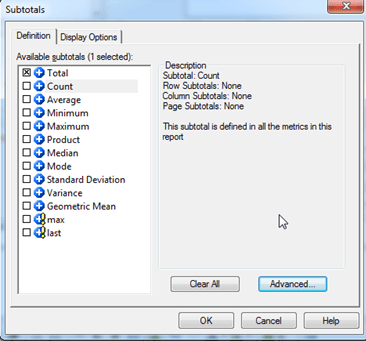
7) Within the report editor -> Data -> subtotals, select the Total subtotal
8) Execute the report.
Below is an example using Year, Region, and Revenue to achieve the RunningSum for only the subtotal.