EducationSoftwareStrategy.com
StrategyCommunity

Knowledge Base

Product

Community

Knowledge Base

TopicsBrowse ArticlesDeveloper Zone

Product

Download SoftwareProduct DocumentationSecurity Hub

Education

Tutorial VideosSolution GalleryEducation courses

Community

GuidelinesGrandmastersEvents
x_social-icon_white.svglinkedin_social-icon_white.svg
Strategy logoCommunity

© Strategy Inc. All Rights Reserved.

LegalTerms of UsePrivacy Policy
  1. Home
  2. Topics

The error "Messaging Service for Platform Analytics is not a valid feature flag" appears when configuring the I-Server after upgrade from 10.4 to 2019


Tingting Li

Product Owner • MicroStrategy


Description

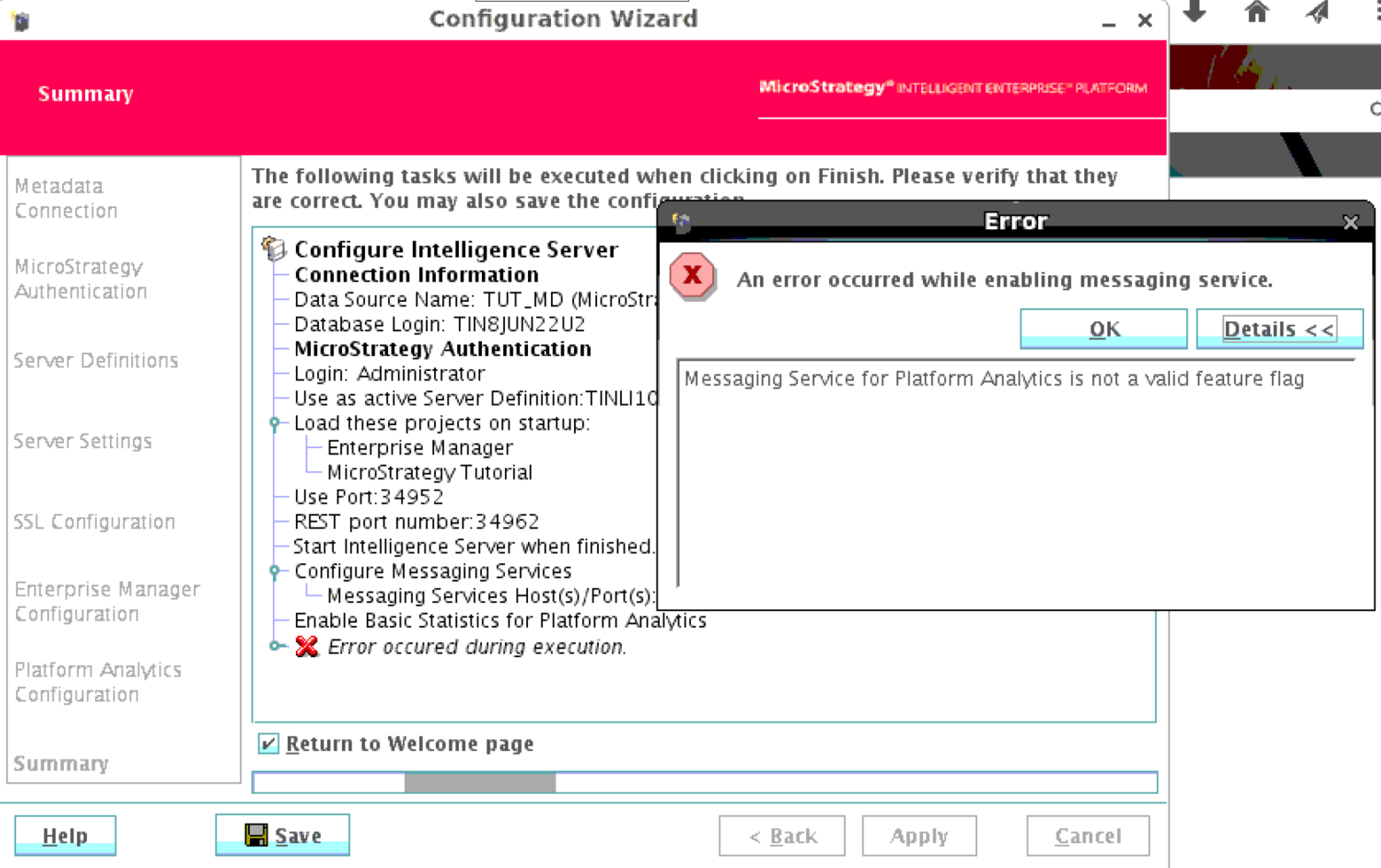
When upgrading from Strategy version 10.4 to Strategy version 2019 and configuring the Intelligence Server (I-Server) with Platform Analytics enabled, the following error message occurs when enabling the messaging service:
"Messaging Service for Platform Analytics is not a valid feature flag."
View the image below for reference:
 

ka02R000000g1fYQAQ_0EM44000000Rhtf.png


Steps to reproduce

  1. In a machine with I-Server of version 11.0+ installed, open Configuration Wizard.
  2. Click Configure Intelligence Server.
  3. Configure a metadata with a version lower than 10.10.
  4. Check "Send Intelligence Server telemetry to Platform Analytics" in the step for Platform Analytics Configuration.
  5. Click Apply after required information is correctly entered. 
  6. View the error: "Messaging Service for Platform Analytics is not a valid feature flag."

Why is this happening?

The error message is appearing due to the fact that the Messaging Service for Platform Analytics is not a valid feature flag in older version of the metadata (MD).

Solution

This problem can be resolved after updating the metadata to corresponding version. 
Follow these steps to update the metadata:
1. Configure the I-Server with "Send Intelligence Server telemetry to Platform Analytics" unchecked. 
This is located in the Platform Analytics Configuration step. View the image below for reference:


2. Update your metadata using Configuration Wizard. 
3. Re-configure and enable Platform Analytics. 
For detailed guidance on how to update the metadata, please refer to detailed guidance in our Documentation. 

Learning Resources

Interested in learning more about Platform Analytics? Visit the Learning Center on Community!


Comment

0 comments

Details

Knowledge Article

Published:

January 15, 2019

Last Updated:

August 19, 2019