EducationSoftwareStrategy.com
StrategyCommunity

Knowledge Base

Product

Community

Knowledge Base

TopicsBrowse ArticlesDeveloper Zone

Product

Download SoftwareProduct DocumentationSecurity Hub

Education

Tutorial VideosSolution GalleryEducation courses

Community

GuidelinesGrandmastersEvents
x_social-icon_white.svglinkedin_social-icon_white.svg
Strategy logoCommunity

© Strategy Inc. All Rights Reserved.

LegalTerms of UsePrivacy Policy
  1. Home
  2. Topics

KB44267: How to create dynamic subscriptions using Distribution Services in MicroStrategy 10.x


Community Admin

• Strategy


The following knowledge base article describes how to create a dynamic subscription using Distribution Services in MicroStrategy Secure Enterprise 10.x.

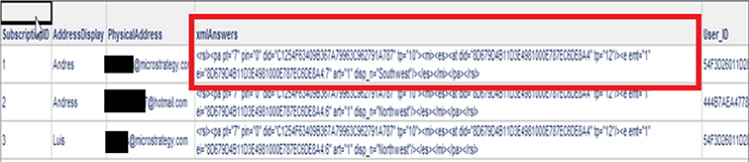
The image below shows the subscription table that is part of the Warehouse with the XML column that must be added in order to create Dynamic Subscriptions.

ka04W000000OhfpQAC_0EM4400000029Ys.png

How does the user obtain the prompted XML answer for a prompted report?
 
Follow the steps below to obtain the XML prompt answers for any prompted report.

  • Run the report and choose the prompt answers.
  • Save the report.
  • Subscribe a user to that report.
  • Open the Strategy DB Query Tool.
  • Select the DSN corresponding to the project metadata and connect to it.
  • Run the following query:
    
    SELECT B.DISP_NAME,A.* FROM DSSCSPSNLZTN A join DSSCSSUBINST B on A.INST_ID=B.INST_ID and A.SUB_ID=268435456;
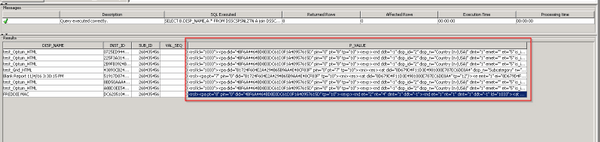
    

  • Under the DISP_NAME column, find the name of the subscription that was created in step 3. The image below shows the information needed to create a dynamic subscription from the output of this query.
ka04W000000OhfpQAC_0EM4400000029Yo.jpeg
  • Copy the string under the "P_VALUE" column.
  • Paste this value in the "XML_ANSWERS" column of the subscription table.
  • Repeat step 11 for N number of different personalization reports as needed by the user.
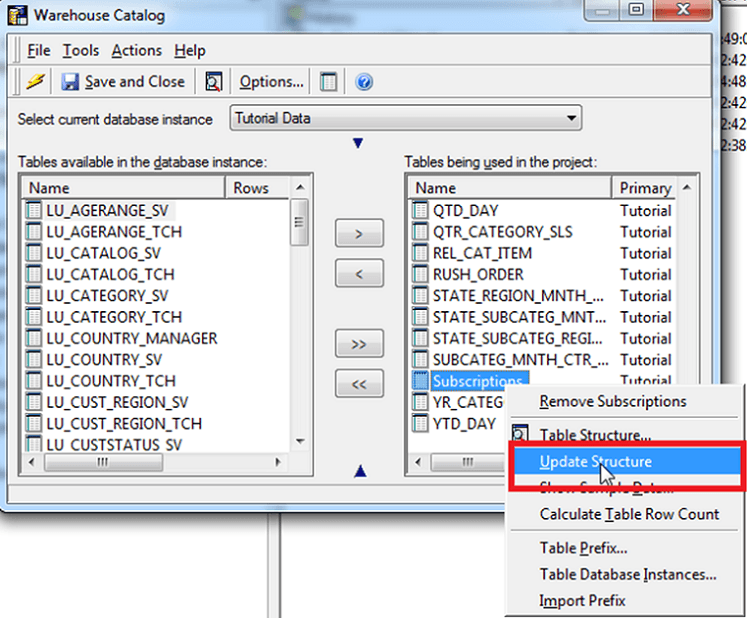
  • In Desktop, update the subscriptions table through the Warehouse Catalog as shown below.
ka04W000000OhfpQAC_0EM4400000029Ye.png
  • Create an attribute for the XML_ANSWERS column.
  • Update the schema through Desktop.
  • Add the attribute created in step 14 to the report that will serve as the dynamic address list. A sample report has been shown below. This attribute will assist the user with creating dynamic subscriptions in the upcoming steps.
     
ka04W000000OhfpQAC_0EM4400000029Ym.png
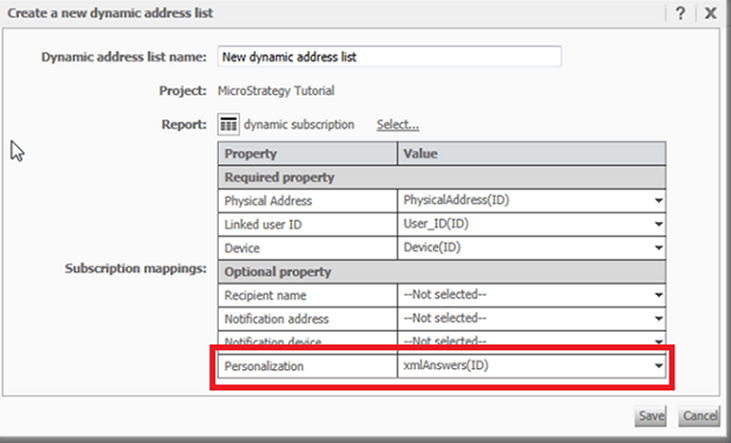
  • Use the newly created report as the dynamic address list through Strategy Web. Select the report and use the fields from that report to fill the requirements. In the image below, the XML attribute in the report was added for the "Personalization" property.

ka04W000000OhfpQAC_0EM4400000029Yq.png
  • Save the dynamic address list.

Comment

0 comments

Details

Knowledge Article

Published:

April 26, 2017

Last Updated:

April 26, 2017