EducationSoftwareStrategy.com
StrategyCommunity

Knowledge Base

Product

Community

Knowledge Base

TopicsBrowse ArticlesDeveloper Zone

Product

Download SoftwareProduct DocumentationSecurity Hub

Education

Tutorial VideosSolution GalleryEducation courses

Community

GuidelinesGrandmastersEvents
x_social-icon_white.svglinkedin_social-icon_white.svg
Strategy logoCommunity

© Strategy Inc. All Rights Reserved.

LegalTerms of UsePrivacy Policy
  1. Home
  2. Topics

KB44305: How to view updated attribute element in object browser after an incremental refresh report for an Intelligent Cube completes running in MicroStrategy Developer 9.x and 10.x


Stefan Zepeda

Salesforce Solutions Architect • Strategy


How to view updated attribute element in object browser after an incremental refresh report for an Intelligent Cube completes running in MicroStrategy Developer 9.x and 10.x

 
When viewing attribute element in an Intelligent Cube at the time an incremental refresh report for the Intelligent Cube completes running, data of the attribute element would not be refreshed automatically in object browser. This is not because the Incremental refresh report did not work. Close the Intelligent Cube and purge element cache to display the updated data in object browser.
 
EXAMPLE:

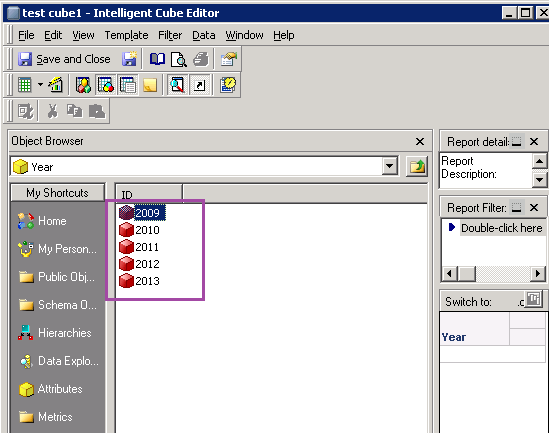
  • Open an Intelligent Cube and view the attribute element for "Year". The "Year" attribute now contains "2009, 2010, 2011, 2012".
     
ka02R000000kbkXQAQ_0EM4400000029ZI.png
  • Add new data "2013" in "LU_YEAR" table in warehouse, now the screen remain the same.
     
  • Run the incremental refresh report, and then run a report created against the Intelligent Cube. Now new data "2013" can be returned which indicates the incremental refresh report worked.
     
ka02R000000kbkXQAQ_0EM4400000029ZG.png
  • Close the Intelligent Cube and open it again, and view the attribute element for "Year". New data "2013" is not added in object browser.
     
    It is caused by element cache for the project. Open project configuration to purge element cache.
     
ka02R000000kbkXQAQ_0EM4400000029ZJ.png
  • Close the project and re-open it. Open the Intelligent Cube and note that new data "2013" for attribute "Year" is added in object browser.
     
ka02R000000kbkXQAQ_0EM4400000029ZF.png


Comment

0 comments

Details

Knowledge Article

Published:

June 9, 2017

Last Updated:

June 9, 2017