EducationSoftwareStrategy.com
StrategyCommunity

Knowledge Base

Product

Community

Knowledge Base

TopicsBrowse ArticlesDeveloper Zone

Product

Download SoftwareProduct DocumentationSecurity Hub

Education

Tutorial VideosSolution GalleryEducation courses

Community

GuidelinesGrandmastersEvents
x_social-icon_white.svglinkedin_social-icon_white.svg
Strategy logoCommunity

© Strategy Inc. All Rights Reserved.

LegalTerms of UsePrivacy Policy
  1. Home
  2. Topics

KB44356: "HTTP Error 500.19 - Internal Server Error" error message appears in the report editor window when creating a report or document through MicroStrategy Office 9.x using Internet Information Services.


Community Admin

• Strategy


This article describes a a configuration issue with MicroStrategy Web that becomes apparent in MicroStrategy Office after setting up report and document creation in MicroStrategy Office options.

SYMPTOM:
 
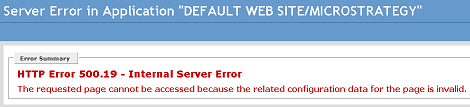
A user configures Strategy Office 9.x successfully with their Strategy Web URL in the Strategy Office Configuration to allow users to create reports and documents from Strategy Office. However, when actually trying to create a report or document, the editor shows the error below.
 

ka04W000000OeBhQAK_0EM4400000026aU.png


HTTP Error 500.19 - Internal Server Error
The requested page cannot be accessed because the related configuration data for the page is invalid.
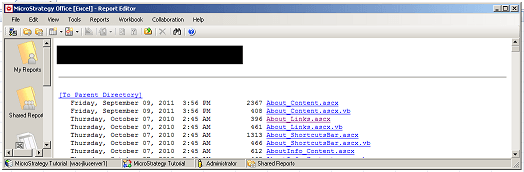
 
Another possible effect of the same problem is the following display, instead of the error above.
 

ka04W000000OeBhQAK_0EM4400000026aR.png


CAUSE:
 
This issue is caused by having an incorrect Default Document set in the Strategy Web 9.x application in Internet Information Services. When creating a new application in IIS, this new application inherits the Default Documents specified at the level above. The correct Default Document should be: Main.aspx.
 
ACTION:
 
In IIS 6
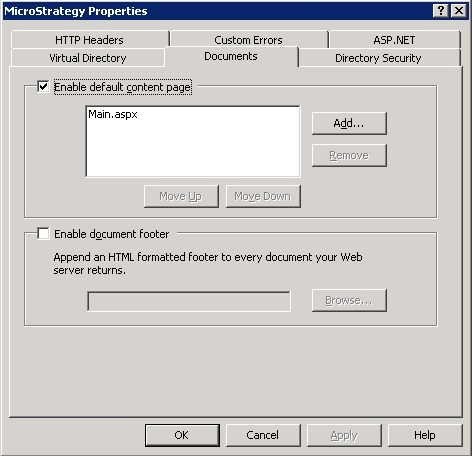
  • Right click the Strategy Web application > Properties > Documents.
  • Under Enable default content page, remove all other options and add Main.aspx, as shown below:
ka04W000000OeBhQAK_0EM4400000026aM.jpeg
  • Click OK.
  • Restart IIS for the settings to take effect.

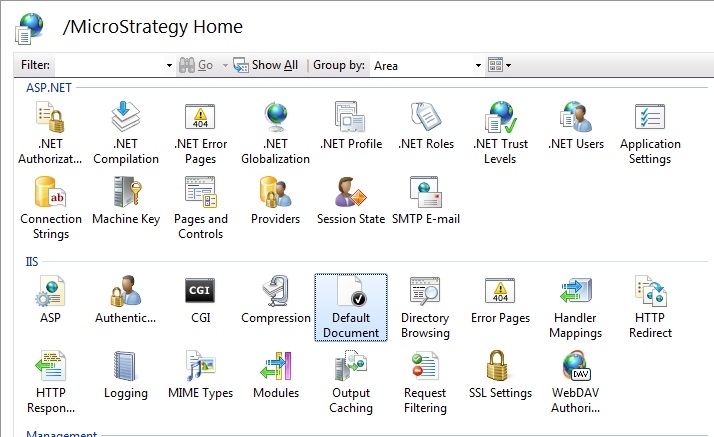
In IIS 7

  • Select the Strategy Web application.
  • From the center pane, double click the Default Document icon, like shown below.
ka04W000000OeBhQAK_0EM4400000026ag.jpeg
  • Use the right pane to remove all other options and add Main.aspx.


Comment

0 comments

Details

Knowledge Article

Published:

June 13, 2017

Last Updated:

June 13, 2017