SUMMARY:
This topic provides guideline for Transaction Services reports defined with a star rating as the input method. The solution is provided along with screenshots and the specific values for each number of stars.This is relevant to Strategy Web 9.3.1 and above.
QUESTION:
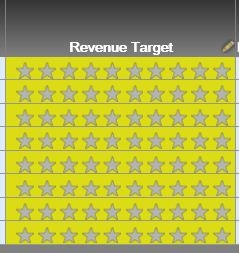
Star rating is one way of collecting user inputs with Strategy Transaction Services.
When there is not enough width and height in a textbox or a grid cell where the Transaction Services is defined with this style, it won't be displayed properly.
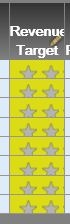
What are the minimum width and height for 3, 5, and 10 stars?
ANSWER:
For row or textbox height, 0.24 Inches
For row or textbox width;
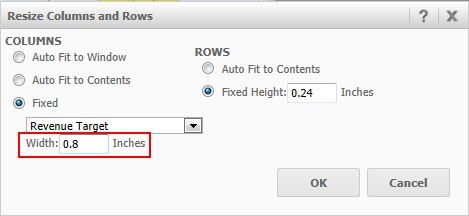
3 stars, 0.8 inches

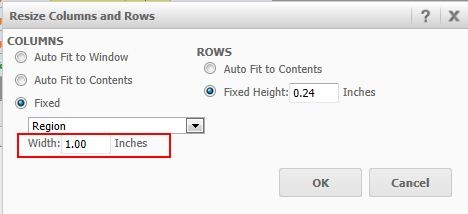
For 5 stars, 1 inch

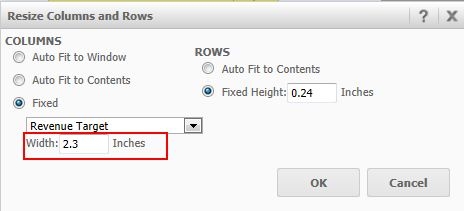
For 10 stars, 2.3 inches
TO LEARN MORE:
http://www2.microstrategy.com/producthelp/9.3.1/WebUser/WebHelp/Lang_1033/Using_transactions_to_update_data.htm
Select Transaction dialog box
You can use the Select Transaction dialog box to select the Transaction Services report you want to use to create a Transaction Services-enabled document. For detailed steps, see the Document Creation Guide.
To navigate to the location of your Transaction Services report, select a folder from the drop-down list. The contents of the folder are displayed in the Available list. You can click the name of a folder in the available list to open it, or select a Transaction Services report by clicking its name.
You can use the Find field to search for a Transaction Services report. Type the name of the report in the Find field, then click the Find icon. Search results are displayed in the Available list. Click the name of the report to select it.
Once you have selected your Transaction Services report, click OK.
For formatting options for other Input Object controls, refer to:
Document Creation Guide > Chapter 7. Transaction-enabled Document > Input Object controls that support transactions
KB44382
