EducationSoftwareStrategy.com
StrategyCommunity

Knowledge Base

Product

Community

Knowledge Base

TopicsBrowse ArticlesDeveloper Zone

Product

Download SoftwareProduct DocumentationSecurity Hub

Education

Tutorial VideosSolution GalleryEducation courses

Community

GuidelinesGrandmastersEvents
x_social-icon_white.svglinkedin_social-icon_white.svg
Strategy logoCommunity

© Strategy Inc. All Rights Reserved.

LegalTerms of UsePrivacy Policy
  1. Home
  2. Topics

KB44433: How to modify the column alias for a metric in MicroStrategy 9.x and 10.x


Stefan Zepeda

Salesforce Solutions Architect • Strategy


This technical not describes how to modify the column alias for a metric in MicroStrategy 9.x and 10.x. using the metric editor

To modify the column alias for a particular metric, follow the steps below:
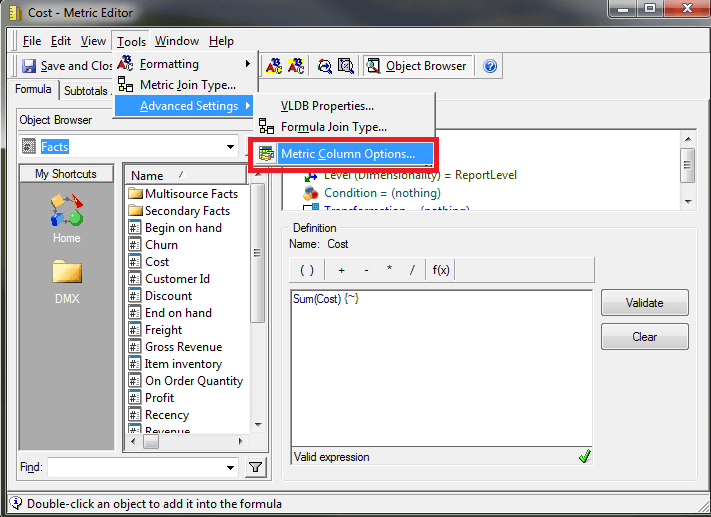
  • In Strategy Desktop 9.x or Developer 10.x, locate and edit the metric to be modified.
  • From the "Metric Editor", Click on Tools > Advanced Settings and select "Metric Column Options" as shown below.

ka02R000000kYeIQAU_0EM440000002ChM.png
  • The "Metric Column Alias Options" window will appear with options to enter a "Column Name used in table SQL Creation" or to select a "Data type" for this metric as shown below.

ka02R000000kYeIQAU_0EM440000002Cgz.png


A specific name can be entered in the field for custom metric column names for use in data mart tables and SQL generation.
Note: The default data type is generally sufficient for most usage situations. Altering the default data type should only be done with full knowledge of the expected data that should be returned by the defined metric. This data type should only need to be altered if issues arise when attempting to run a data mart, bulk export, or any method which requires specific data types based on the requirements and needs of the database utilized.

  • The "Data type" drop down field lists all available data types which can be manually assigned to this metric.

Comment

0 comments

Details

Knowledge Article

Published:

June 6, 2017

Last Updated:

June 6, 2017