SUMMARY:
Currently, there is no option to alter the color of the bubbles directly in the Interactive Bubble Graph Widget in Strategy Web 9.X. However, it is possible to perform such action by altering the colors of the Graph series.
STEPS TO REPRODUCE:
Follow the steps below in order to reproduce the referred action in the Strategy Tutorial Project:
01) Create a new report by adding the Year and Category attributes to rows and the Revenue, Profit and Cost metrics to columns.
02) Create a document using the report created in the previous step as dataset.
03) Add the dataset in the document workable area, right mouse click on the dataset (grid) and select the Properties and Formatting option.
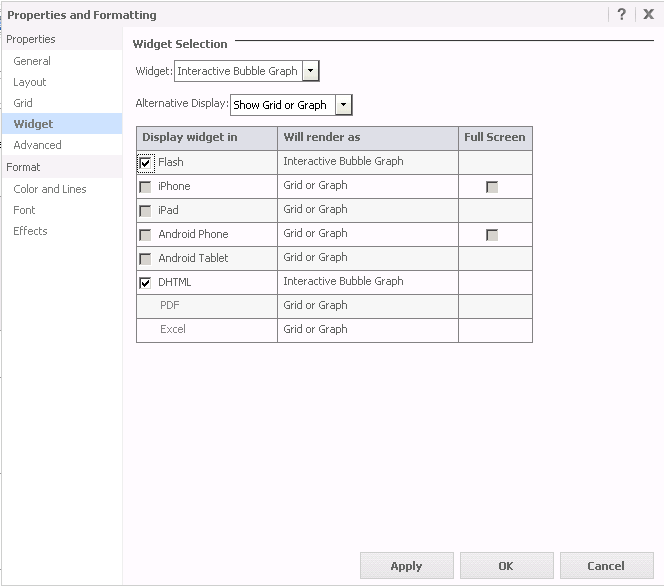
04) In the left panel menu, click on Widget, so on the right panel, in the Widget Drop-Down list, select Interactive Bubble Graph for DHML and Flash; click on OK:
05) Switch to the Interactive View mode.
06) Right mouse click on the Widget and click on Properties.
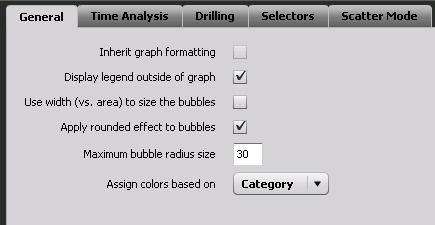
07) Check the options Display legend outside of graph and select Category in the Assign colors based on Drop-down list, as shown:
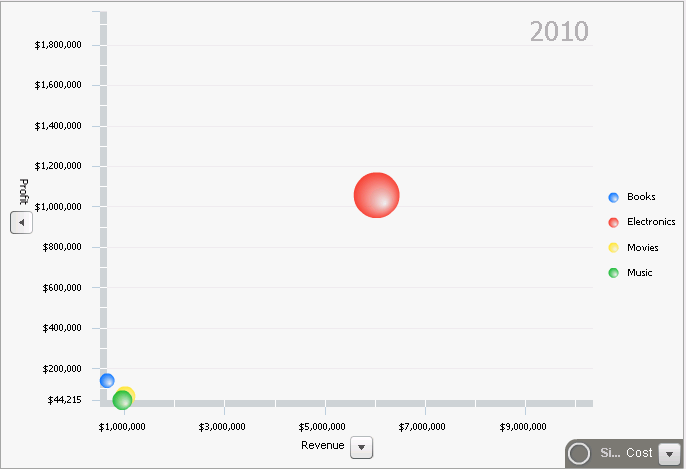
08) Click on OK to see the Interactive Bubble Graph Widget:
09) Switch to the Editable View mode.
10) Right mouse click on the grid and change the View Mode to Graph View, so a Vertical Bar Graph appears:
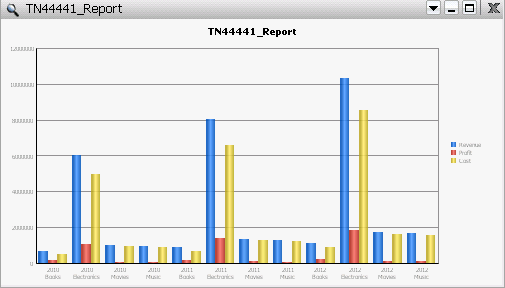
11) Right mouse click on the graph and select Format…
12) In the left panel, click on Advanced, so in the right panel, under the Advanced > Set Series option, check the By Row radio button, as shown
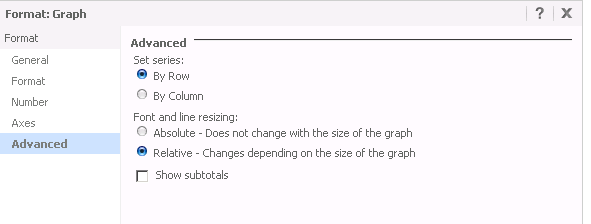
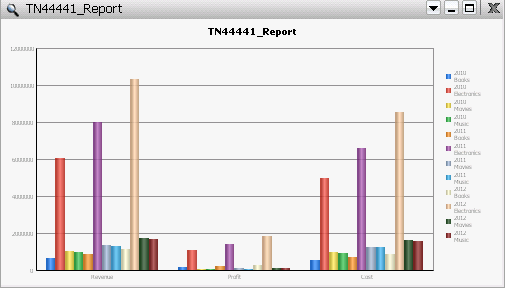
13) Click on Apply, so the graph bars series are redefined as per the Category elements, as shown:
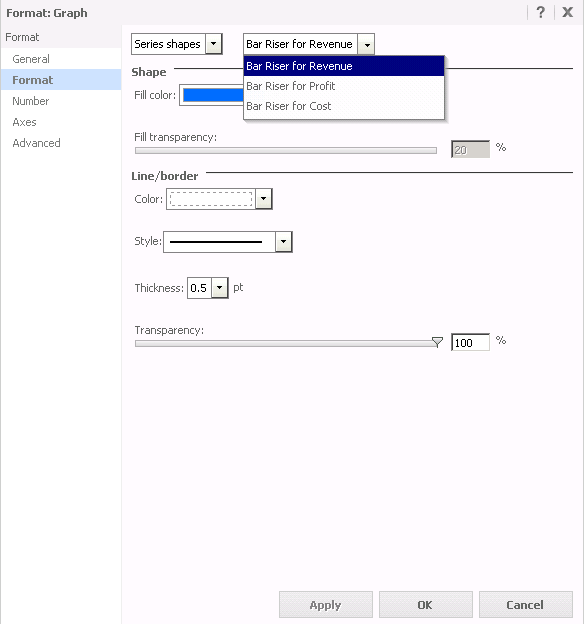
14) Still in the Graph Format...menu, in the left panel, click on Format, in the right panel, select Series Shapes in the first Drop-down list, so in the second Drop-down list, select each Category element and define its color in the Fill color option. e.g.:
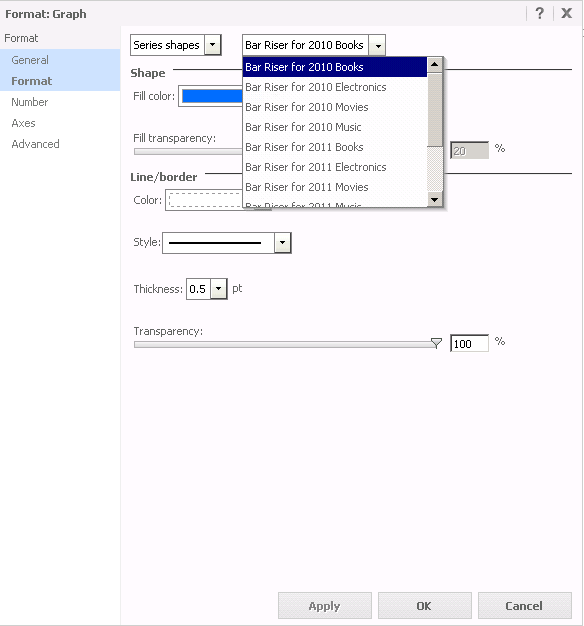
15) Click on OK and switch to the Flash View mode.
16) Right mouse click on the Widget and select Properties
17) Check the Inherit graph formatting option and click on OK:
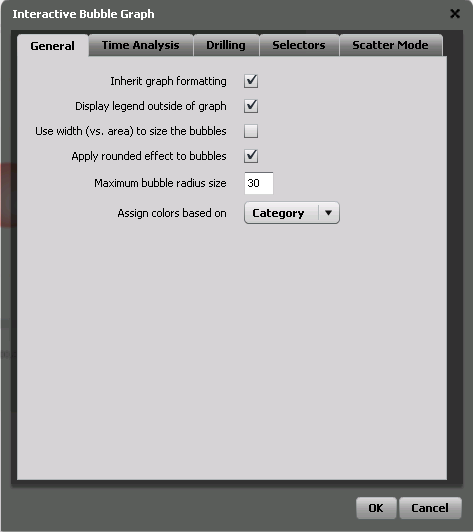
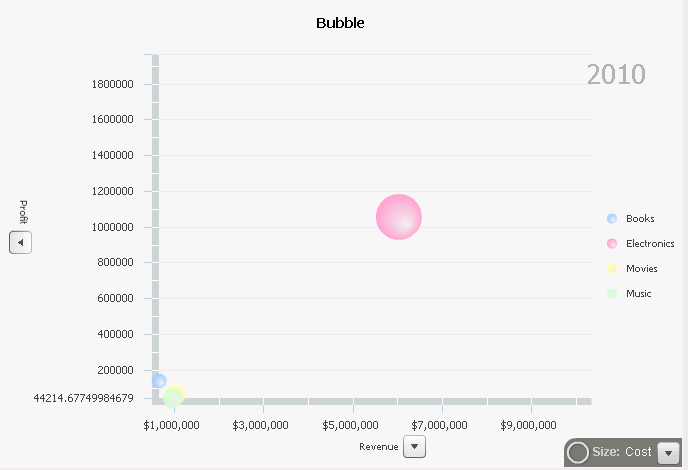
18) The bubbles will assume the color defined in the graph formatting, as shown:
NOTE:
Assuming that the report attributes are in the rows and the metrics in the columns, the bubbles are based on the Category elements, so each bubble represents a Category element. To continue using the series based on the column in order to have each bubble representing a metric, in the step 12, keep the By Column Radio button checked, and follow the same steps to apply the desired color on each Series, as shown: