When there is no data returned during report executing, the message "The report returns no data. Please check the report and/or the view filter definition" is displayed.
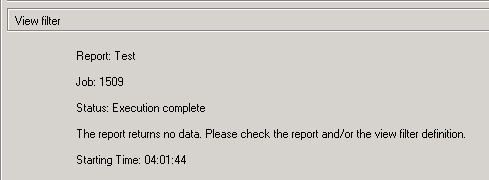
It can be reproduced by:
1.Create a report with the attribute "Category" and "Subcategory".
2.Add a prompt filter on each attribute.
3.Run the report with answering the prompts by exclusive answers like "Books" and "Rock".
The message can be customized in Developer and Web and formatted only in Web.
Follow the next steps to modified and format the message:
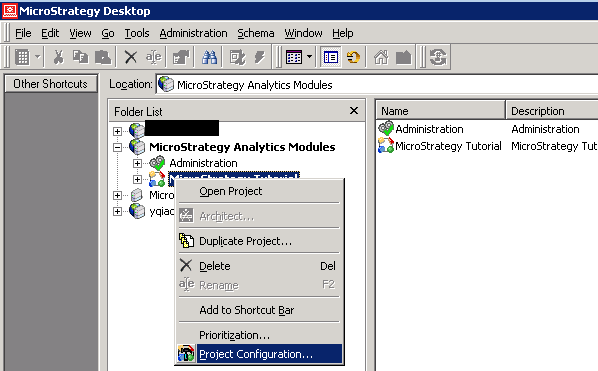
1. In Developer, right click on the project name and go to "Project Configuration".
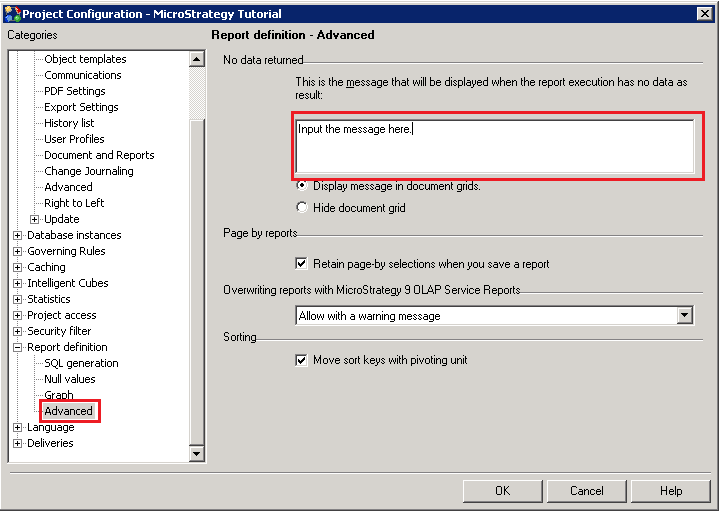
2. Go to "Report definition" ->"Advanced" and input the message below "No data returned".
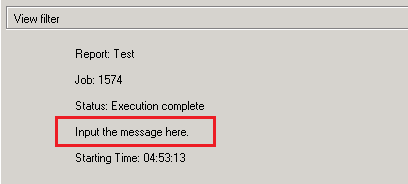
Run the report again.
In Developer:
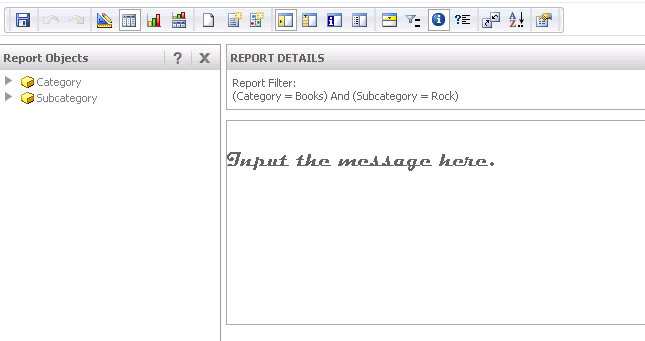
In Web:
3. The message can be formatted by CSS.
Here is a sample CSS code.
<html>
<head>
<style type="text/css" media="all">
p#mb{
font: 20px/1.5em "Magneto Bold"
}
</style>
</head>
<body>
<p id="mb"> Input the message here.</p>
</body>
</html>
where, 20px refers to font-size;
1.5em refers to line-height;
"Magneto Bold" refers to font-family.
Paste the code to the setting in Step 2, restart the web server and run the report in Web again.
In Web:
Note:
The formatting only takes effect in Web. In Developer, the used code itself will be displayed.
