To check what provider is being used, check the URL in the datasource.XML file which is located in:
C:\Program Files (x86)\Strategy\MDX Cube Provider
At the end of the URL, you will either see:
StrategyMDX.asmx (Strategy Binary Provider)
MSMDPUMP.DLL (Microsoft XMLA Provider)
Ensure the following prerequisites are installed to properly configure using Strategy's Binary Provider:
1. Strategy MDX Cube Provider (included in Strategy Product Suite).
2. Web Services Enhancements (WSE) 3.0 for Microsoft .NET Redistributable Runtime MSI.
3. MS Analysis Services OLE DB Provider which can be found here:
http://www.microsoft.com/en-us/download/details.aspx?id=16978
*Check for 32-bit or 64-bit
4. Make sure the cube is restored on the MSAS server.
5. Set up IIS with anonymous authentication.
5a. If the XMLA test fails due to the authentication, use MSOLAPBASIC with the credentials mentioned later on.
Setting up the provider:
Step 1: Modify the Datasource.XML file in C:\Program Files (x86)\Strategy\MDX Cube Provider.
Example:
<DataSources>
<DataSource>
<DataSourceName>Localhost</DataSourceName>
<DataSourceDescription>Strategy MDX Cube Provider for MSOLAP on Localhost</DataSourceDescription>
<URL>http://localhost/StrategyMDX/StrategyMDX.asmx</URL> <DataSourceInfo>Localhost</DataSourceInfo>
<ProviderName>Strategy MDX Cube Provider for MSOLAP on
Localhost</ProviderName>
<ProviderType>MDP</ProviderType>
<AuthenticationMode>MSOLAPTest</AuthenticationMode>
<DatasourceType>3</DatasourceType>
<ProgramID>MSOLAP</ProgramID>
<MaxXMLSize>1000</MaxXMLSize>
<MaxTableBufferSize>12000</MaxTableBufferSize>
<MaxTableRows>240000</MaxTableRows>
<TestU>TECH_SERVICES\TestUser2</TestU>
<TestP>p314H45g</TestP>
</DataSource>
</DataSources>
*The highlighted portion will be the credentials for MSOLAPBASIC. If using anonymous, please remove these lines.
Step 2: Modify the DataSourceName, URL, DataSourceInfo (DSI), AuthenticationMode, and the credentials accordingly.
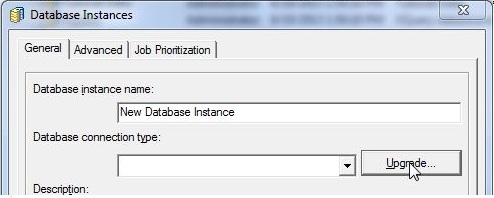
Step 3: Create a database instance configured with database connection type 'Microsoft Analysis Services 2005/2008 (MDX Cube Provider)'. If this is not an option,click 'upgrade' and 'load' the database type.
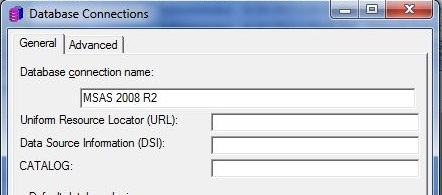
Step 4: Within the database connection, fill in the URL, DSI and CATALOG.
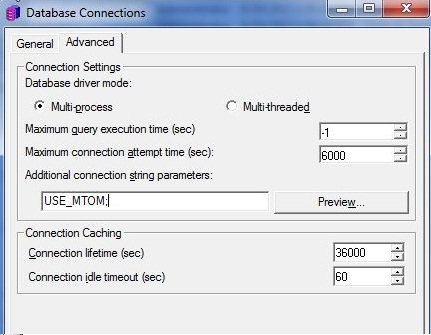
Step 5: Go to the Advanced tab and type 'USE_MTOM;' in the parameters.
Step 6: Test the connection with the XMLATest tool, which can be accessed through command line.
KB24380
