EducationSoftwareStrategy.com
StrategyCommunity

Knowledge Base

Product

Community

Knowledge Base

TopicsBrowse ArticlesDeveloper Zone

Product

Download SoftwareProduct DocumentationSecurity Hub

Education

Tutorial VideosSolution GalleryEducation courses

Community

GuidelinesGrandmastersEvents
x_social-icon_white.svglinkedin_social-icon_white.svg
Strategy logoCommunity

© Strategy Inc. All Rights Reserved.

LegalTerms of UsePrivacy Policy
  1. Home
  2. Topics

KB44588: New feature in MicroStrategy Mobile: Navigation Bar for iPhone and iPad


Community Admin

• Strategy


This article outlines the new navigation bar feature beginning in MicroStrategy Mobile.

A new feature to navigate across documents has been introduced in Strategy Mobile 9.3.1: The Navigation Bar.
The Navigation Bar allows users to seamlessly navigate across documents with links that remain docked at the bottom of the screen in the iPad or iPhone.
The Navigation Bar has to be configured using Strategy Web 9.3.1 or above following these instructions:
 
ACTION:
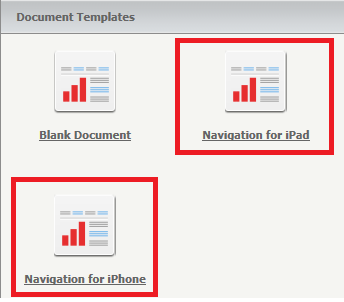
  • Create a new Document in Strategy Web 9.3.1 and select the new template Navigation Bar for iPad as shown below:
ka04W000001MKw0QAG_0EM440000002AC1.png
  • Notice that this document only allows Design and Editable mode in the toolbar, like shown below. 
ka04W000001MKw0QAG_0EM440000002ABz.png
  • Additionally the only objects available to add to the panel stack are buttons :
ka04W000001MKw0QAG_0EM440000002ABu.png
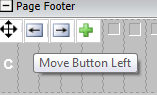
  • Buttons can be shifted from their actual position as shown below:
ka04W000001MKw0QAG_0EM440000002AC2.png
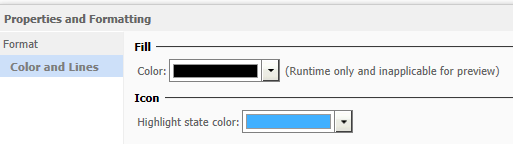
  • The background and icon color of the button can be customized by right clicking the panel stack area and selecting Properties and Formatting.
ka04W000001MKw0QAG_0EM440000002AC3.png
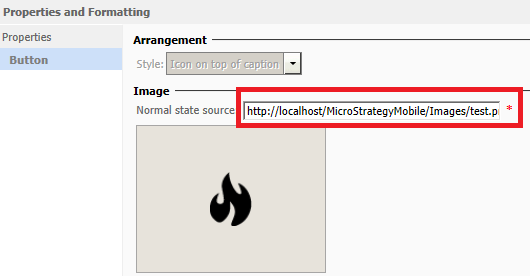
  • Right click each button to select an appropriate image to display on the icon.
    Note: Refer to the tech note KB44587 for more on the best practices for these images.
ka04W000001MKw0QAG_0EM440000002ABw.png
  • Define the appropriate action using the settings button, such as running a particular report or document.
    Note: Additional actions can be set to pass prompt answers or selector values.
ka04W000001MKw0QAG_0EM440000002ABt.png
  •  
    Note: Once a button has been tied to a report or document, the navigation bar automatically executes that document and displays it above the navigation bar document. Thus, clicking on a button to another document, executes the new document to display above the navigation bar. 
  • To test this, save the navigation bar document and run it in the iPad with Strategy Mobile 9.3.1.
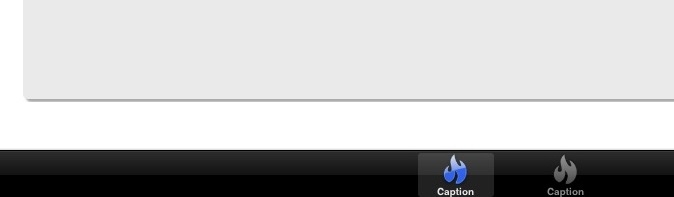
  • Notice that the first button to the left will be selected by default and the document related to that action will be loaded as shown below:  
      
       
ka04W000001MKw0QAG_0EM440000002ABv.jpeg

Comment

0 comments

Details

Knowledge Article

Published:

April 3, 2017

Last Updated:

April 3, 2017