EducationSoftwareStrategy.com
StrategyCommunity

Knowledge Base

Product

Community

Knowledge Base

TopicsBrowse ArticlesDeveloper Zone

Product

Download SoftwareProduct DocumentationSecurity Hub

Education

Tutorial VideosSolution GalleryEducation courses

Community

GuidelinesGrandmastersEvents
x_social-icon_white.svglinkedin_social-icon_white.svg
Strategy logoCommunity

© Strategy Inc. All Rights Reserved.

LegalTerms of UsePrivacy Policy
  1. Home
  2. Topics

KB44590: How to remove the default shortcuts available in the All Objects Browser pane in tree view when creating a new report in MicroStrategy Web


Community Admin

• Strategy


Blank Report template includes several useful shortcuts in the All Objects Pane by default. Some of these links include the Data Explorer, My Personal Objects, Attributes, Metrics and Hierarchies as shown below.

SYMPTOM
 
In Strategy Web 9.3.1 the Blank Report template includes several useful shortcuts in the All Objects Pane by default. Some of these links include the Data Explorer, My Personal Objects, Attributes, Metrics and Hierarchies as shown below :
 

ka04W00000148ORQAY_0EM4400000026XN.png

 
This can be hidden to have the following result :
 

ka04W00000148ORQAY_0EM4400000026XT.png

 
Note: Refer to tech note KB44501 for more information on an issue related to removing the ACL's of these shortcuts.
 
ACTION
 
To accomplish this functionality the following steps have to be performed:

  • Edit the Blank Report template or any desired template available under the Object Templates hidden folder in Strategy Desktop 9.3.1, like shown below:
     
ka04W00000148ORQAY_0EM4400000026XL.png
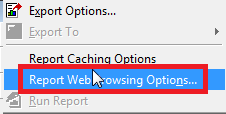
  • Under the toolbar select Data > Report Web Browsing Options, like shown below:
     
ka04W00000148ORQAY_0EM4400000026XP.png
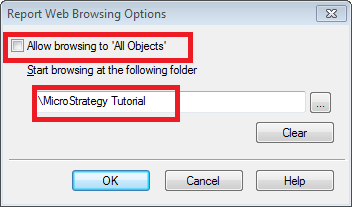
  • Disable the Allow browsing to "All Objects" checkbox and specify the root folder of the project  "\Strategy Tutorial" in this case:
     
ka04W00000148ORQAY_0EM4400000026XR.png
  • Save and close the template.
  • Now log into Strategy Web 9.3.1 and create a new Blank Report.
  • Switch the All Objects Pane to tree view and notice that the links are gone.

Note: The shortcuts will remain in the List view of the All Objects pane.


Comment

0 comments

Details

Knowledge Article

Published:

June 12, 2017

Last Updated:

June 12, 2017