EducationSoftwareStrategy.com
StrategyCommunity

Knowledge Base

Product

Community

Knowledge Base

TopicsBrowse ArticlesDeveloper Zone

Product

Download SoftwareProduct DocumentationSecurity Hub

Education

Tutorial VideosSolution GalleryEducation courses

Community

GuidelinesGrandmastersEvents
x_social-icon_white.svglinkedin_social-icon_white.svg
Strategy logoCommunity

© Strategy Inc. All Rights Reserved.

LegalTerms of UsePrivacy Policy
  1. Home
  2. Topics

KB44591: "An Error has occurred on this page " error appears in the All Objects pane when using Tree View and executing a newly created report that uses shortcuts to reach the objects in MicroStrategy Web 9.4.1


Community Admin

• Strategy


"An Error has occurred on this page " error appears in the All Objects pane when using Tree View and executing a newly created report that uses shortcuts to reach the objects in MicroStrategy Web 9.4.1

SYMPTOM:
The Administrator configures a folder to be the highest level of the Blank Report template so that users creating new reports can only browse from that folder down. Then, the administrator uses shortcut objects to help the users navigate from that folder to a different one, like shown below:
 

ka04W000000OhP6QAK_0EM4400000026Xh.png

 
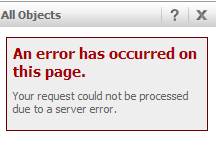
If the All Object pane is displayed in tree view, and the user completes a report using an object taken from one of those shortcut folders in Strategy Web 9.3.1, they will get the error below upon execution:
 

ka04W000000OhP6QAK_0EM4400000026Xj.png


An error has occurred on this page.
Your request could not be processed due to a server error.

In the Strategy Web log the following error appears:
 

<package>com.Strategy.web.app.transforms</package>
  <level>SEVERE</level>
  <class>AllObjectBrowserTransform</class>
  <method>constructEntireTree</method>
  <message>problems in constructing the entire treenull</message>

 
And the report section will render only a blank page. At this point, the users need to exit the report creation interface and start over.
 
STEPS TO REPRODUCE:

  • Create a new folder in the Public Objects folder for the project in Strategy Developer 9.4.1
  • Insert in this folder two shortcuts to other folders in any location, as shown below:
     
ka04W000000OhP6QAK_0EM4400000026Xp.png
  • Edit the Blank Report template or any desired template available under the Object Templates hidden folder in Strategy Developer, like shown below:
     
     
ka04W000000OhP6QAK_0EM4400000026Xr.png
  • Under the toolbar select Data > Report Web Browsing Options:

     
ka04W000000OhP6QAK_0EM4400000026Xe.png
  • Disable the Allow browsing to "All Objects" checkbox and specify the location of the folder created in step 1 :
     
ka04W000000OhP6QAK_0EM4400000026Xl.png
  • Save and close the template.
  • Log into Strategy Web and create a new report using the template edited in step 5.
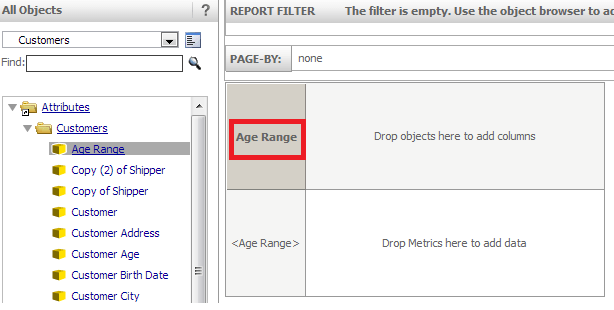
  • Switch the All Objects pane to tree view and navigate through one of the shortcuts to add any attribute to the grid, as shown below :
     
ka04W000000OhP6QAK_0EM4400000026XI.png
  • Execute the report and notice the error appears.

CAUSE:
This is a known issue with using shortcuts in the browsing root folder in Strategy Web 9.4.1. 
 
ACTION:
This issue has been addressed with Strategy 10.x. Upgrade to take advantage of the fix.
 
WORKAROUND:
To keep using tree view:
 
Change the root folder for the Report Web Browsing Options in the template to one that does not need shortcuts in the first level to get to the attributes such as the Schema objects folder, like shown below :

ka04W000000OhP6QAK_0EM4400000026Xf.png

 
Now, when executing reports, they will not show the issue :
 

ka04W000000OhP6QAK_0EM4400000026Xc.png

 
Otherwise, use List view instead.


Comment

0 comments

Details

Knowledge Article

Published:

May 23, 2017

Last Updated:

May 23, 2017