EducationSoftwareStrategy.com
StrategyCommunity

Knowledge Base

Product

Community

Knowledge Base

TopicsBrowse ArticlesDeveloper Zone

Product

Download SoftwareProduct DocumentationSecurity Hub

Education

Tutorial VideosSolution GalleryEducation courses

Community

GuidelinesGrandmastersEvents
x_social-icon_white.svglinkedin_social-icon_white.svg
Strategy logoCommunity

© Strategy Inc. All Rights Reserved.

LegalTerms of UsePrivacy Policy
  1. Home
  2. Topics

KB44657: "An unexpected error has occurred. Task #0 failed" error message faced in Flash View mode when switching the elements of a selector based an attribute form containing an ApplySimple with a Case function in a Dynamic Dashboard in MicroStrategy Web


Community Admin

• Strategy


"An unexpected error has occurred. Task #0 failed" error message faced in Flash View mode when switching the elements of a selector based an attribute form containing an ApplySimple with a Case function in a Dynamic Dashboard in MicroStrategy Web

 
SYMPTOM: 
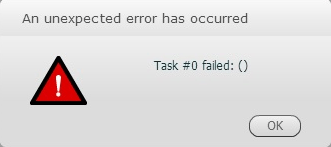
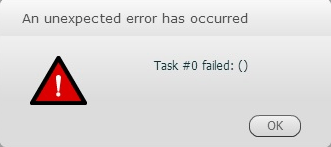
When using an Attribute form based on an ApplySimple sentence containing the CASE function to return string and then using this Attribute as a selector in a Dynamic Dashboard, the following error message appears when switching the selector elements in Strategy Web 9.4.1 and above: 
ka04W00000147w8QAA_0EM4400000026X5.png


An unexpected error has occurred
Task #0 failed: ()

 
No entry is appended into the Strategy Intelligence Server log file (DSSErrors.log) but the error message below appears when enabling the Flash Debugger (KB17128: How to enable the Flash Debugger in MicroStrategy Web 9.4.1 ):

ka04W00000147w8QAA_0EM4400000026X4.jpeg


Submit Manipulations failed: ()
Refresh Document failed: Task #0 failed ()
 
 
STEPS TO REPRODUCE:
Follow the steps below to reproduce this issue as of the Strategy Tutorial project, including its metadata and warehouse:
 
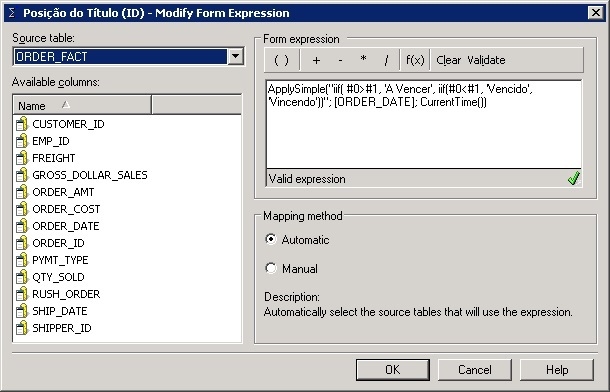
1) Create an attribute based on the ORDER_DATE table with the ApplySimple statement below:

ka04W00000147w8QAA_0EM4400000026Wu.jpeg


Sql
ApplySimple("IIF(#0>#1, 'A Vencer', IIF(#0< #1, 'Vencido', 'Vincendo')"; ; CurrentTime())

 
NOTE: In this case the IIF function was used because Microsoft Access does not support the usage of CASE as other database engines such as Oracle or Microsoft SQL Server, e.g.: For Oracle, the same statement would be:

Sql


ApplySimple("CASE WHEN #0 > #1 then 'A Vencer' WHEN #0 < #1 then 'Vencido' else 'Vincendo' end"; order_date; CurrentTime())
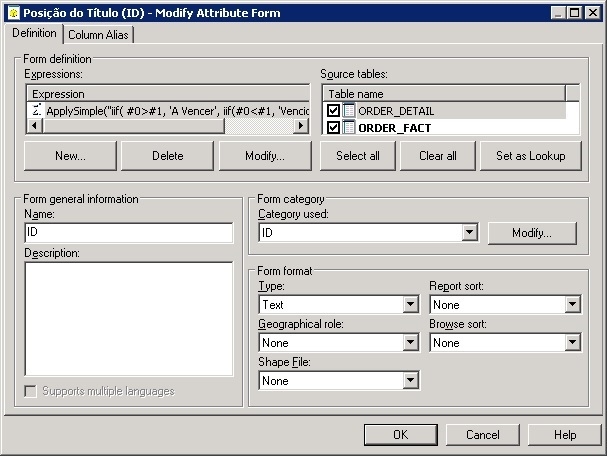
 
2) Under Form format, select Text in the Type Drop-down list:

ka04W00000147w8QAA_0EM4400000026Wq.jpeg

 
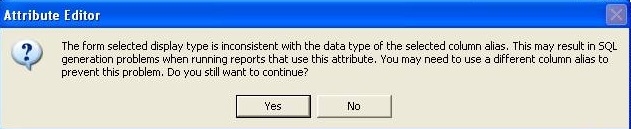
3) Click on OK, so a message appears, informing that the Form data type is inconsistent with the Column Alias data type what is expected in this case, then click on OK to proceed:
ka04W00000147w8QAA_0EM4400000026XC.jpeg


The form selected display type is inconsistent with the data type of the selected column alias. This may result in SQL generation problems when running reports that use this attribute. You may need to use a different column alias to prevent this problem. Do you still want to continue?
 
4) Create a report with the newly created attribute.
5) Create a dashboard using the report created in the previous step as dataset.
6) Add a Drop-down Selector based on this attribute.
7) Move to the Flash View mode and switch the Selector elements then the referred error message shows up:

ka04W00000147w8QAA_0EM4400000026Wr.png


CAUSE:
This is a known issue in Strategy Web 9.4.1 and above..
 
 
ACTION:
Strategy will continue to investigate and post updates as soon as they are available.
 
NOTE:
For additional information regarding pass-through expression ApplySimple and Attribute form data type, refer to the Strategy technical notes:

  • KB3905: How to use pass-through expression- ApplySimple in MicroStrategy SQL Generation Engine
  • KB14102: ‘The form selected display type is inconsistent with the data type of the selected column alias. … You may need to use a different column ...’ message appears when changing an attribute form expression in MicroStrategy Desktop 8.x
  • KB17619: How to create a conditional attribute in MicroStrategy Desktop 8.x

WORKAROUND:
 
NOTE: Consider this workaround based on the fact it may result in SQL generation issues when running reports that use this attribute.
 
1) Create a new column alias based on the expected data type, in this case Character as seen:
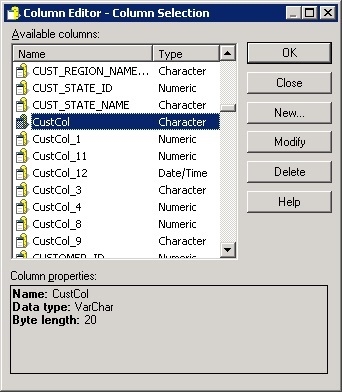
ka04W00000147w8QAA_0EM4400000026Ws.jpeg

 
2) In the Attribute editor, under the Form format menu, in the Type Drop-down list, this workaround worked fine when using either Datetime or Text:
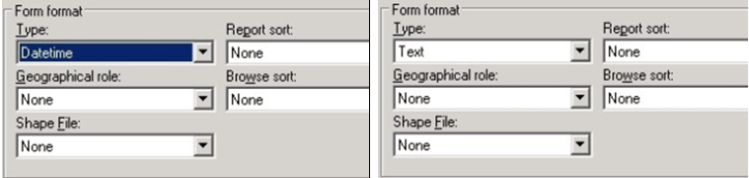
ka04W00000147w8QAA_0EM4400000026XA.png

 
3) Perform a Schema Update.


Comment

0 comments

Details

Knowledge Article

Published:

June 14, 2017

Last Updated:

June 14, 2017