SYMPTOM
A user trying to access Strategy Web will use a browser to request the Strategy Web application files to the application server, in this case Microsoft IIS. However, before Microsoft IIS serves the Strategy Web application files to the client machine, it must determine if the user is allowed to use the files requested. This authentication operation is entirely handled by Microsoft IIS, and it does so through several authentication modes. The two most common authentication modes used are Anonymous and Windows Authentication.
Whenever the authentication fails, an error such as an HTTP 401 Unauthorized error may appear, or the user may be presented with a network prompt asking for credentials. The user's perception may be that Strategy is not working or not configured correctly, however it is the browser's job to retrieve the NTSID credentials from the client machine's OS. It is the duty of the application server to retrieve those credentials correctly and match them to the Active directory user repository to retrieve their level of access, and then to compare it against the access control list properties set for the requested file at the OS level. At this point, since the Strategy Web 9.x files have not even been served to the user, the Strategy Web code has not even been executed, thus the issue must be troubleshooted in IIS and in some instances Strategy Technical Support may request the customer to seek help from a Microsoft expert.
As a basic troubleshooting option, Strategy Technical Support may ask to verify that the appropriate permissions (ACLs) have been set at the Strategy Web application (or virtual directory) level.
ACTION
The following procedure describes how to add the IIS_IUSRS user and the NETWORK SERVICE user with full permissions to the Strategy Web application using Microsoft Internet Information Services 7.
Note: in step 9, use IIS_IUSRS if using Anonymous authentication or NETWORK SERVICE if using Windows Authentication.
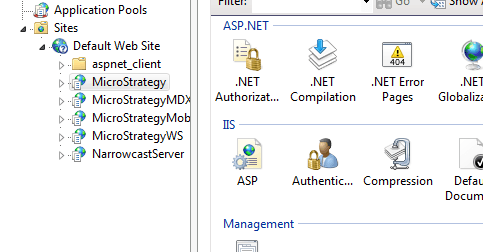
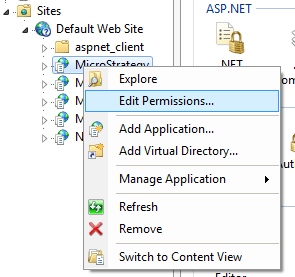
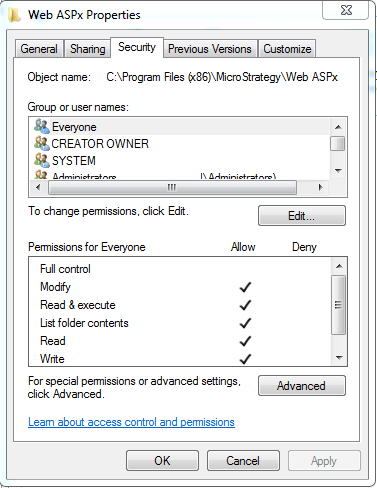
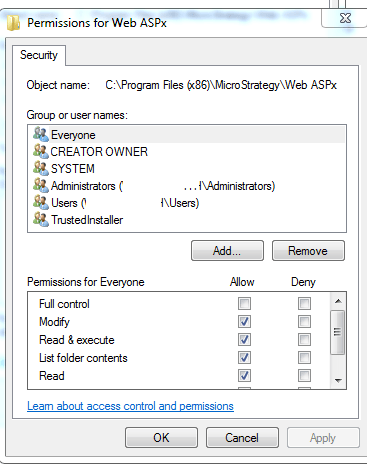
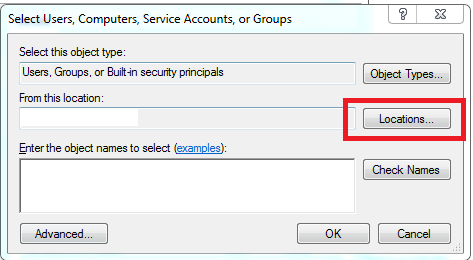
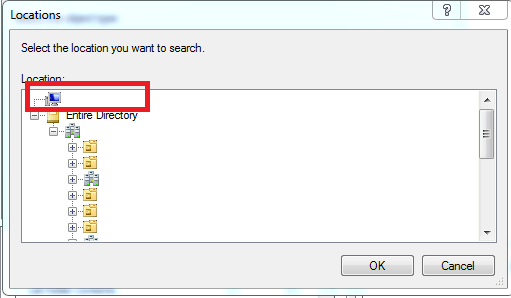
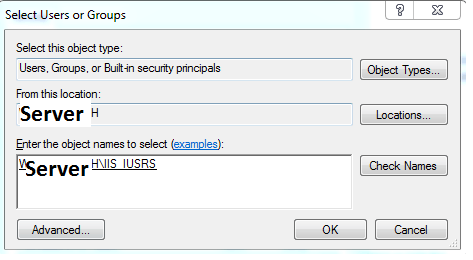
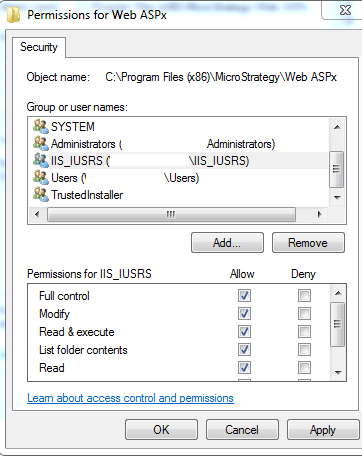
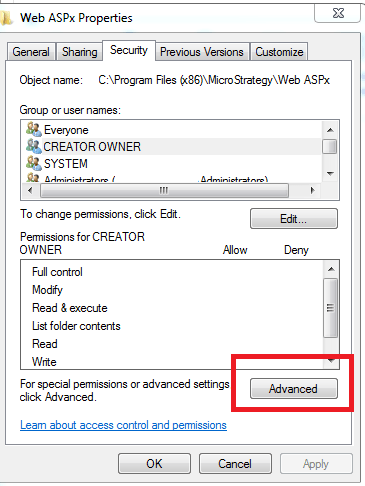
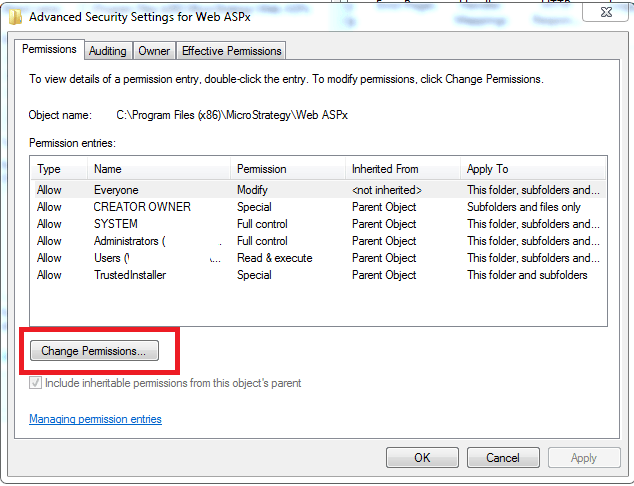
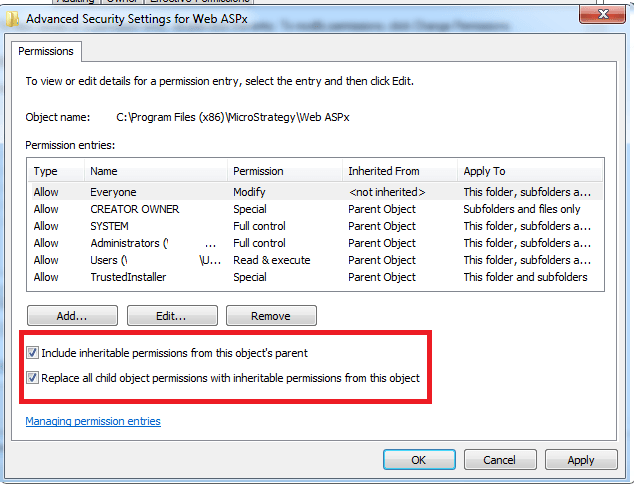
Note: Because this is a troubleshooting step taken toward troubleshooting a Microsoft IIS operation, this applies to any application, including Strategy Mobile and Web Services 9.x.
Third Party Software Installation WARNING
The third-party product(s) discussed in this technical note is manufactured by vendors independent of Strategy. Strategy makes no warranty, express, implied or otherwise, regarding this product, including its performance or reliability.
